




The new proposal presentation (coming soon)
The new proposal presentation shows your customer a picture of their room that changes with their selections, Budget, Balanced and Best options, and the Lookbook, with the price updating as they choose.
More in Proposals & Client Experience
Presentations
- The new proposal presentation (coming soon)
- Turn on the Lookbook (coming soon)
- Building stellar job-winning presentations
- Changing presentation settings
- How to Download & Print Proposals
Options, upgrades & selections
- How to Make Items Optional
- How to Make Assemblies Optional
- How to Add Upgrades to Assemblies
- How to Add Line Item Upgrades
- Building a Selector Tool (or Variation Options) with pricing
- Using the Selections tab
- How to Let Buyers Set Their Own Quantity or Dimension
Custom inputs
- How to Add a Custom Input or Question to a Proposal or Template
- How to Add Pre-Built Paint Fandexes to a Line Item
Customer portal
Coming soon. The new proposal presentation hasn't been released yet. This guide shows how it will work once it's in your account.
The new proposal presentation is what your customer sees when they review and sign your estimate. It shows them a picture of their room, options at different price points, and designer looks, so they can see the finish before they choose it.
Open the presentation
- In the left-hand menu, click Jobs, then open the job.
- In the job's left-hand menu, click Proposal.
-
Scroll to Your project.
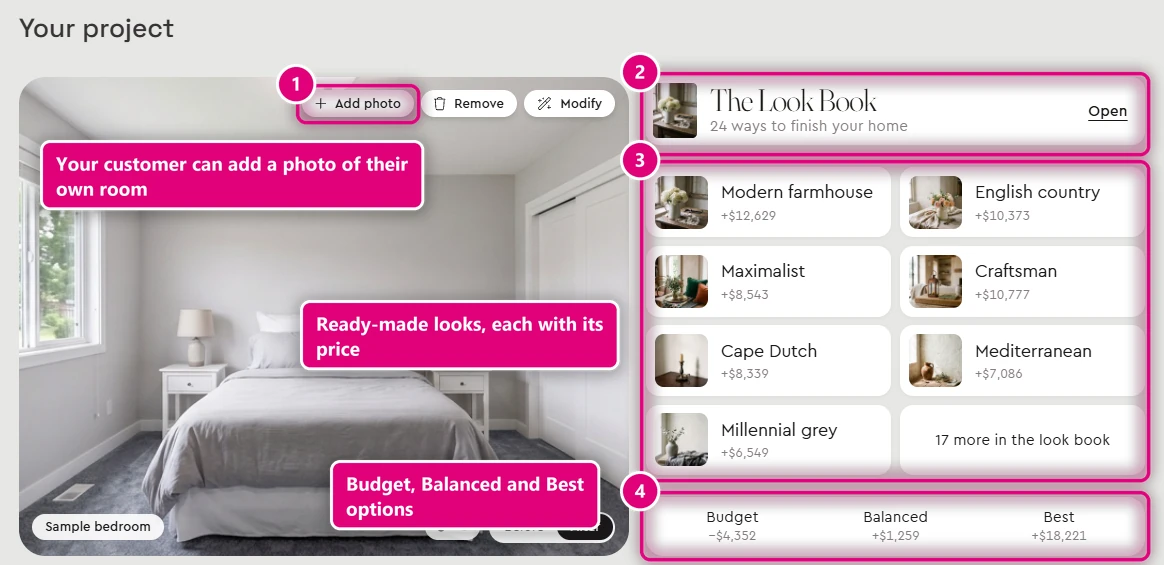
What's in Your project
- A room picture. Every area of the estimate is tied to a room picture, and it changes as your customer moves through the options, for example a bedroom when they're choosing carpet.
- Their own room. Your customer can click Add photo to upload a photo of their own room. You can also swap in your own pictures. If the estimate started from a photo, that photo is used.
- Before and After. Your customer can switch between the room as it is and with the new finish.
- Budget, Balanced and Best. These options are generated for you, each with how much it changes the price.
- The Look Book. Designer looks built from the finishes on your estimate. To turn it on, read Turn on the Lookbook.
Prices update as they choose
When your customer changes a selection, the price updates straight away. The materials that go with it update too: underlayment, sundries and compatible edges.
Change the layout
- In the toolbar at the bottom of the presentation, click the cog. Theme settings opens.
- Under Layout, choose Cards, Tree or Visual.
- Click Save.
Theme settings apply to every job that uses the same theme.
Related guides
- Estimate from plans with AIVideoEstimating · AI estimating
- Building stellar job-winning presentationsProposals & Client Experience · Presentations
- Building a Selector Tool (or Variation Options) with pricingVideoProposals & Client Experience · Options, upgrades & selections
- Changing presentation settingsVideoProposals & Client Experience · Presentations
- Customizing proposal presentation and pricing visibilityVideoEstimating · Working in the estimate