Visual Proposals for Contractors: From Plans to a Priced Lookbook in Minutes
Most residential quotes still arrive as a PDF: a list of line items, a total and, if the homeowner is lucky, a small photo of each product. That is a hard way to choose a floor for a whole house. It is even harder to justify paying more for a better one.
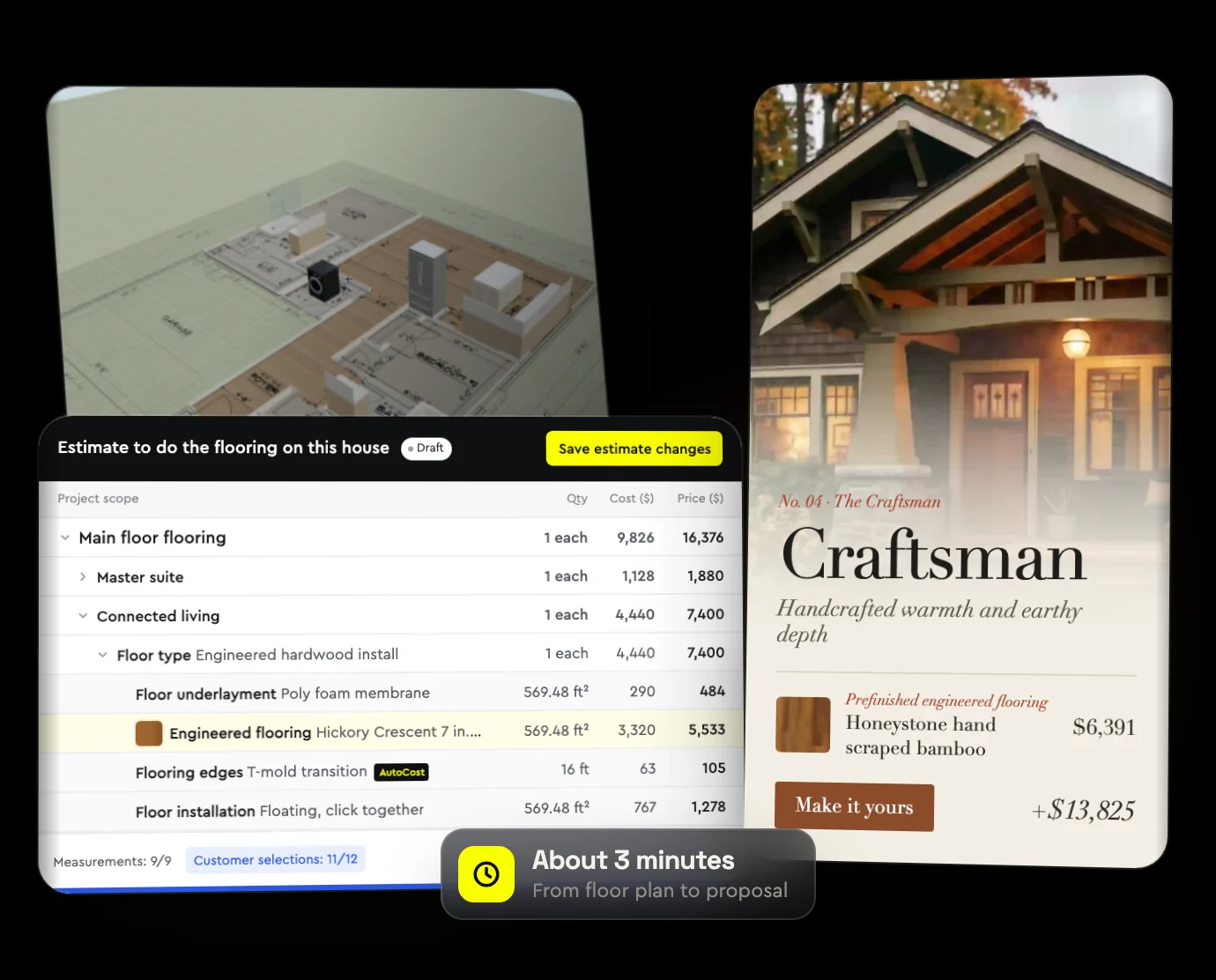
Bolster now takes a contractor from uploaded plans to a finished, visual proposal in one pass. The AI does the takeoff and builds the estimate, and the proposal shows each choice in a real room, priced, with a Lookbook of designer looks built from the materials on your estimate. This page covers how it works and why it helps you sell bigger jobs.
What Is a Visual Proposal?
A visual proposal shows the customer what they are buying, not just what it costs. Instead of a line that says "engineered hardwood, 640 sq ft", they see the hardwood in a living room, can switch it to another species, and watch the picture and the price change together.
Homeowners already shop this way. They save ideas on Pinterest and Houzz, flip through design magazines and buy furniture online from staged photos. A proposal that works like that feels familiar, and it is far easier to say yes to.
Step One: AI Takeoff From Your Plans
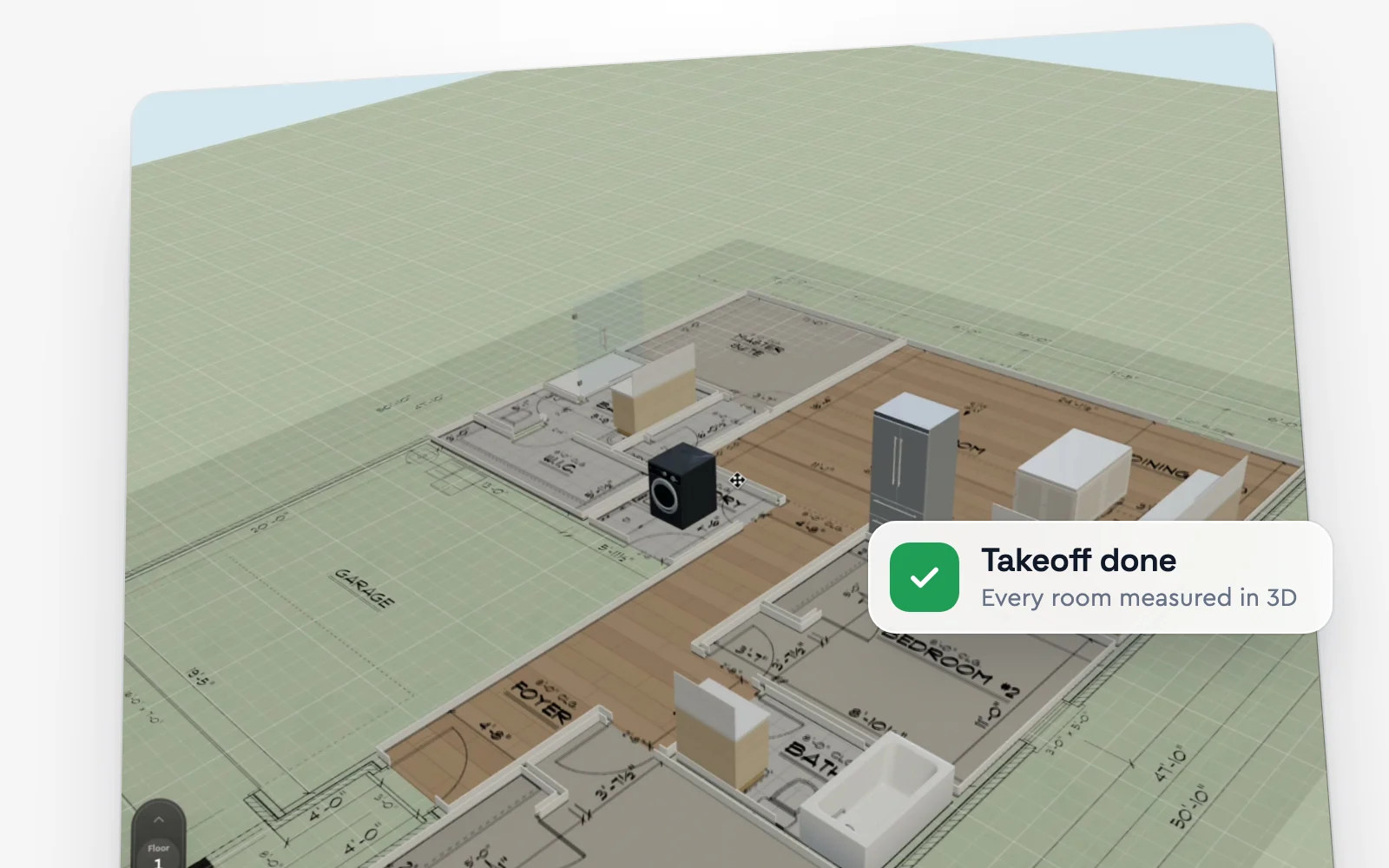
Start a new estimate, upload the floor plan and describe the job in a line. In our walkthrough that line is "estimate to do the flooring in this house". Bolster runs the takeoff in the background and lays it out in 3D, organized by room.
It matches each floor to the room it is in: hardwood through the main living areas, carpet in the bedrooms and tile in the bathrooms. It places the baseboards, knows where the doors are so it can tell where the baseboards go and where the floors connect, and takes the cabinets out of the floor area.
Step Two: A Priced Estimate, Room by Room
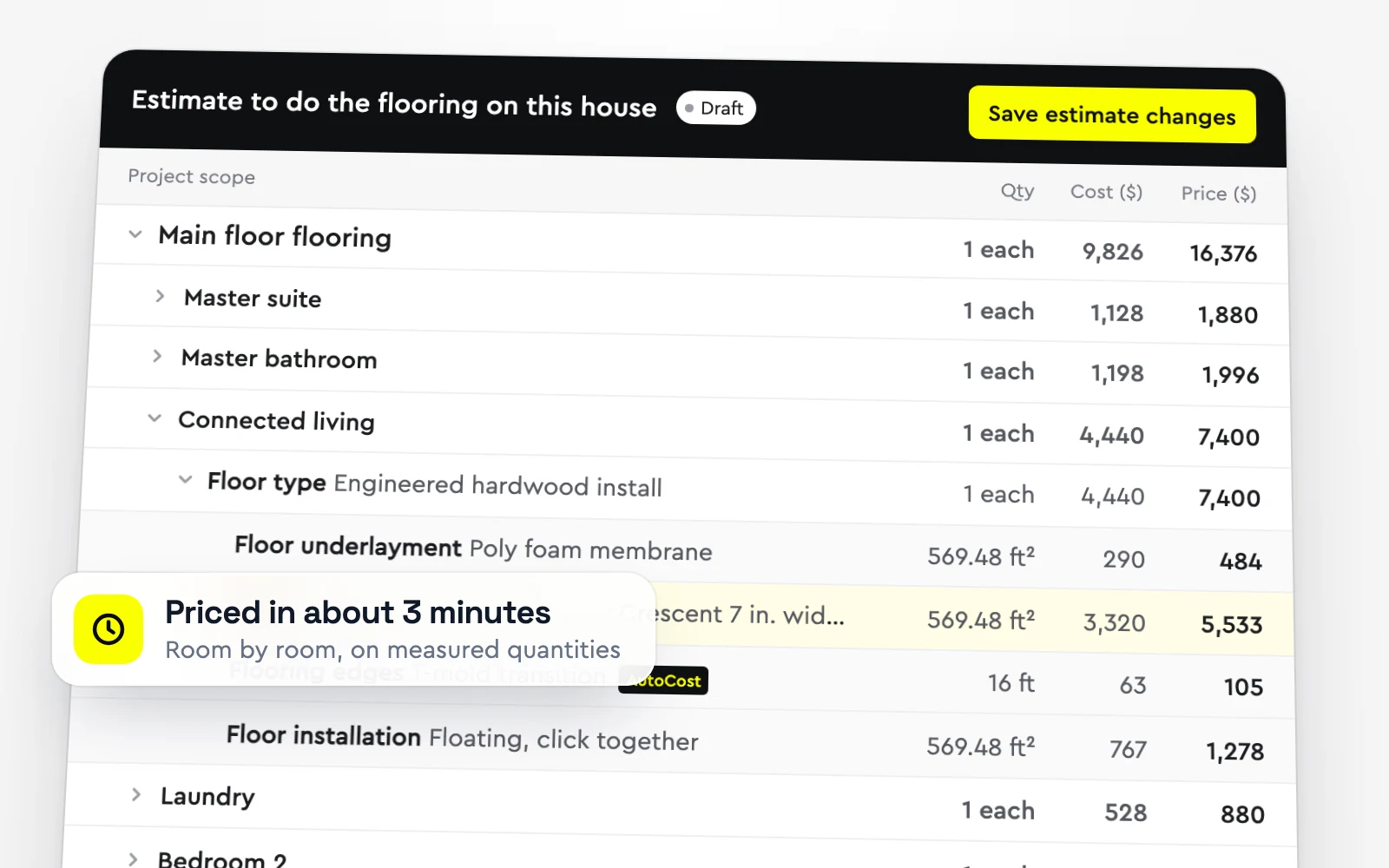
The takeoff feeds the estimate directly. Each room gets its floor, pad, tack strip or underlayment, trim and labor, priced on the measured quantities. In the walkthrough the whole run took about two and a half to three minutes, from upload to a 3D takeoff and a complete quote.
Everything stays editable. Change a material, adjust a quantity or add a line, and the totals update.
Step Three: A Proposal That Reprices Itself
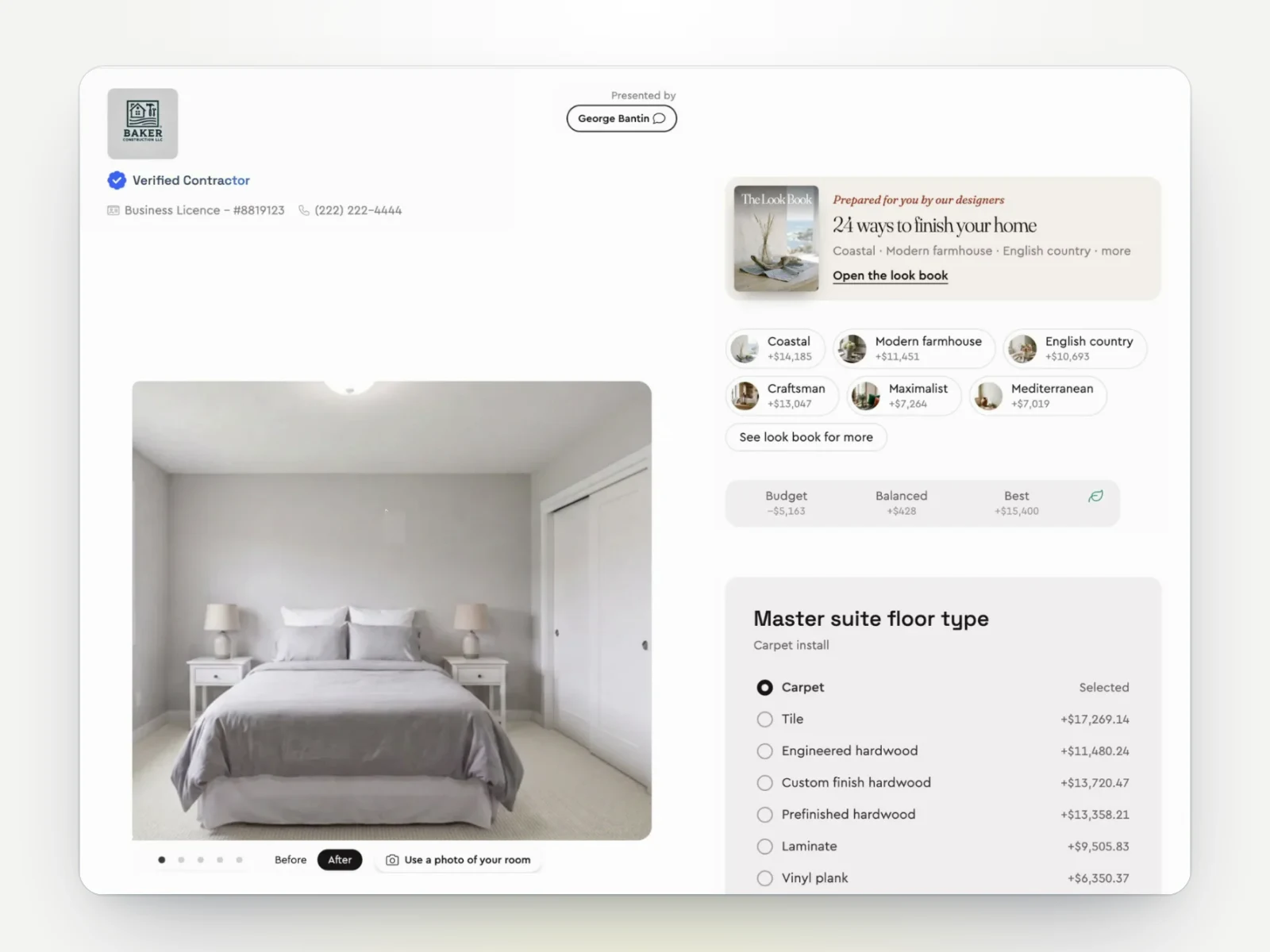
Open the proposal and your customer sees each area with its own room picture. When they choose a different floor, the picture changes and the price updates in real time. You can use your own photos, and the proposal prompts the customer to upload a photo of their own room. If you estimated from a photo, Bolster uses that photo for the picture too.
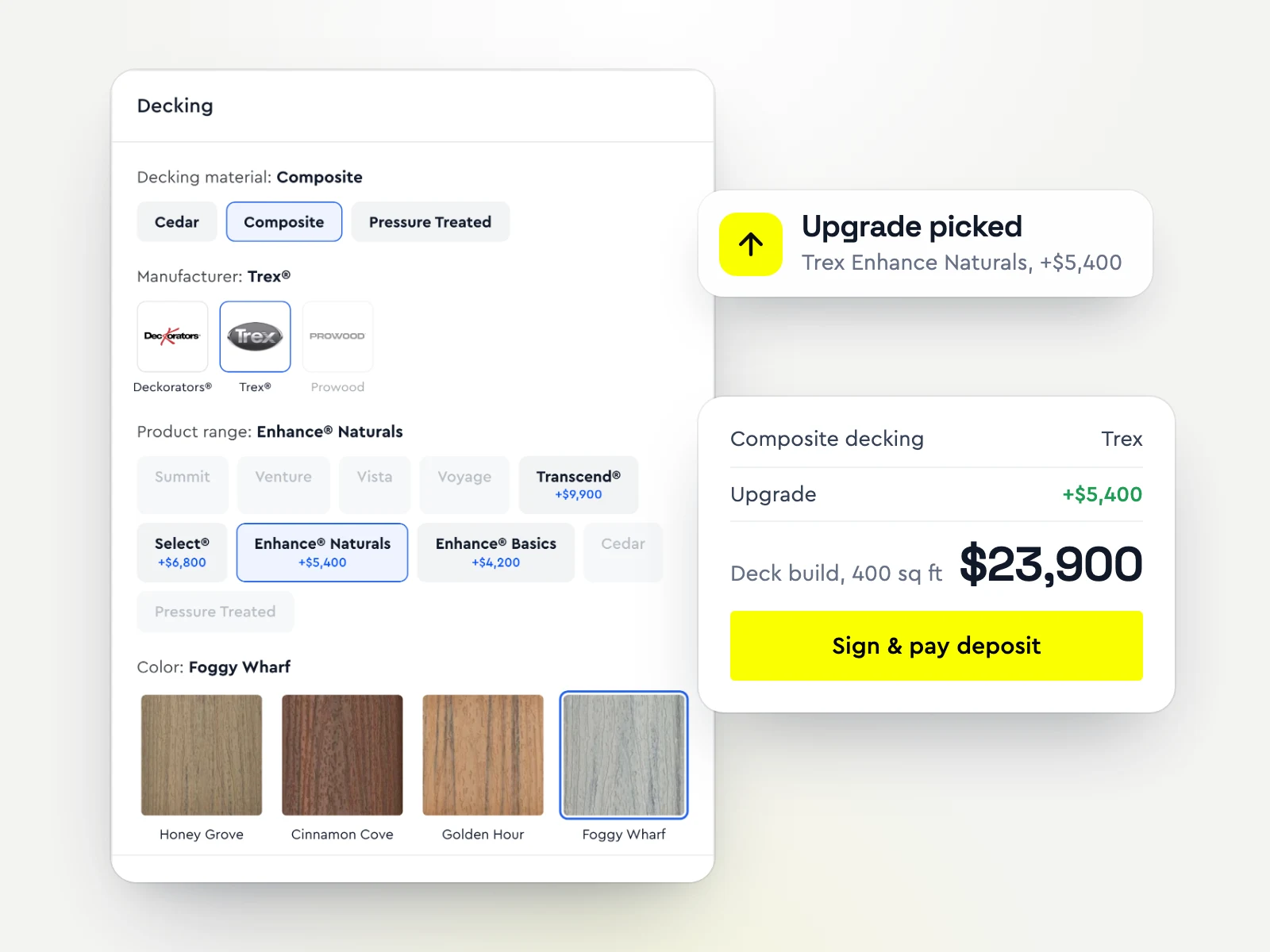
The pricing follows the choice through. Switch the living room from one hardwood to another and Bolster swaps the underlayment, sundries and transition edges to the ones that are compatible with the new floor, so the quote stays right without you touching it.
Step Four: The Lookbook
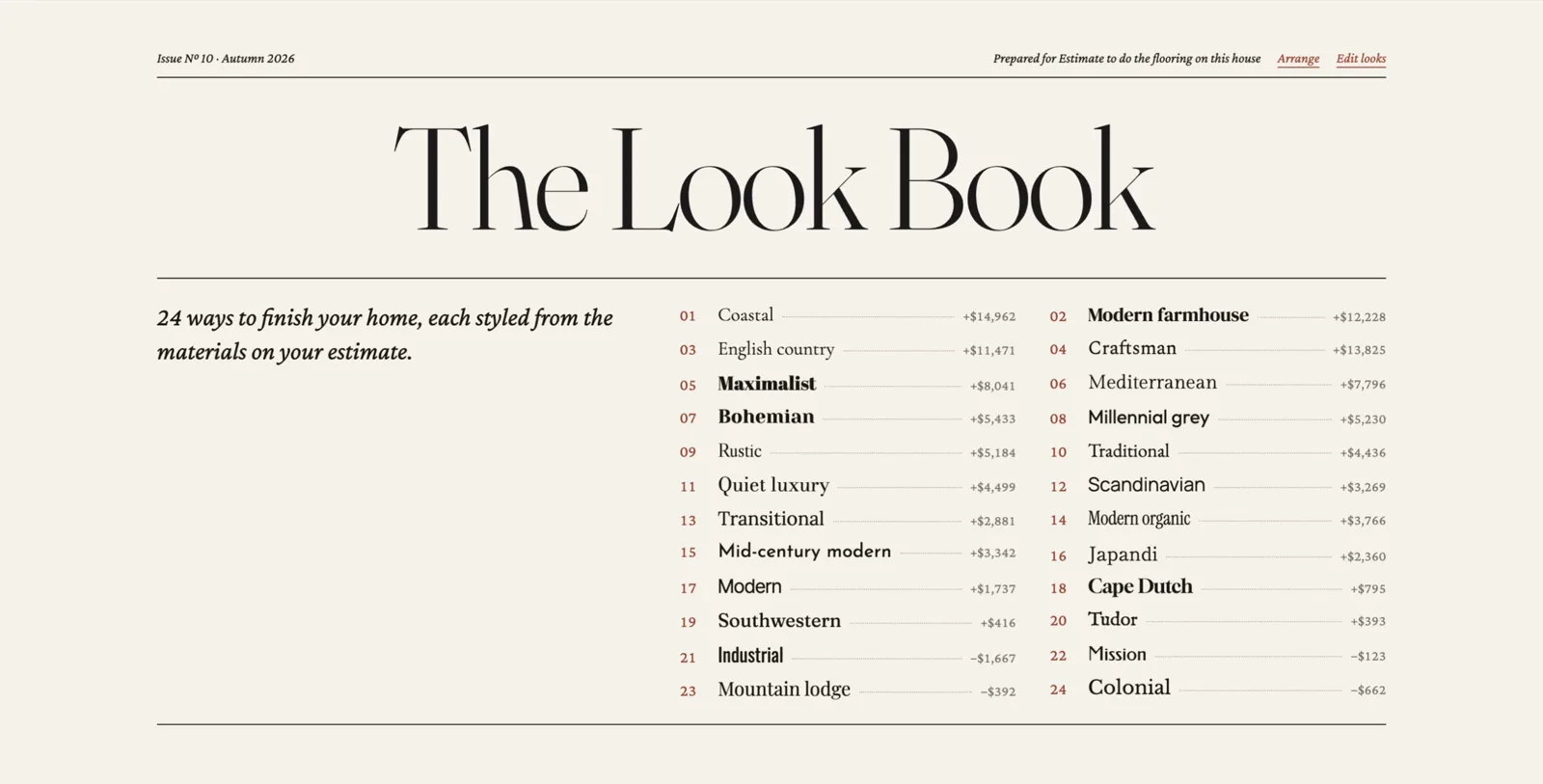
The hardest part of selling finishes is helping a customer choose from hundreds of options. The Lookbook does it with 24 designer looks, including Coastal, Craftsman, Modern farmhouse, English country, Japandi and Mid-century modern. Each look combines finishes from your estimate that go together, such as a tile, a hardwood and a carpet, with a price for the whole look.
Staged room photos: generated from the manufacturer swatch, so customers see the floor in a room, up close and on the wall.
Budget, Balanced and Best: generated automatically, plus an energy-efficiency option.
Mix and match: keep the tile and the hardwood from a look, then scroll every option for the carpet.
Make it yours: one click prices the whole look into the proposal.
The layout is designed like a glossy magazine, because that is how most homeowners planning a renovation have been looking at ideas. When customers can see the aspirational version, they fall in love with better finishes. When they upgrade, the job gets bigger and so does your margin.
How to Turn On the Lookbook
In Bolster, click the cog in your presentation settings and turn on the Lookbook. It takes a little time to generate the first time. After that it does not need to run again for those items, and it loads automatically the next time you send that estimate.
Frequently asked questions
What is the Bolster Lookbook?
The Lookbook is part of the Bolster proposal. It shows your customer designer looks, such as Coastal or Craftsman, built from the materials on your estimate, with staged room photos and a price for each look.
How long does an AI estimate from plans take?
In our walkthrough, Bolster went from an uploaded floor plan to a 3D takeoff and a complete, priced quote in about two and a half to three minutes.
Do I have to build the looks myself?
No. Bolster generates the stock looks and their room photos automatically. You can also create your own arrangements and looks.
Can customers see their own room?
Yes. You can add your own pictures, and the proposal prompts the customer to upload a photo of their own room.
Does the price update when the customer changes a selection?
Yes. The price and the room picture update together, and the related items such as underlayment, sundries and transition edges change to match.
Is the Lookbook a room visualizer?
Yes, built into the proposal. Most room visualizers show one manufacturer's products without a price. The Lookbook shows the finishes on your estimate, from cabinets and countertops to tile and flooring, in staged rooms with your price, and the total updates as the customer chooses.
How do I turn the Lookbook on?
Open your presentation settings (the cog) and turn on the Lookbook. It generates once per item, then loads automatically every time you send that estimate.
Book a demo and we will run a takeoff and a Lookbook on one of your own plans.