




Turn on the Lookbook (coming soon)
The Lookbook groups the finishes on your estimate into designer looks like Bohemian, Craftsman or Modern farmhouse. Turn it on in Theme settings and your customer can browse, mix and match, and price a whole look.
More in Proposals & Client Experience
Presentations
- The new proposal presentation (coming soon)
- Turn on the Lookbook (coming soon)
- Building stellar job-winning presentations
- Changing presentation settings
- How to Download & Print Proposals
Options, upgrades & selections
- How to Make Items Optional
- How to Make Assemblies Optional
- How to Add Upgrades to Assemblies
- How to Add Line Item Upgrades
- Building a Selector Tool (or Variation Options) with pricing
- Using the Selections tab
- How to Let Buyers Set Their Own Quantity or Dimension
Custom inputs
- How to Add a Custom Input or Question to a Proposal or Template
- How to Add Pre-Built Paint Fandexes to a Line Item
Customer portal
Coming soon. The Lookbook hasn't been released yet. This guide shows how it will work once it's in your account.
The Lookbook adds designer looks to your proposal presentation. Each look, like Bohemian, Craftsman or Modern farmhouse, groups finishes from your estimate that go well together. Your customer sees each finish in a staged room photo and up close, so they can picture it in their home.
Turn it on
- Open the job and click Proposal in the left-hand menu.
- In the toolbar at the bottom, click the cog. Theme settings opens.
- Under Add to your presentation, tick Look book.
-
Click Save.
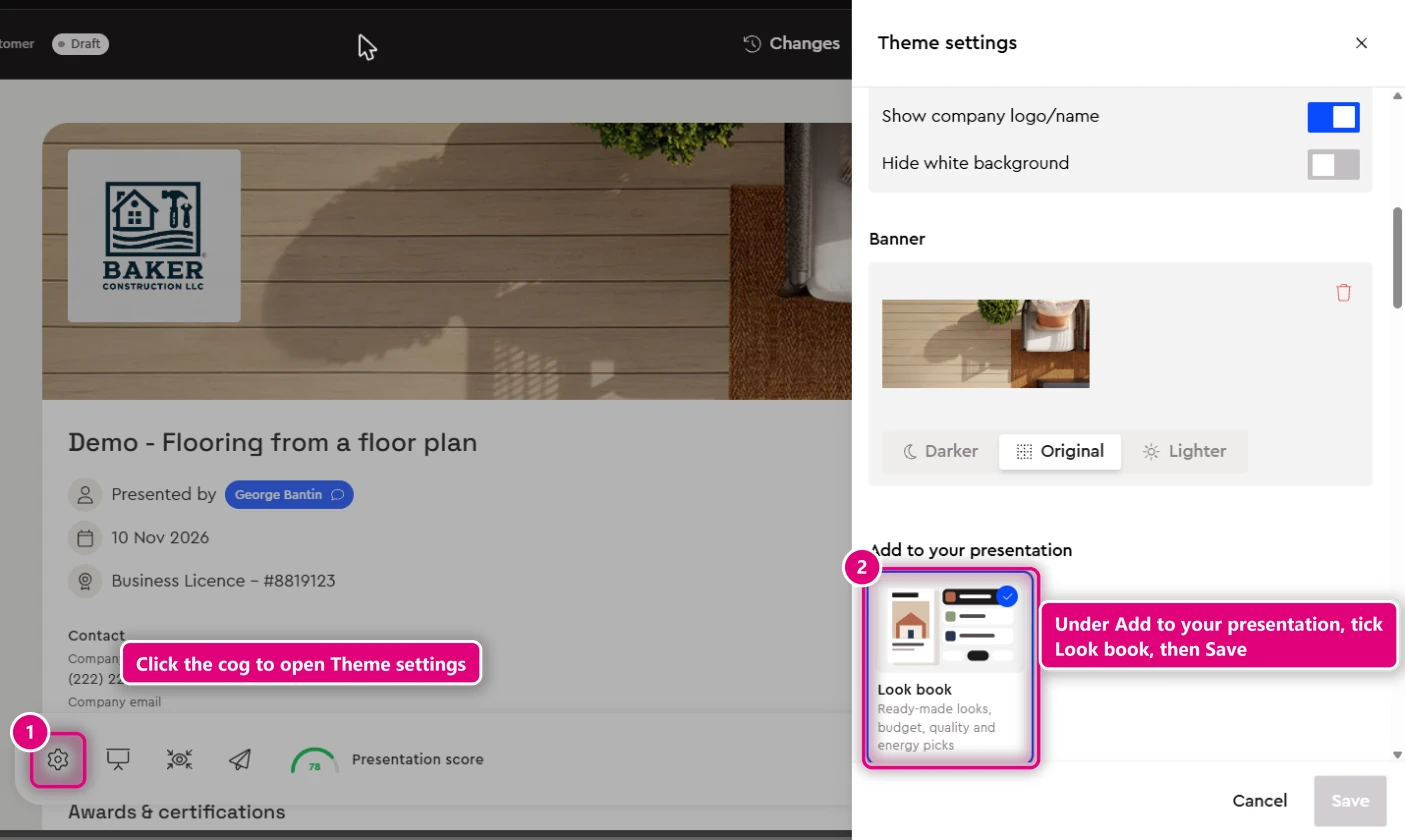
Theme settings apply to every job that uses the same theme.
The first time, Bolster takes a little while to generate the swatches and room photos for the items on your estimate. You'll see Generating swatches with a progress bar. This only happens once for those items. After that, the looks load straight away.
What your customer sees
-
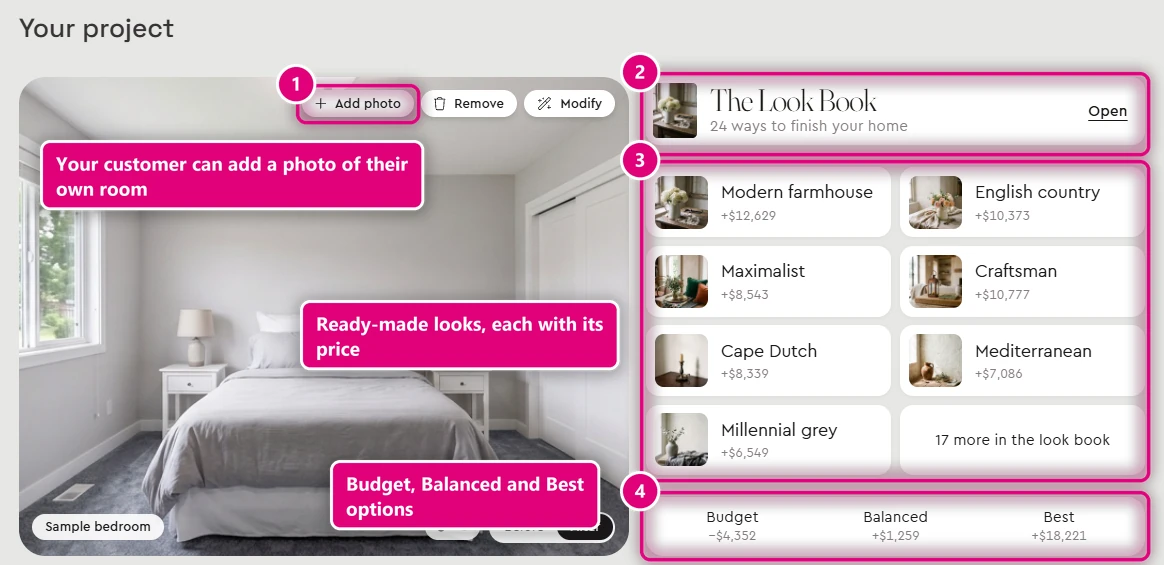
In Your project, The Look Book card shows how many ways there are to finish their home, a few of the looks with their prices, and a link to open it.
-
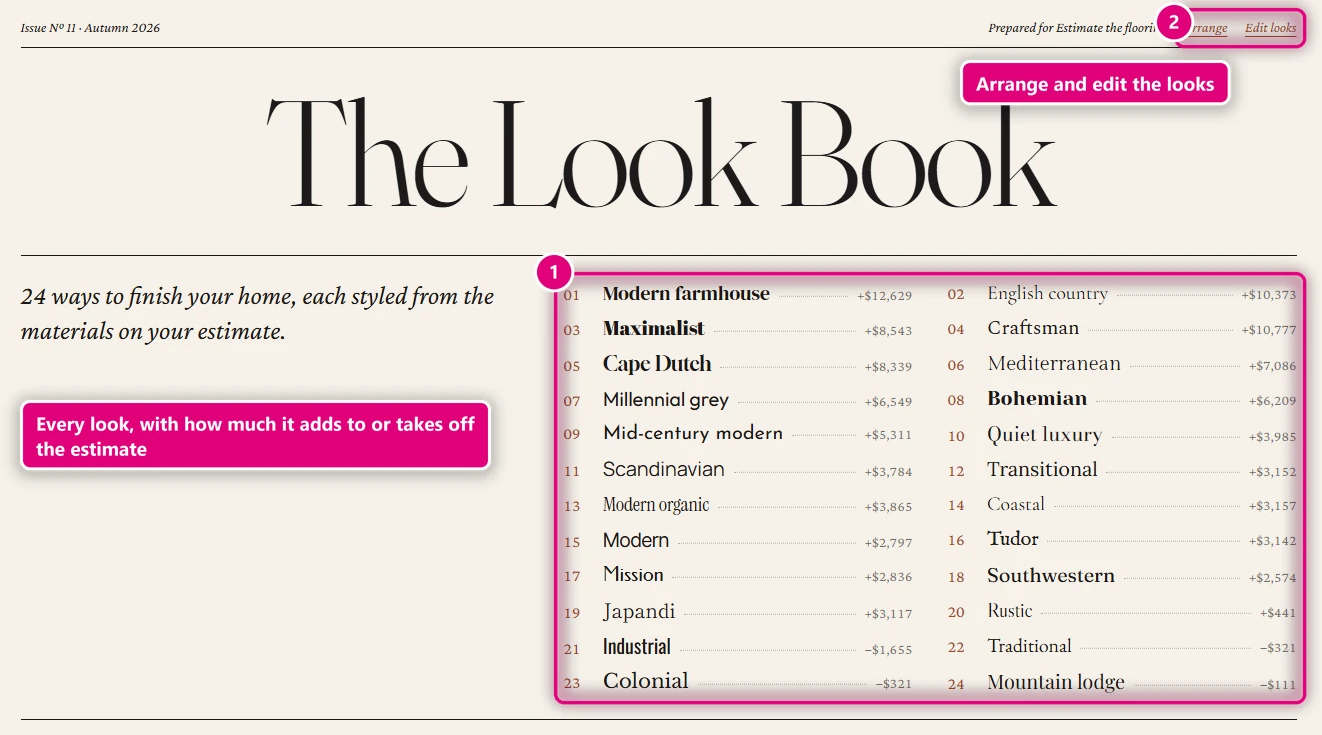
Clicking Open shows the index: every look, with how much it adds to or takes off the estimate.
-
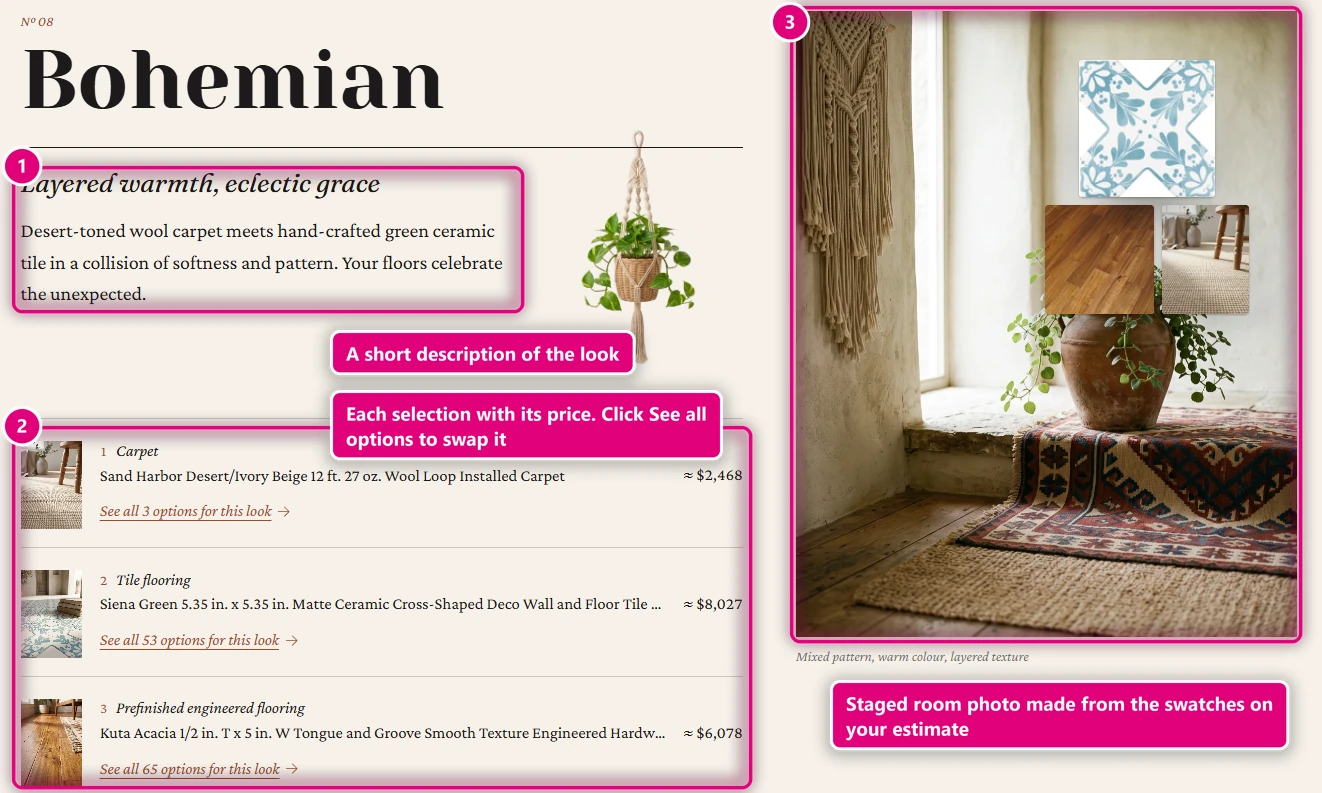
Clicking a look shows a short description, a staged room photo, and the selections it includes, each with a price.
-
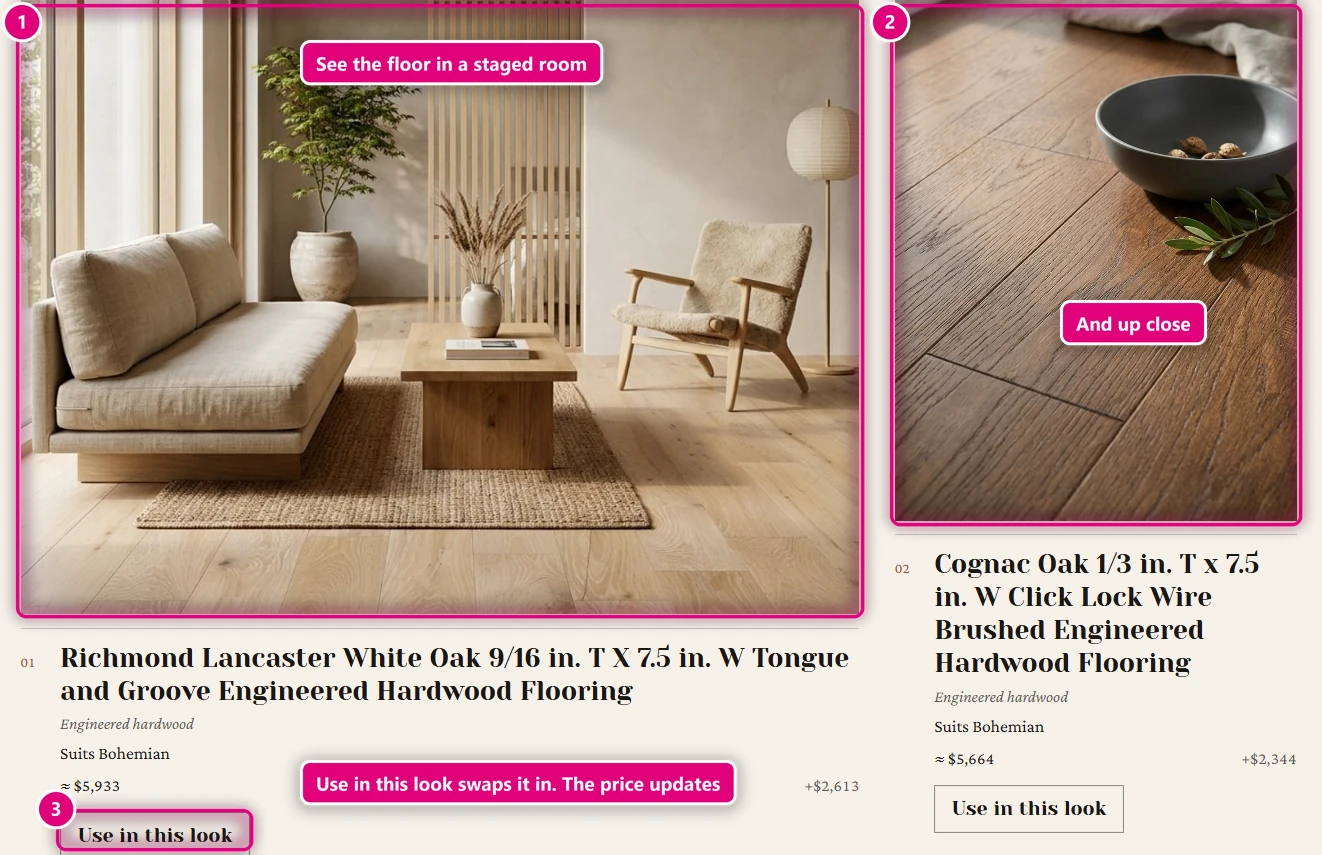
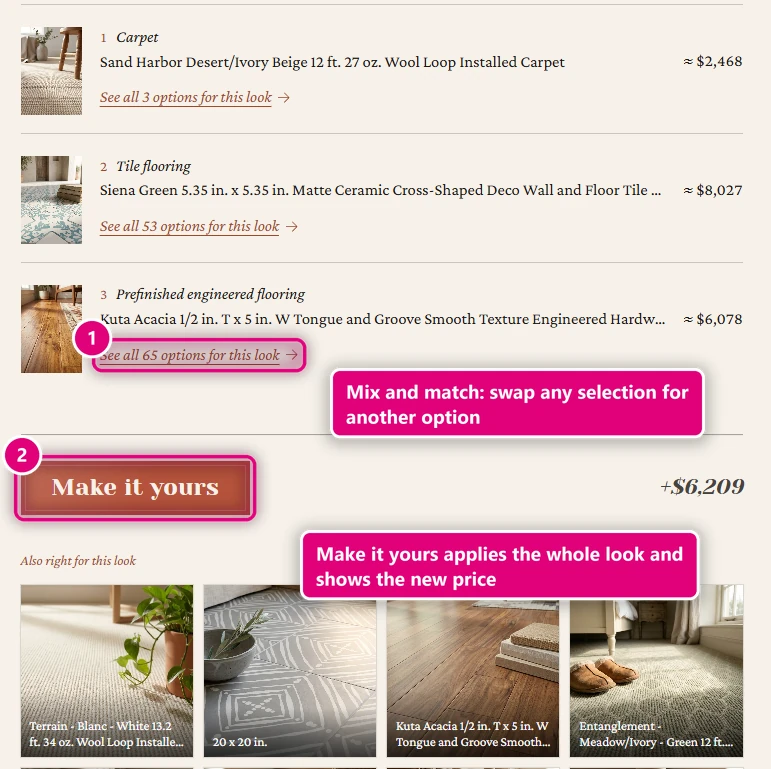
Clicking See all options for this look under a selection lets them mix and match. Each option shows in a staged room and up close, and Use in this look swaps it in.
-
Make it yours applies the whole look to the estimate and shows the new price.
Your own looks
The looks are generated for you from the materials on your estimate. To change them, open the Look Book and use Arrange and Edit looks at the top of the index.
Budget, Balanced and Best
Your project also shows Budget, Balanced and Best options for the job, each with how much it changes the price. These are generated automatically.
Related guides
- Estimate from plans with AIVideoEstimating · AI estimating
- Changing presentation settingsVideoProposals & Client Experience · Presentations
- Building a Selector Tool (or Variation Options) with pricingVideoProposals & Client Experience · Options, upgrades & selections
- Customizing proposal presentation and pricing visibilityVideoEstimating · Working in the estimate
- How to Add Line Item UpgradesVideoProposals & Client Experience · Options, upgrades & selections