
1
Clock in on the task
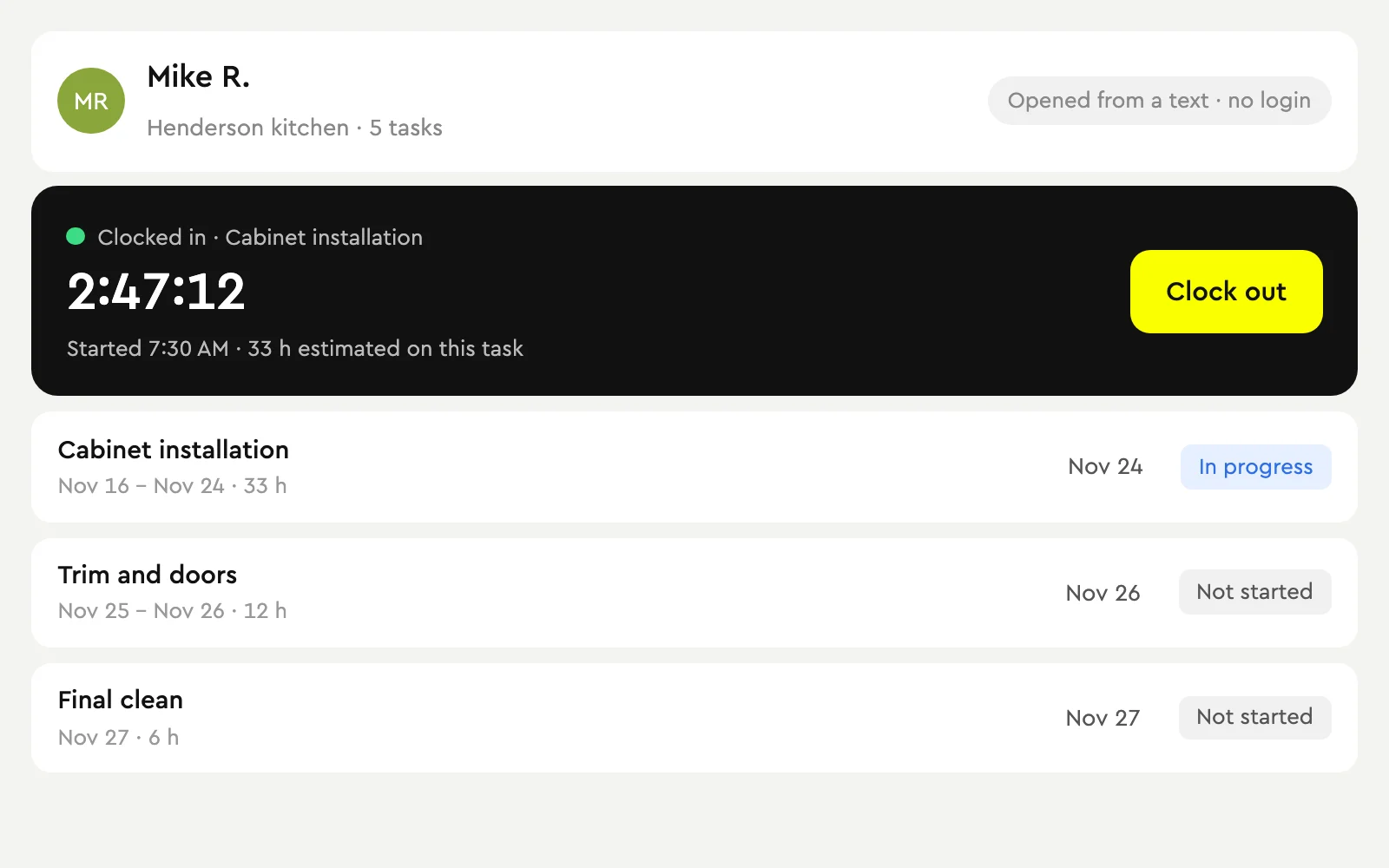
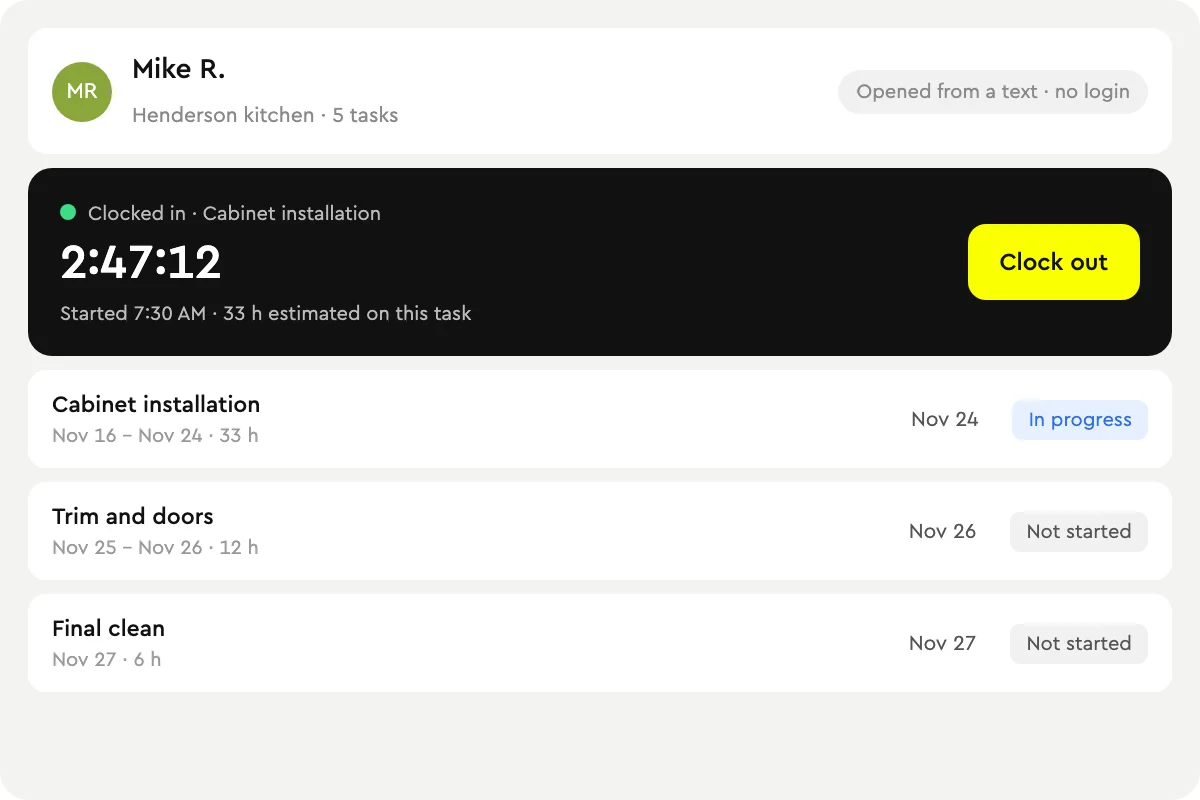
Your crew and subs see the tasks assigned to them and clock in and out on the one they’re working on, from the Bolster field app on their phone. A magic link opens it, so there is no login to remember.
Scheduling



"If we really want to get accurate on job costing, then they gotta get accurate on time clock."
Time is recorded on the work you scheduled, so the hours, the timesheet and the job numbers all come from one place.
Your crew and subs see the tasks assigned to them and clock in and out on the one they’re working on, from the Bolster field app on their phone. A magic link opens it, so there is no login to remember.
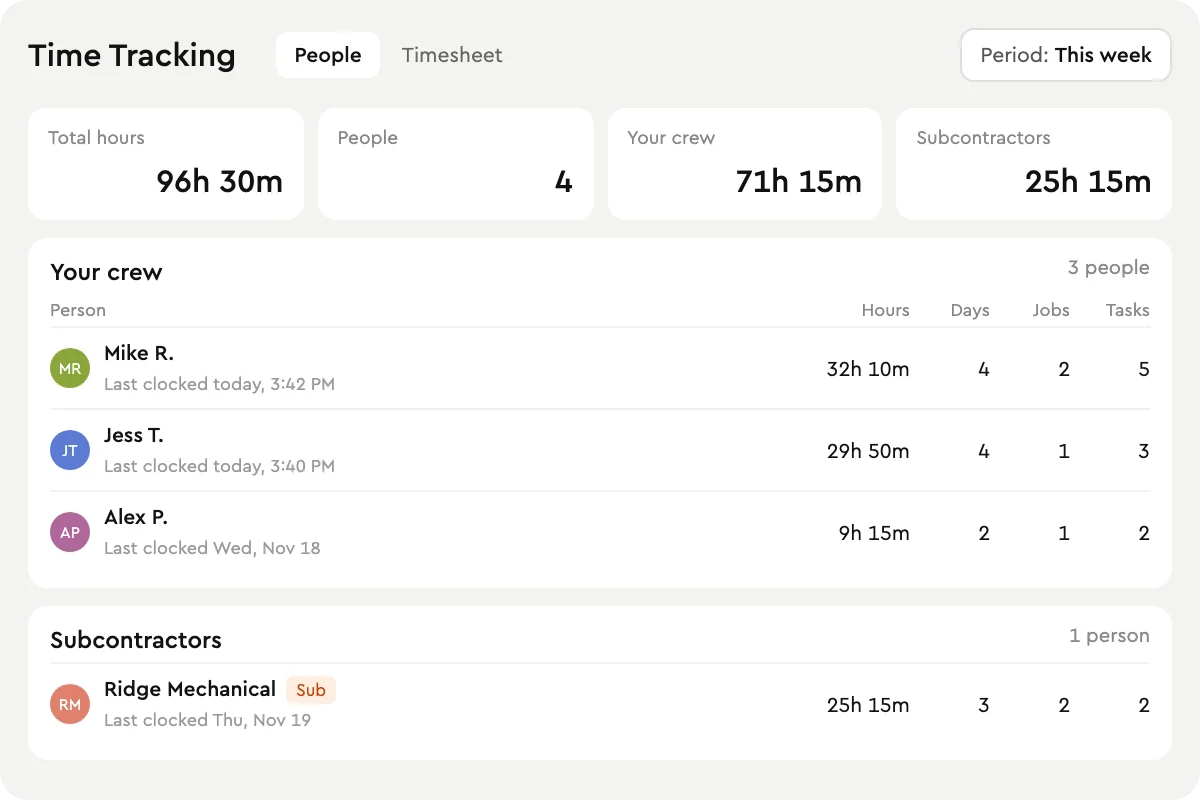
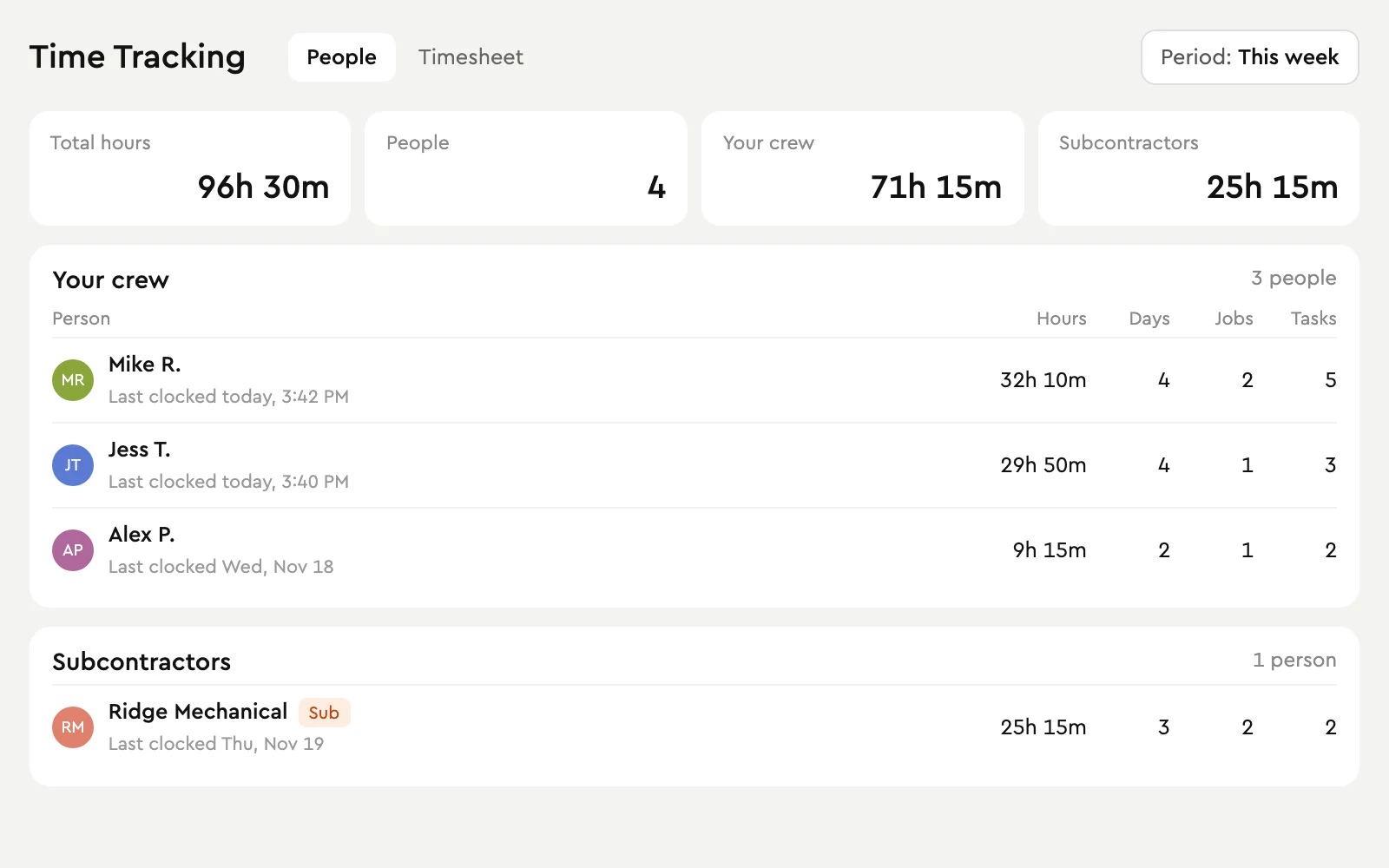
SchedulingThe People view shows total hours for the period, split between your own crew and your subcontractors, with each person’s hours, days, jobs and tasks and when they last clocked in.
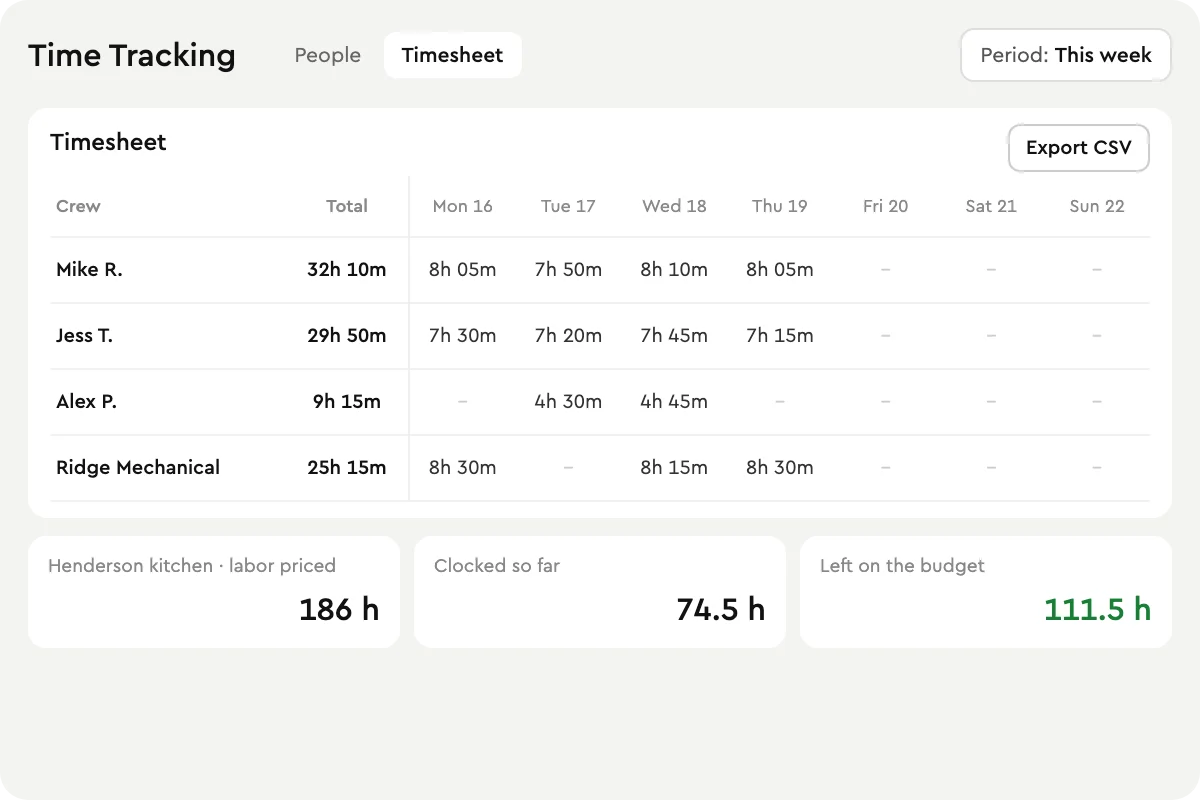
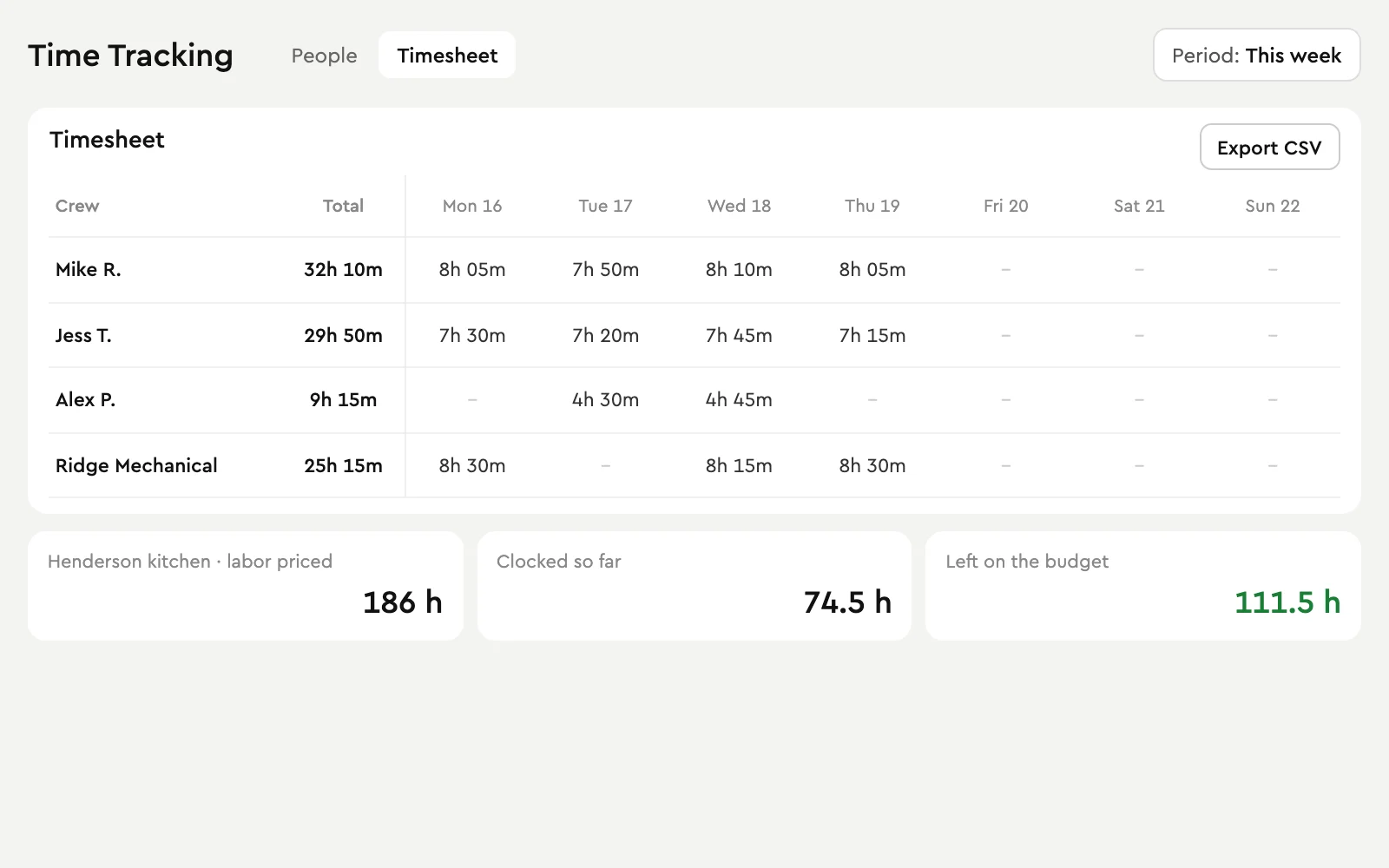
The Timesheet lays every person out day by day for this week, last week, the month or any date range you pick. Export it to CSV or Excel for payroll.
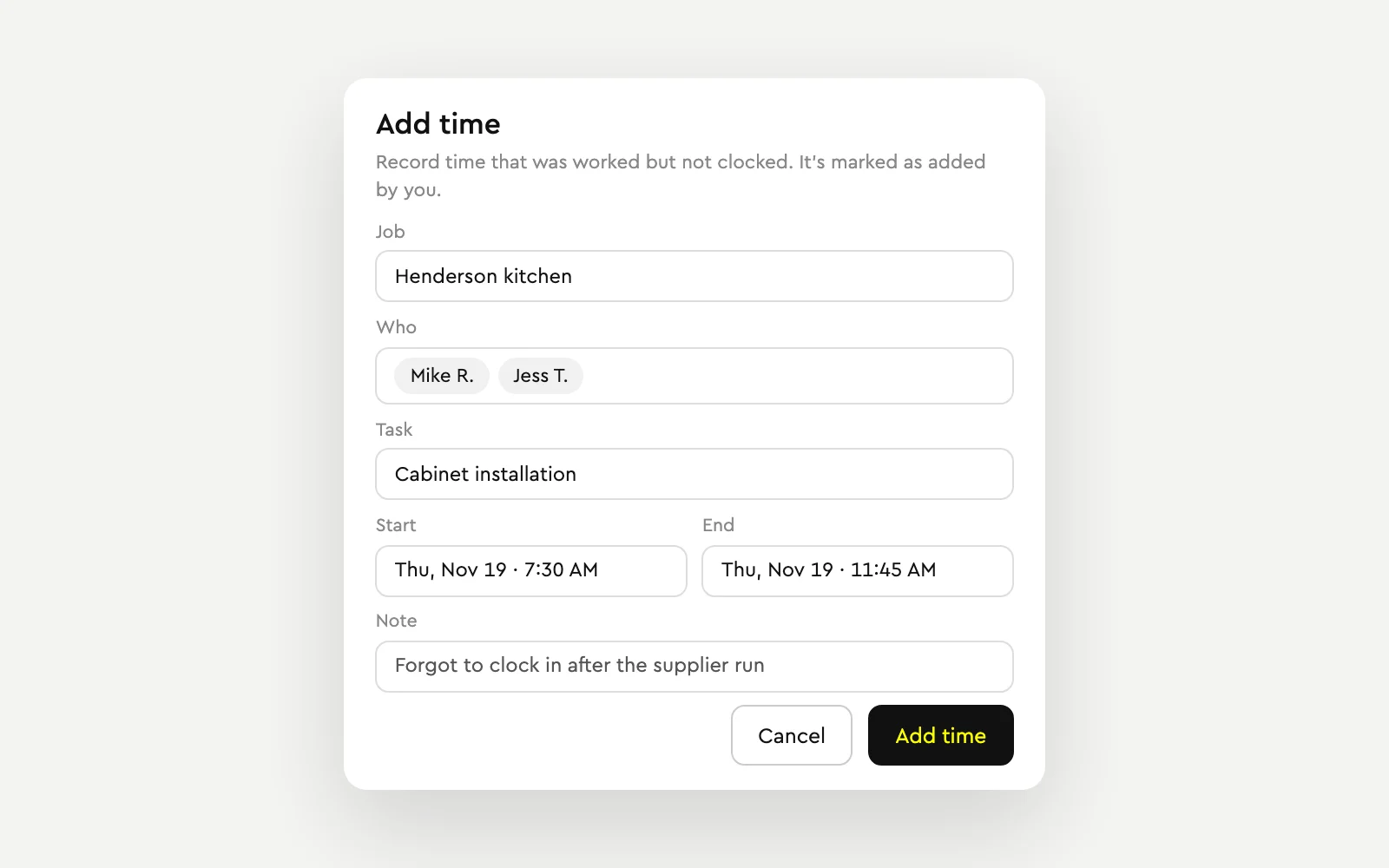
Someone forgot to clock in? Add the time yourself with the job, the people, the task, the start and end times and a note. It’s marked as added by you, so the record stays honest.
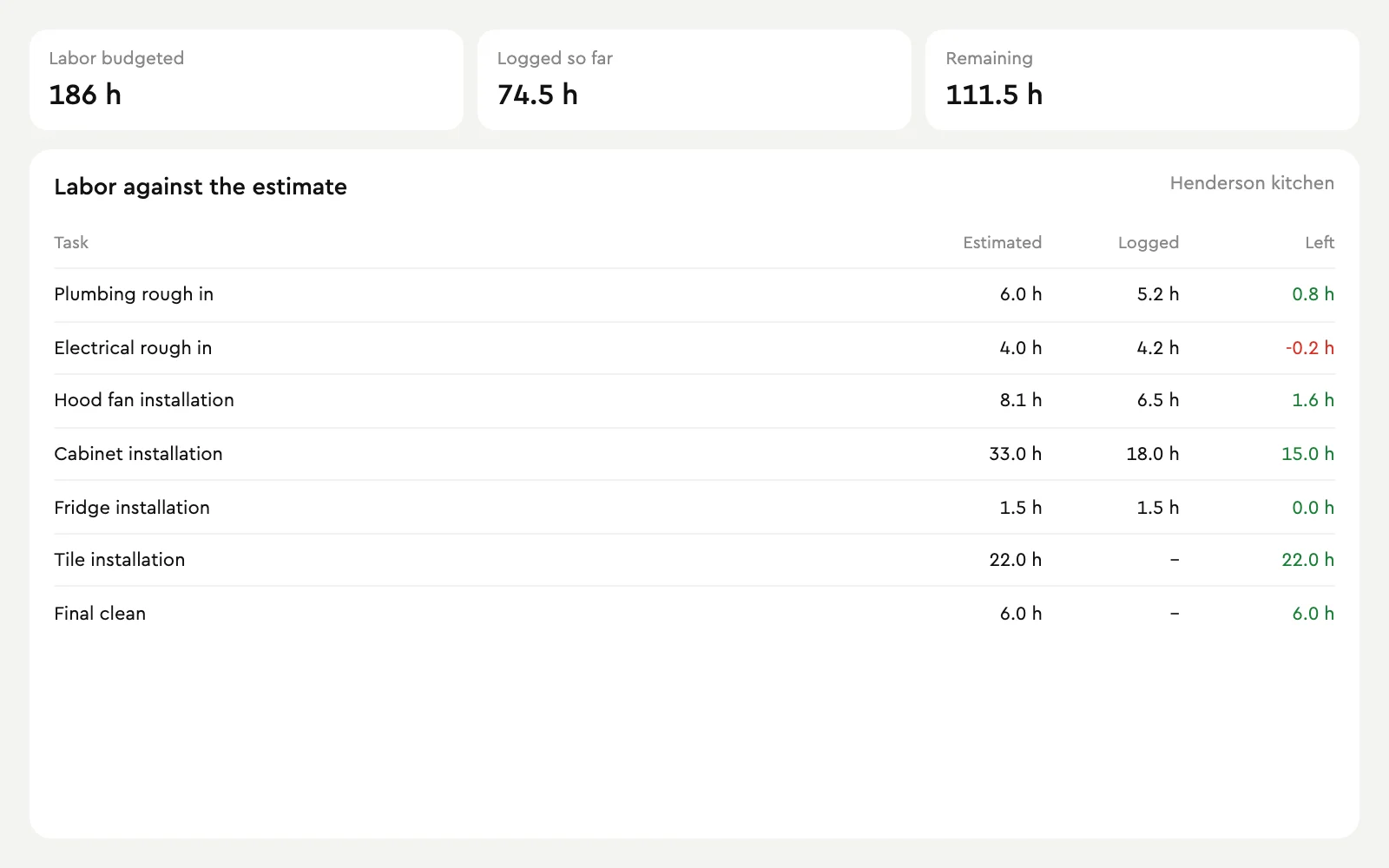
Every line on your estimate already carries labor hours. Clocked time lands on the job budget, so you see labor against the estimate while the job is running, not after it closes.
Material list & budgetCrew and subs get the Bolster field app on their phone. It opens from a magic link, so there is no login to remember.
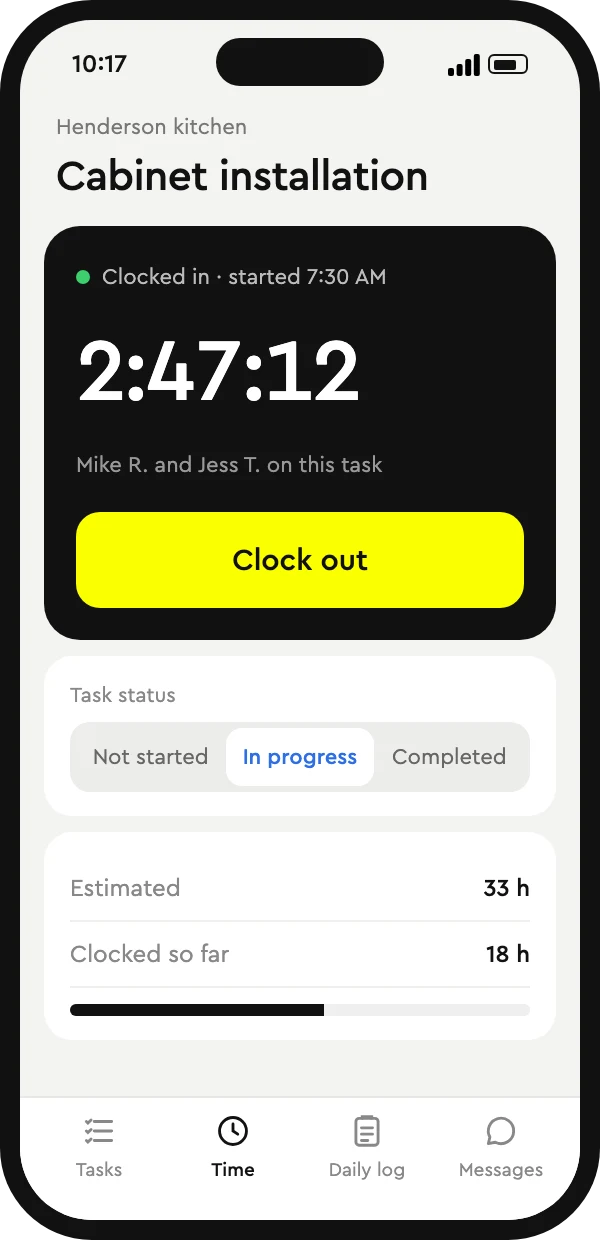
One tap to clock in and out. The hours land on the job budget, against what you priced.
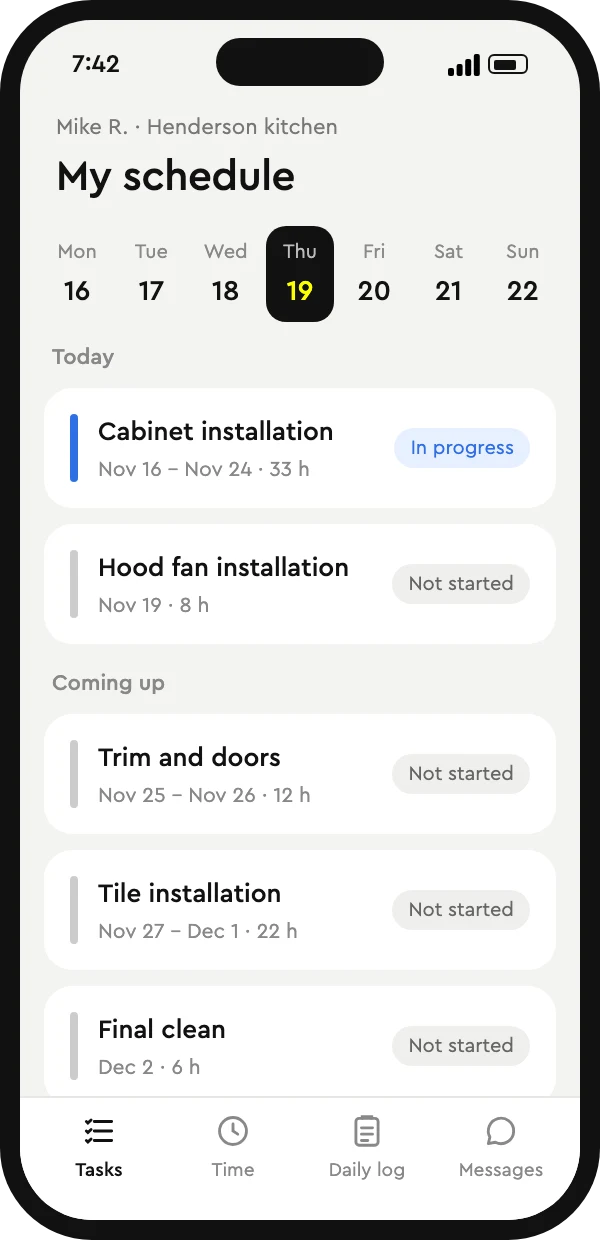
Each person sees the tasks assigned to them and their dates, and marks each one as they go.
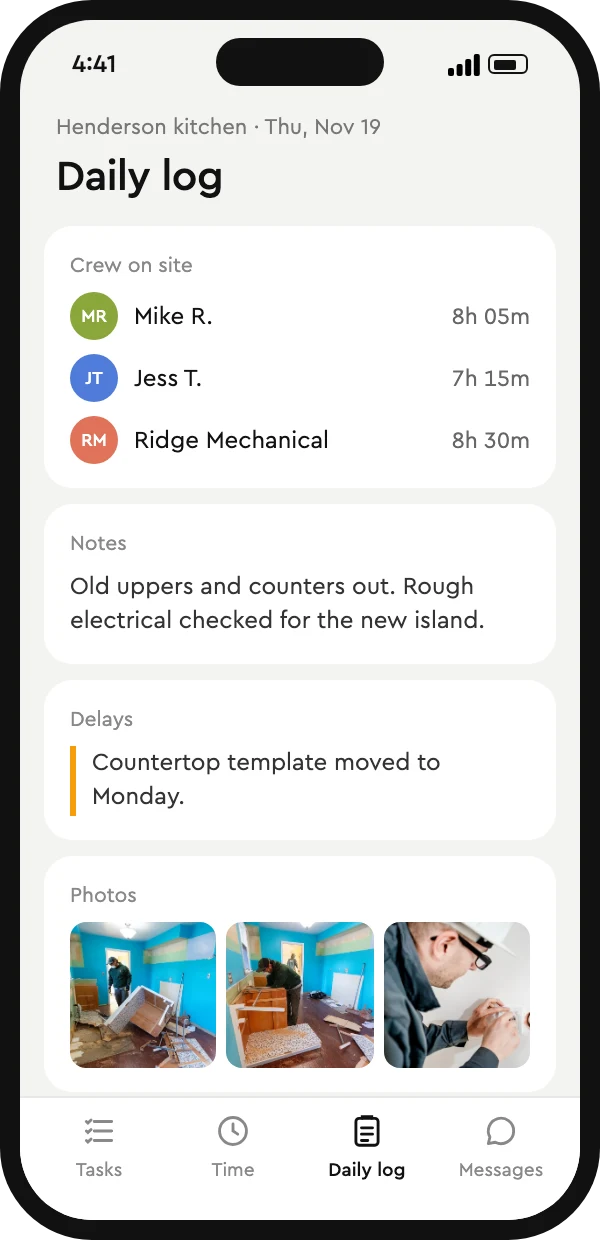
Crew on site, notes, delays and photos, filed on the job and the date.
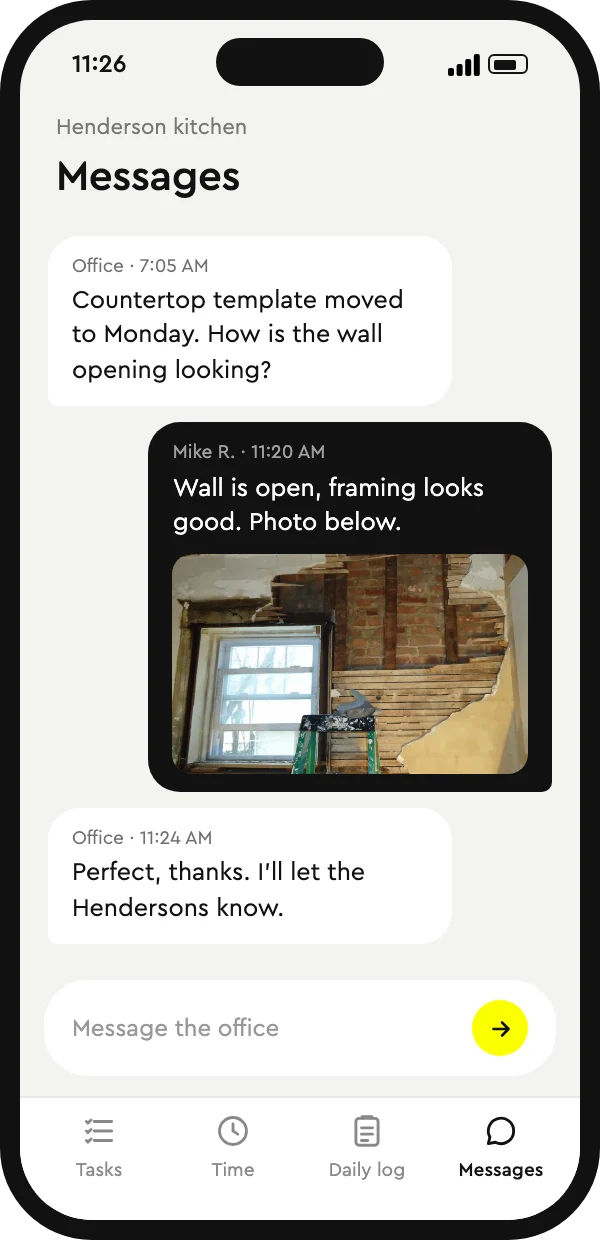
Questions and photos stay on the job, not in a group text.
Save time, win more jobs, increase profit, and get paid faster with Bolster.
Get startedConstruction time tracking is more than knowing who to pay on Friday. On a residential job, labor is usually the biggest cost you can control, and the only way to know whether a job made money is to know how many hours went into it compared with what you priced.
Most small contractors track time with paper timesheets, a group text or a general app built for office workers. The hours get recorded, but they aren’t tied to a job or a task, so job costing turns into guesswork.
Time against the job and the task. Not just a clock in and a clock out for the day.
Subcontractors as well as crew. Kept separate, so you can see both.
Easy for the field. If clocking in needs a laptop or a password nobody remembers, it won’t get done.
Corrections with a record. Missed punches happen. Adding time should be quick and clearly marked.
Exports for payroll. CSV or Excel, for any pay period.
Connected to the budget. Labor should show up against the estimate, not in a separate spreadsheet.
When hours are tied to tasks, you can compare the labor on each part of a job with the labor you priced. A kitchen where demo took twice as long as planned shows up while the job is running, and your next estimate gets more accurate. Our guide to time tracking apps for contractors compares the standalone options.
In Bolster, time tracking lives on the job, next to the schedule, the tasks, the daily logs and the budget. Crew and subs clock in on the work they’ve been assigned from the Bolster field app, opened from a magic link with no login. You see hours by person, job and day, the timesheet exports for payroll, and clocked hours land on the job budget.
Time tracking is part of Bolster project management, included on Pro and up.
Software that records the hours your crew and subcontractors work, tied to the job and the task, so you can pay people accurately and see labor against your estimate.
From the Bolster field app on their phone. They open it from a magic link, see the tasks assigned to them and clock in and out on the task they are working on.
No. Crew and subcontractors open their tasks and the time clock from a magic link sent by text or email, with nothing to remember.
Yes. Subcontractors clock in the same way as your crew and show up separately, with their own hours, days, jobs and tasks.
Add the time yourself with the job, the people, the task, the start and end times and an optional note. It is marked as added by you.
Yes. Export the timesheet to CSV or Excel for any period.
Yes. Clocked hours land on the job budget, so you can compare labor against what you priced on every job.
Time tracking is included on Bolster Pro and up, with scheduling, tasks and daily logs.
Book a demo to see time tracking on one of your own jobs.