1
Send the bid request
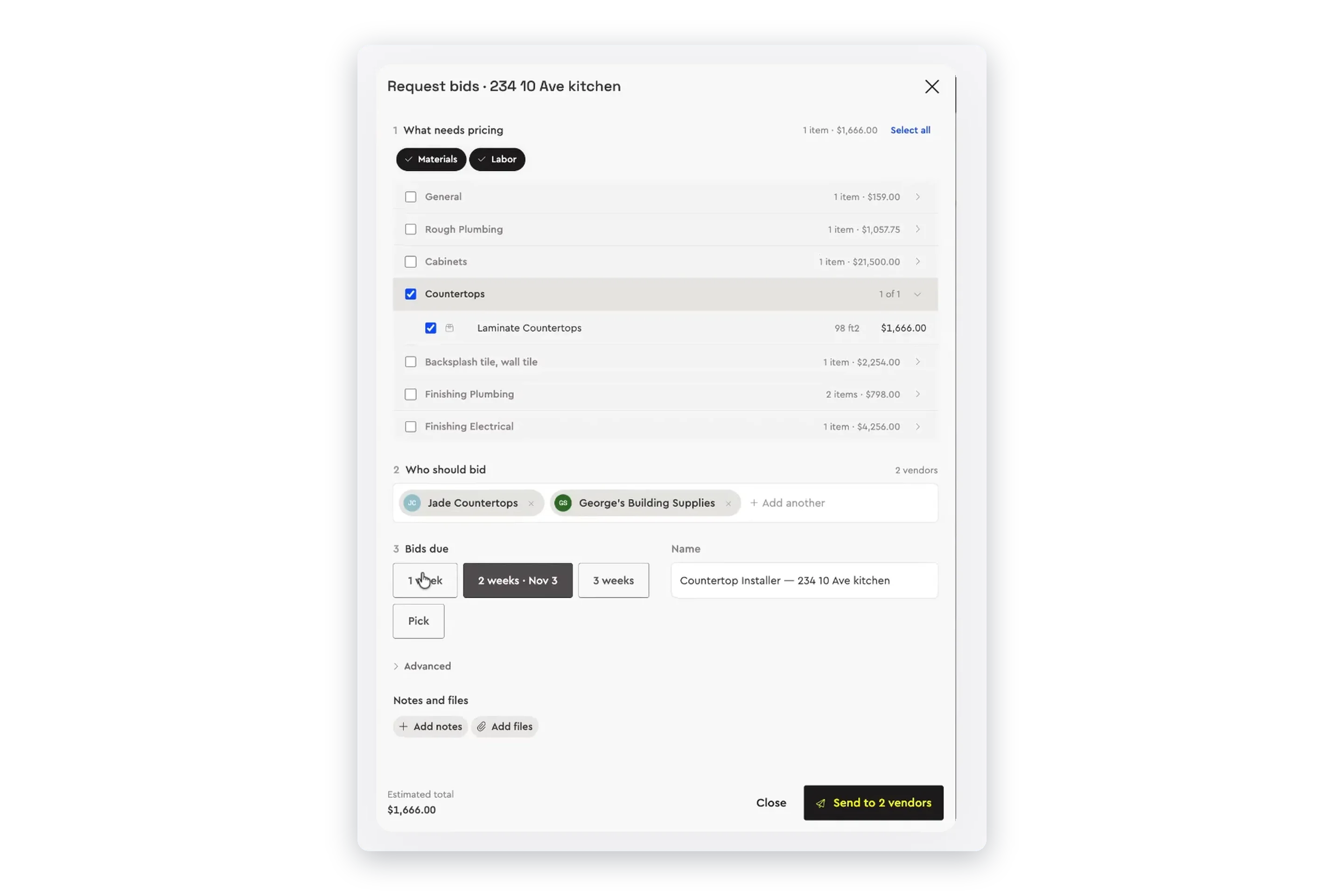
Open the job’s estimate, pick the trade and the items that need pricing, choose your subs and suppliers and set the due date. Ask for insurance, licence or tax documents with the request if you need them.
Estimating



Every step stays on the job and lands in the budget, so you know what is committed before the bills arrive.
Open the job’s estimate, pick the trade and the items that need pricing, choose your subs and suppliers and set the due date. Ask for insurance, licence or tax documents with the request if you need them.
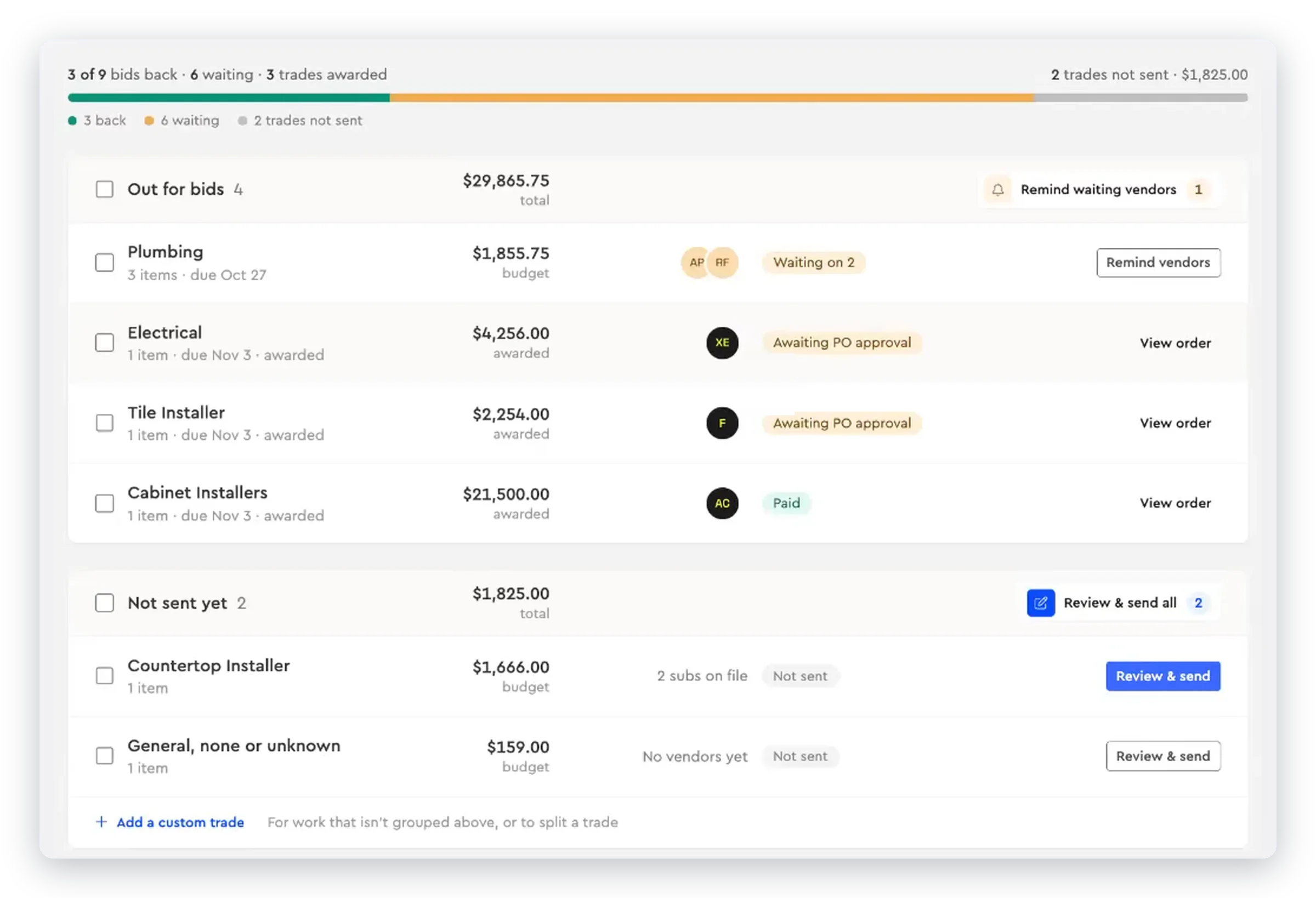
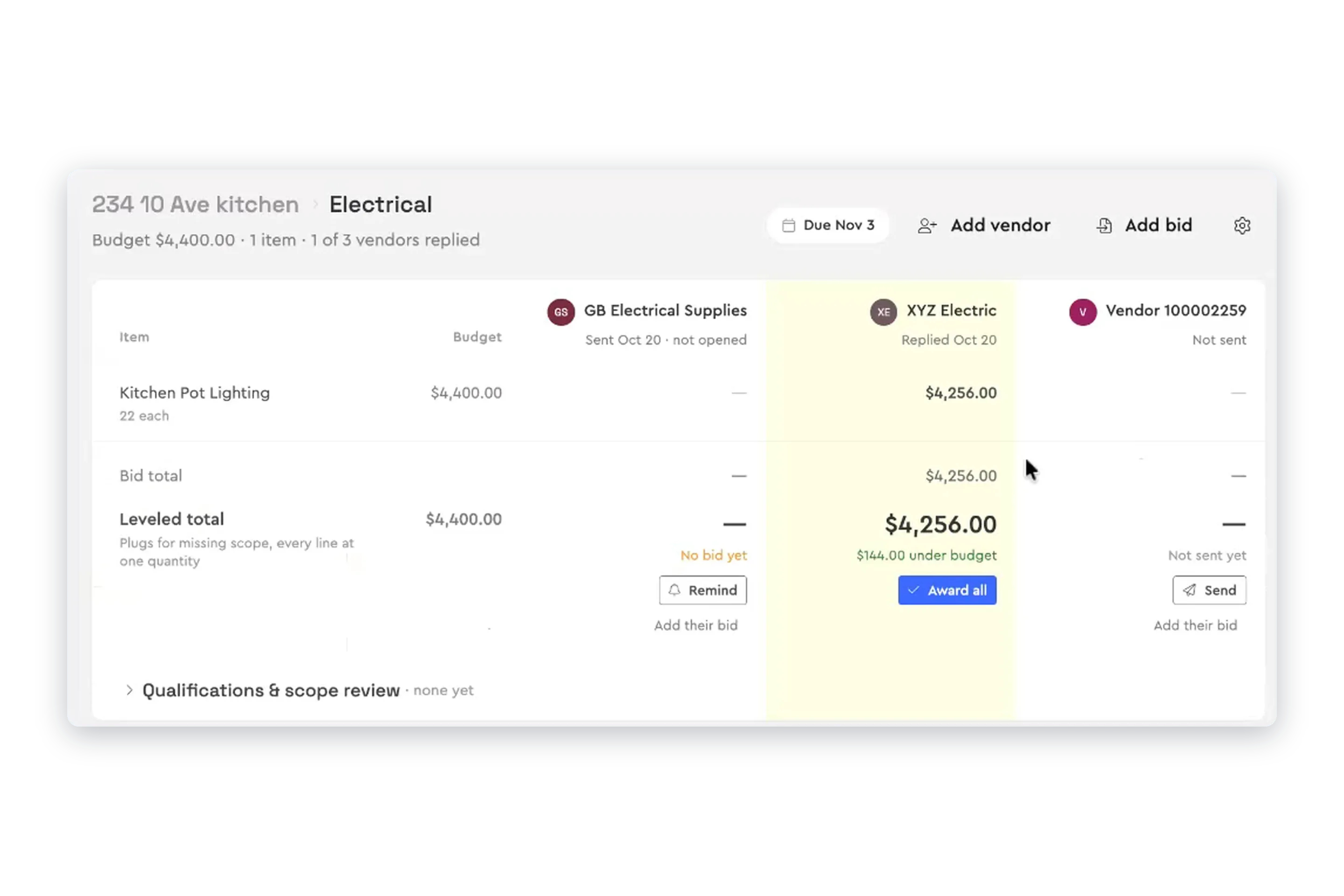
EstimatingSee how many bids are in and the lowest so far, and send a reminder to anyone you are still waiting on. Compare & award puts every price next to your budget, with the bid total and a leveled total that plugs missing scope.
Click Award all and Bolster creates the purchase order with the items, quantities and unit costs from the bid. Preview it, add files and send it, with your terms and conditions attached. It shows Awaiting approval until the vendor accepts.
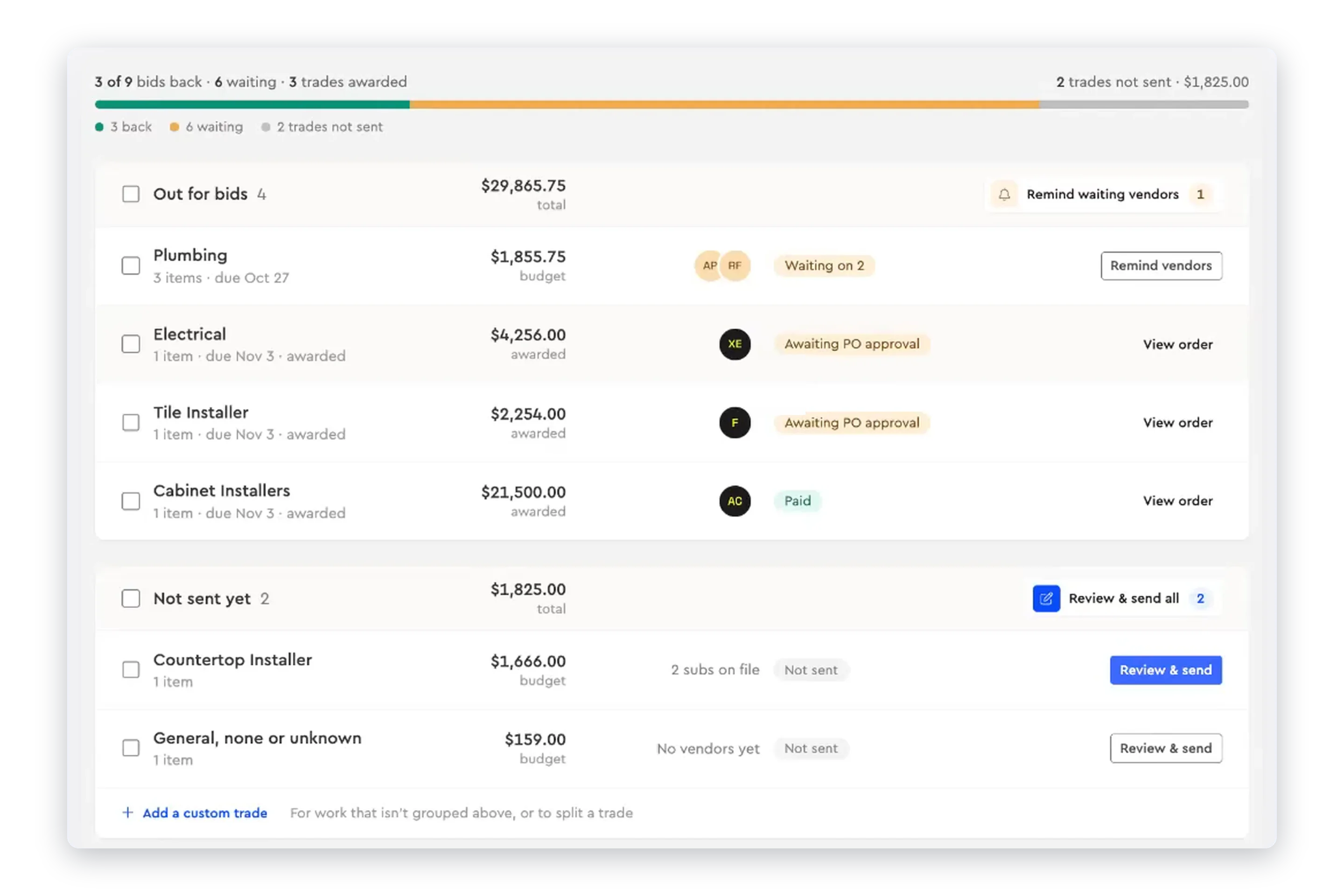
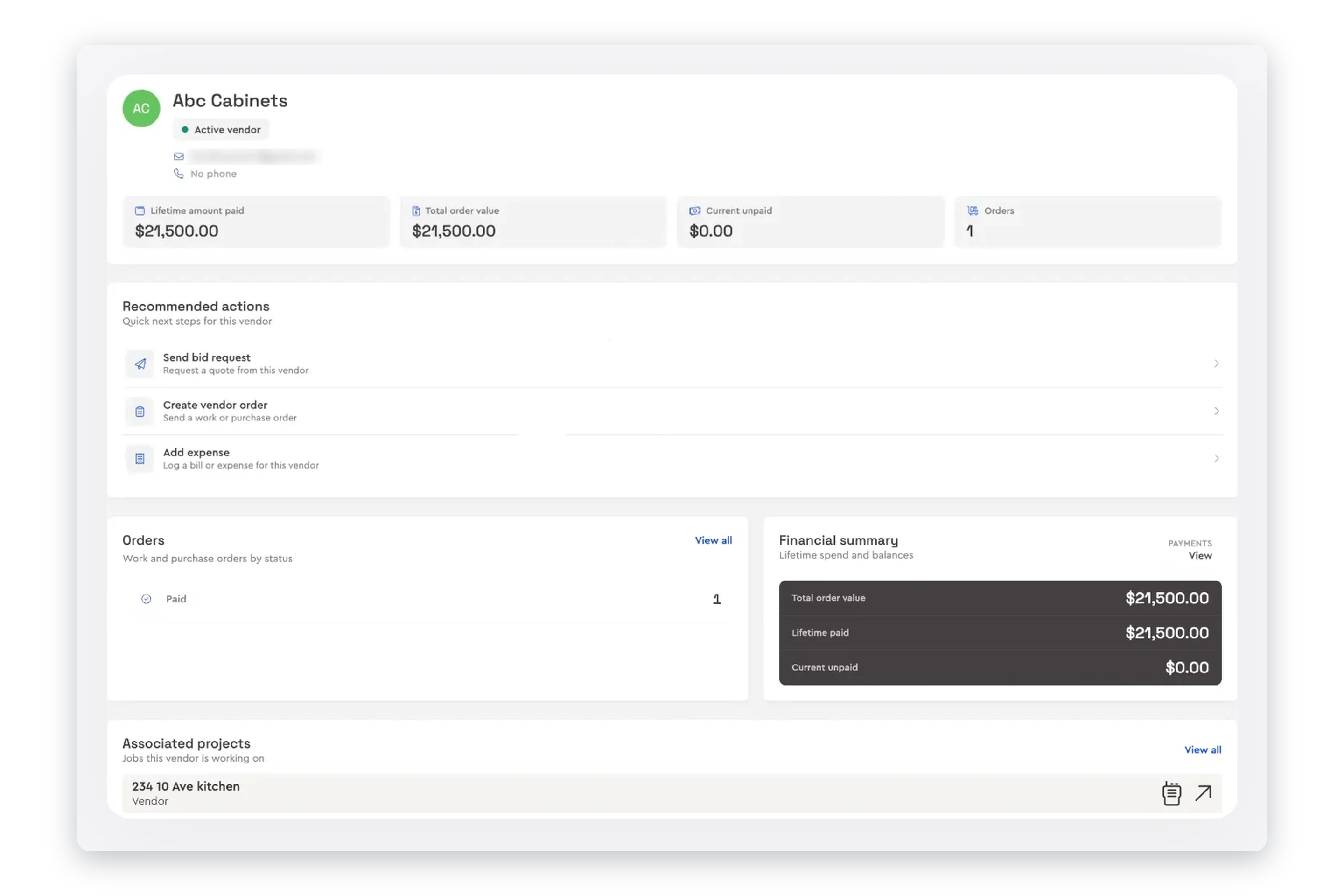
See every purchase order and work order across your jobs: unsent, sent, awaiting approval, approved or paid, with the next step for each. Each vendor’s profile shows what is on order with them and which jobs they are on.
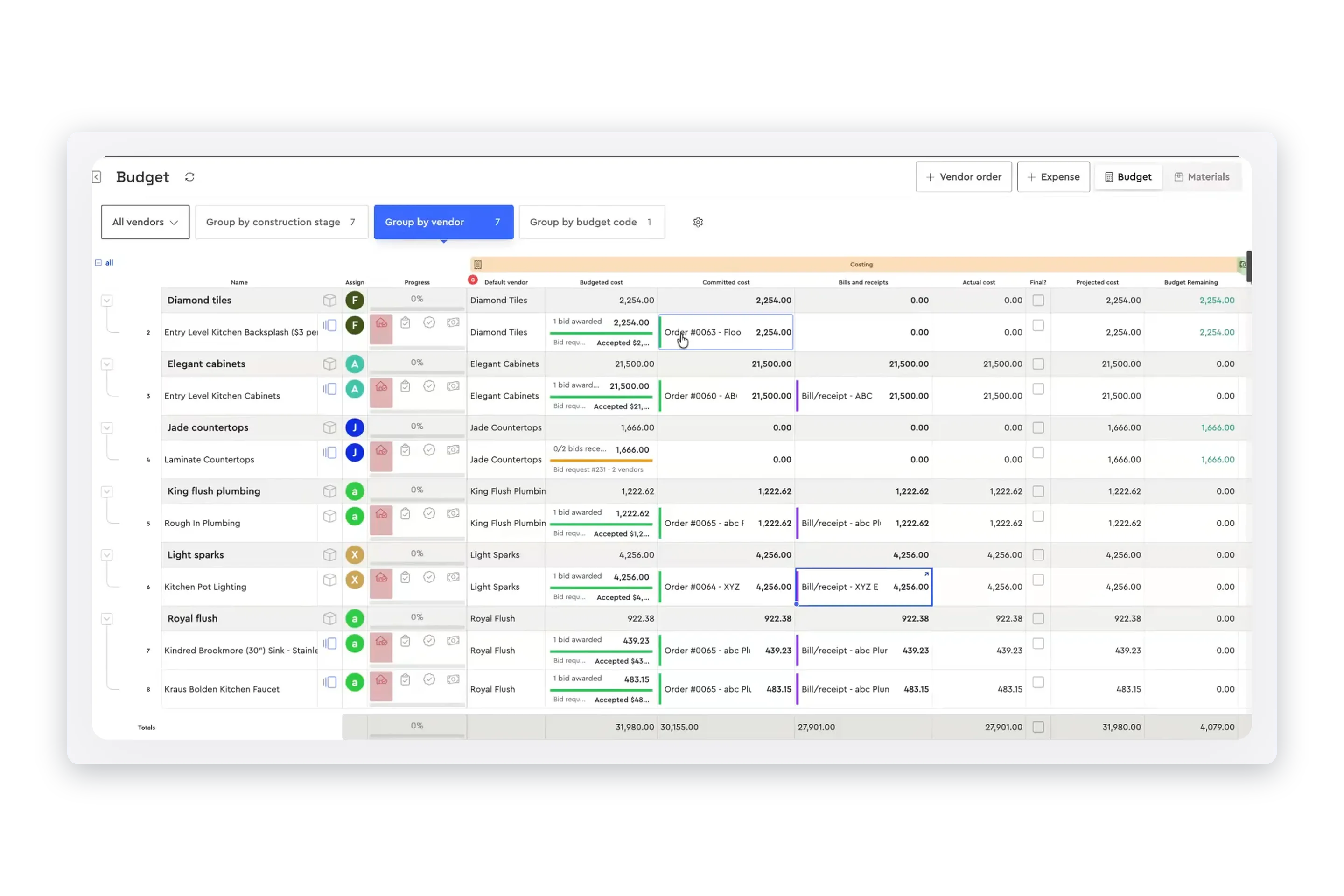
Vendor managementAwarded items move into committed cost on the job budget, next to what you budgeted, what has been billed and what is left on every line. Group the budget by vendor, construction stage or budget code.
Material list & budgetPay subs and suppliers · Vendor management · Material list & budget
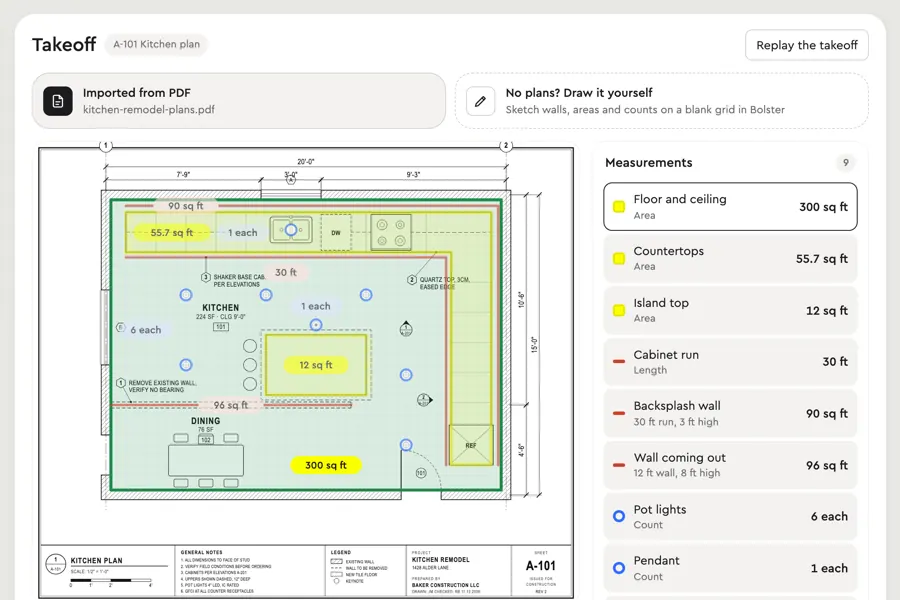
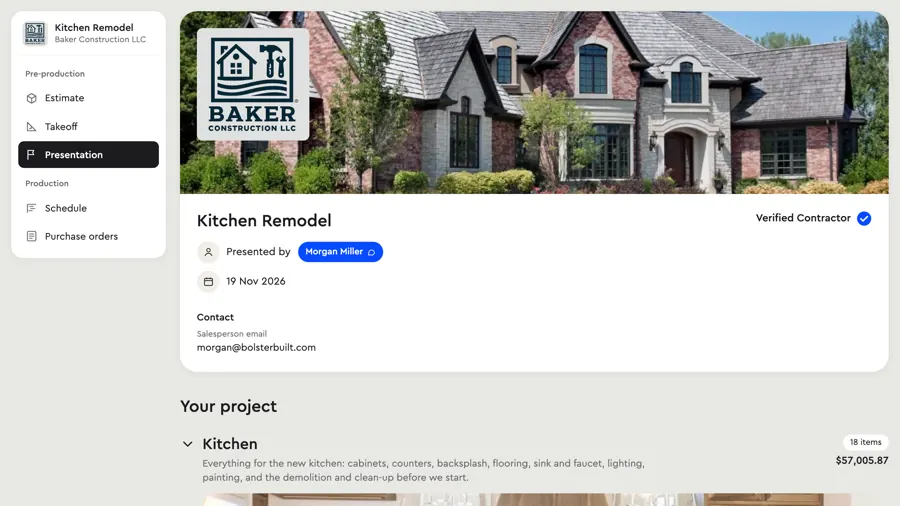
A kitchen remodel from takeoff to proposal to schedule. Click anything, change the options, open the estimate behind it.
Save time, win more jobs, increase profit, and get paid faster with Bolster.
Get startedOn most residential jobs, more than half the money goes to subcontractors and suppliers. Getting good prices for that work, and holding vendors to them, is where a job is won or lost. Yet the usual process is a string of emails and texts, a spreadsheet to compare the replies and a purchase order typed up from scratch.
Bid requests from the estimate. The items you priced should be the items you send out, with no retyping.
Leveled comparisons. Bids that leave out scope or quote different quantities need leveling before the cheapest one is really the cheapest.
Reminders. One click to chase a vendor who has gone quiet.
Compliance documents. Insurance and licences requested with the bid, not after the sub is on site.
Award to PO in one step. The winning bid should become the purchase order.
Orders tracked across jobs. What is unsent, waiting on the vendor, approved or paid.
Connected to the budget. Committed cost should show up on the job the moment you award the work.
A purchase order is the agreement the vendor’s invoice gets checked against later. When the PO comes straight from the awarded bid, and the bill comes in against that PO, every payment can be checked line by line. Our guide to construction purchase orders covers the process from RFQ to paid, and paying subs and suppliers shows the last step in Bolster.
In Bolster, bid requests start from the job’s estimate. Bids come back lined up against your budget and leveled for missing scope, and awarding one creates the purchase order. Every order sits on the job and in one list across all your jobs, and awarded work shows up as committed cost on the job budget. It is all part of vendor management in Bolster.
Software for sending bid requests (RFQs) to subcontractors and suppliers, collecting their prices and comparing them so you can award the work. In Bolster it runs from your estimate, so the scope you send out is the scope you priced.
Yes. Open the job’s estimate, go to Bid requests, pick the trade and the items that need pricing, choose who should bid and set a due date of one, two or three weeks or a date you pick. The estimate does not need to be approved first.
Making bids cover the same scope and quantities before you compare them. Bolster levels each bid to your quantities, plugs any missing scope and shows a leveled total next to the bid total and your budget.
Bid requests shows which requests are sent, which bids are in and the lowest bid so far. Send a reminder to any vendor you are still waiting on.
Yes. Turn on Require documents when you send a bid request to ask for insurance, licence or tax documents. Your vendor list shows which subs are missing a certificate of insurance or a licence, and you can request them in a click.
Bolster creates the purchase order for that vendor with the items and prices from the bid. Preview it, add files and send it, or save it to send later. It shows Awaiting approval until the vendor accepts it.
Yes. Create an itemized order from the job’s line items, a lump-sum order with one total, or tick items on the job budget and add a purchase order or work order from there.
In Bolster a purchase order is for materials and a work order is for labor. When you create an order from the budget, Bolster picks the type from the items.
Yes. Set default terms and conditions once in your settings and they go out with every order. You can change them on any single order.
Yes. Purchase orders created in Bolster sync to QuickBooks, as long as purchase orders are turned on in your QuickBooks account.
RFQ and purchase order management are included on Bolster Premium and Enterprise.
Book a demo to see it on one of your own jobs.