Pay subs and suppliers right from the job

Not the bank portal. Vendor invoices come into Bolster, get checked line by line against the purchase order and your budget, and are paid in a couple of clicks. Your sub is notified when the money lands.

Thank you! Your submission has been received!
Oops! Something went wrong while submitting the form.
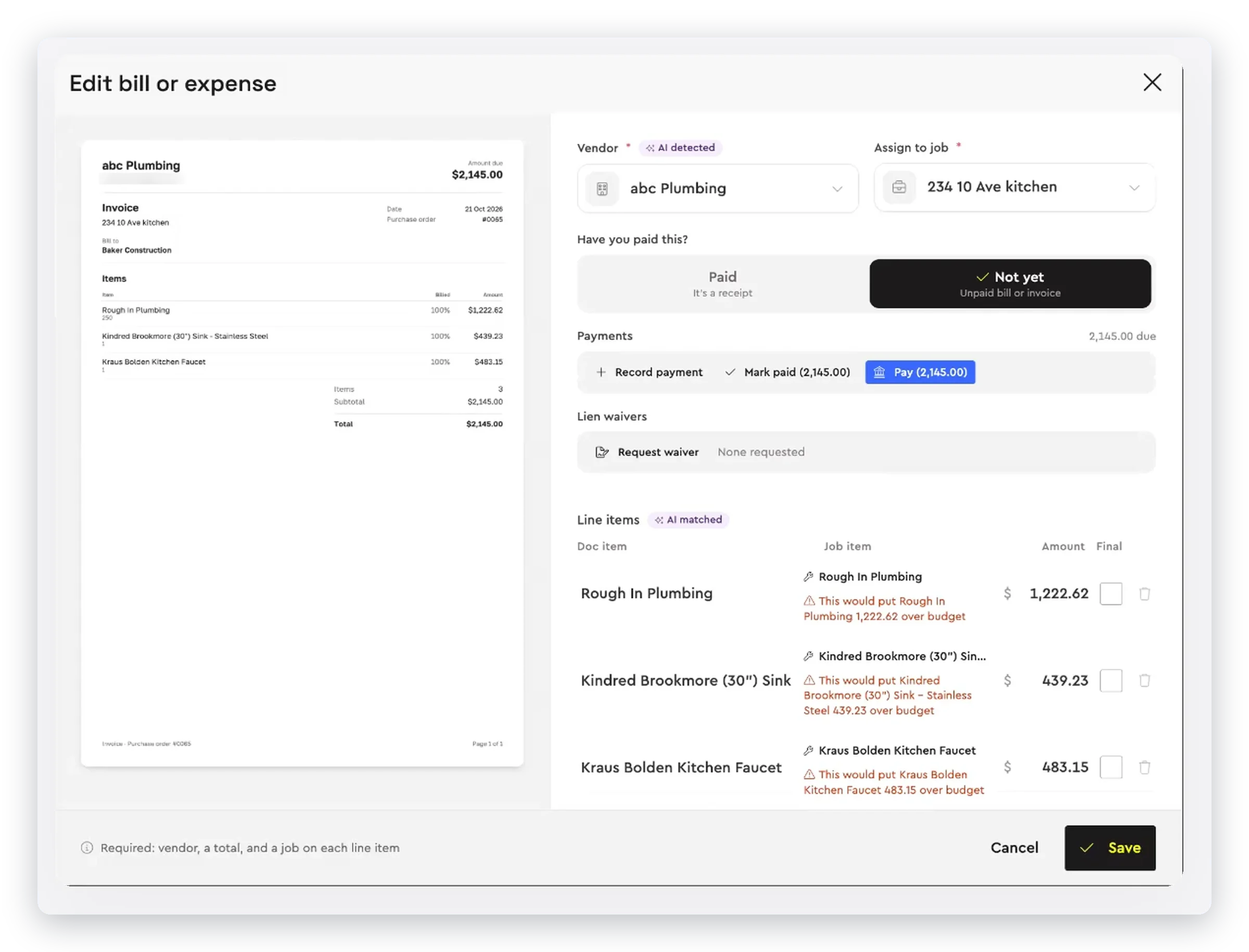
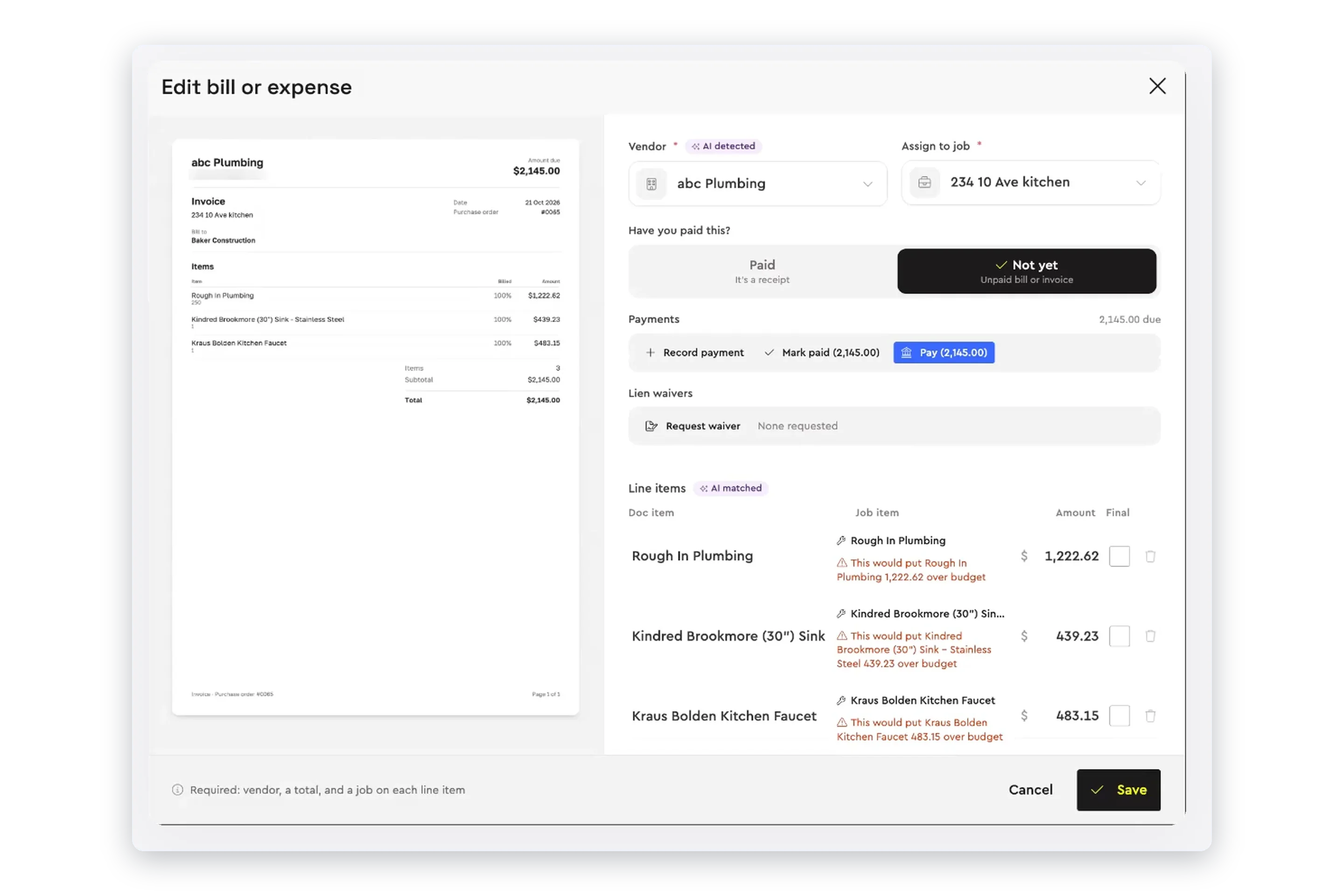
A vendor bill read by Bolster and matched to the job, with over-budget warnings

Every bill checked before you pay it

Paying subs usually means an invoice in your inbox, a purchase order in a folder, a budget in a spreadsheet and a bank login. Checking them against each other takes an afternoon, and skipping the check is how work gets paid for twice. In Bolster the invoice, the order, the budget and the payment are all on the same job.

Paid from your business account.
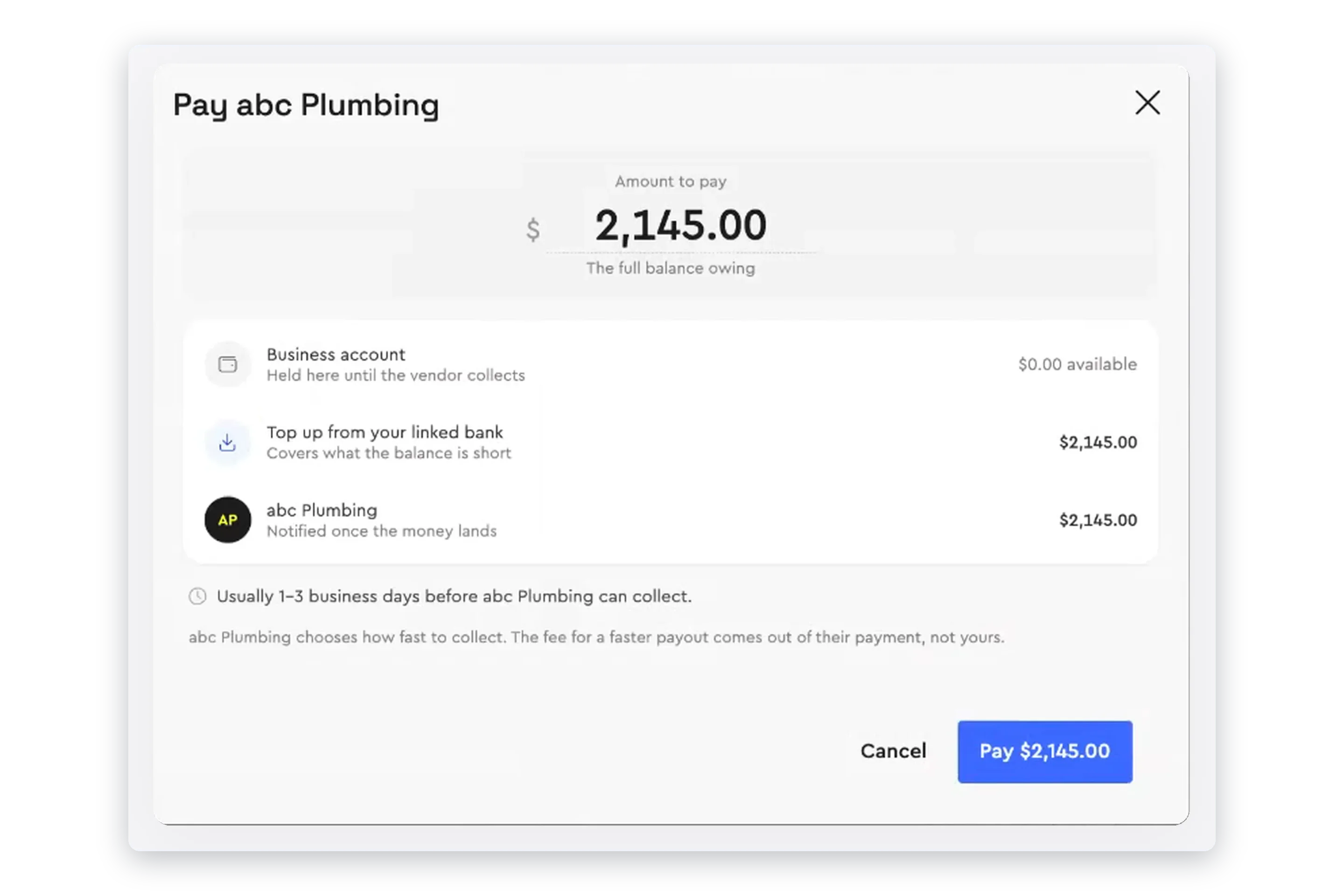
Pay the bill from Bolster Wallet, the business account built into Bolster. If the balance is short, top up from your linked bank in the same step. The vendor is notified when the money lands.
Paying a vendor bill from Bolster Wallet
Every vendor at a glance.
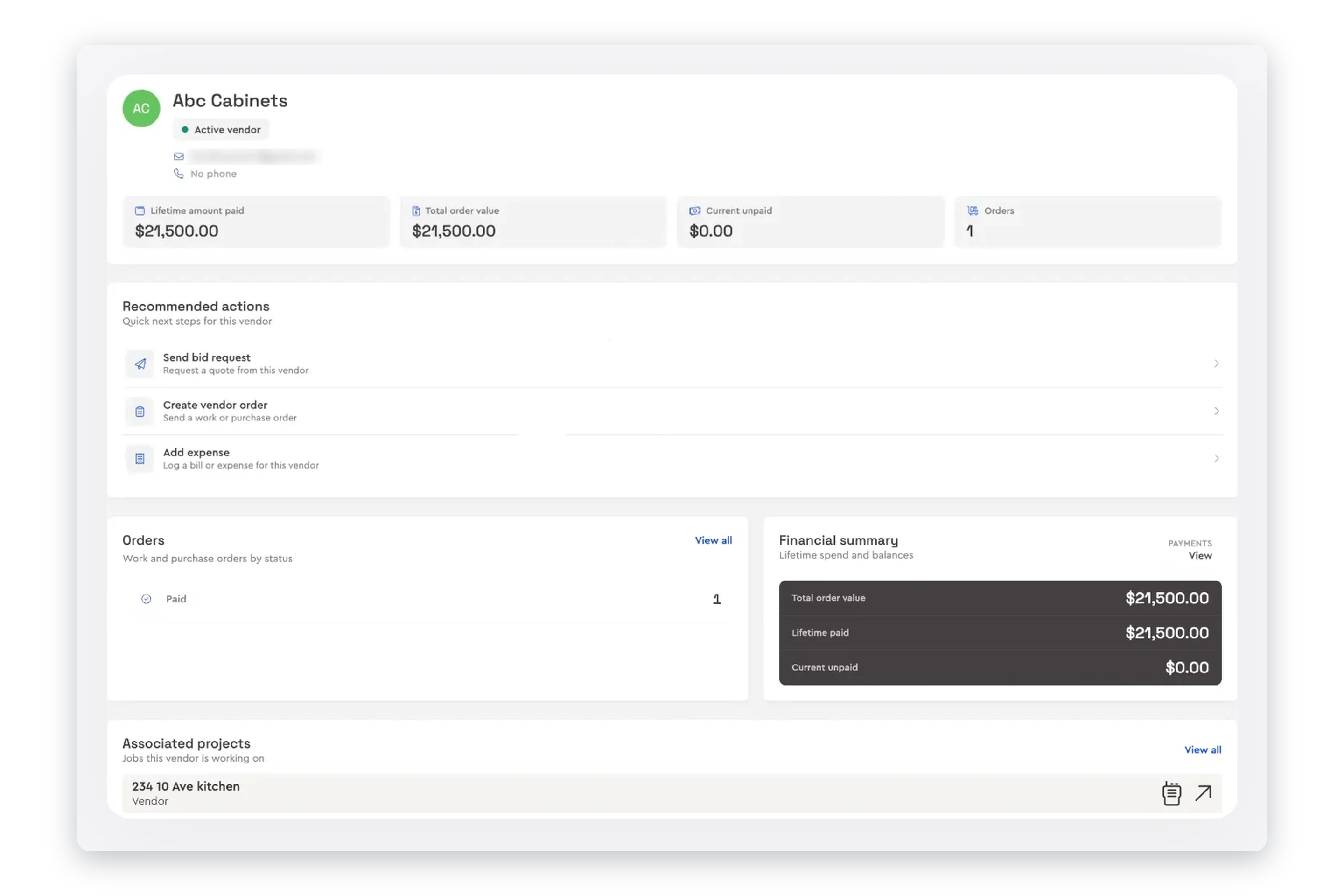
Each sub and supplier has a profile with lifetime paid, total order value, what is unpaid and the jobs they are on.
A vendor profile with amounts paid, unpaid and on order

From the invoice,
to paid.

Bills land on the job they belong to, so every payment is checked against what you ordered and what you budgeted.

  1. Vendors submit invoices against their order in Bolster, or you upload a bill or snap a photo of a receipt. Bolster reads it, picks out the vendor, matches each line to an item on the job and warns you before anything goes over budget.

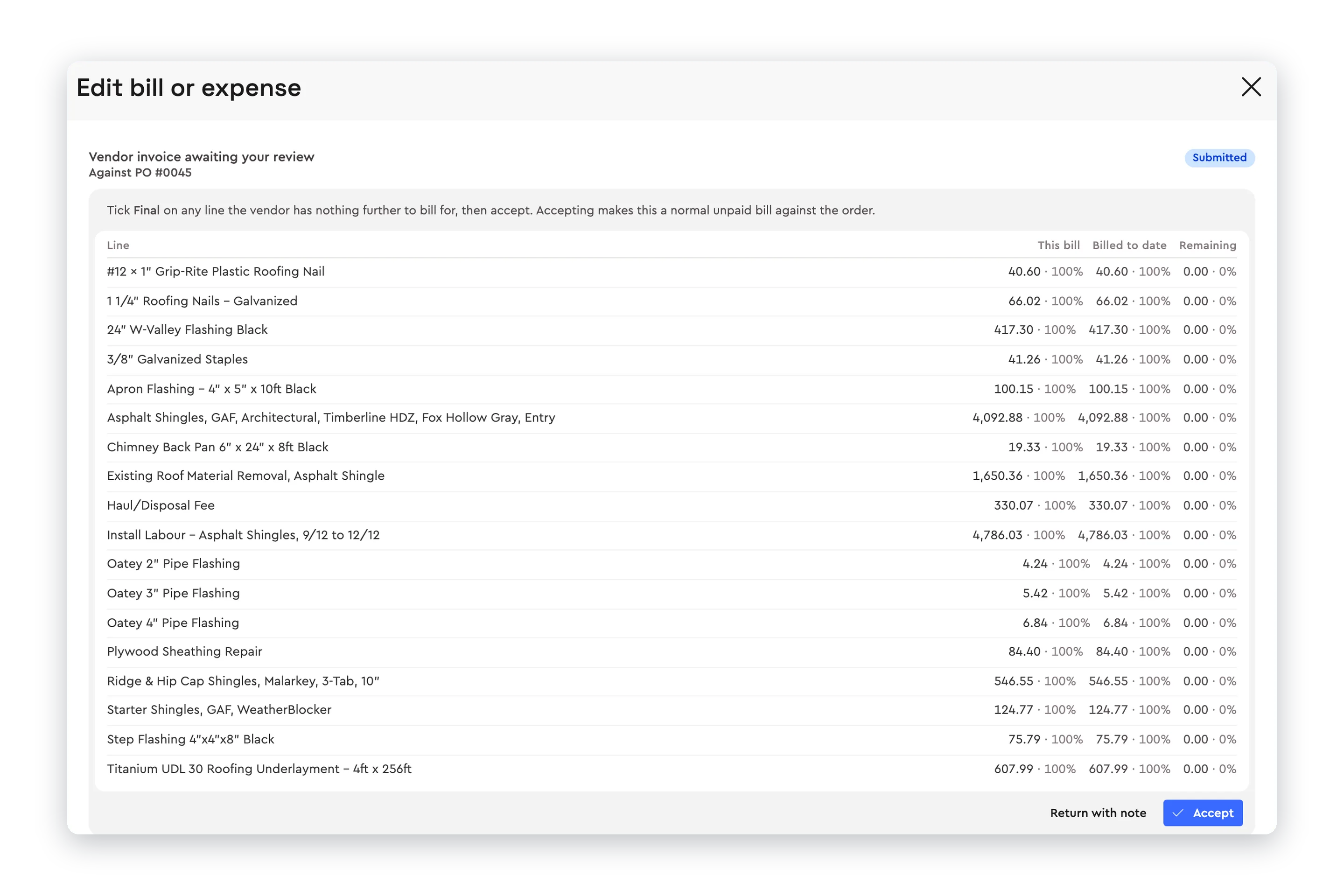
  2. Review shows each line with this bill, billed to date and what remains on the order, so overbilling stands out. Tick Final on finished lines, request a lien waiver, then accept it or return it with a note.

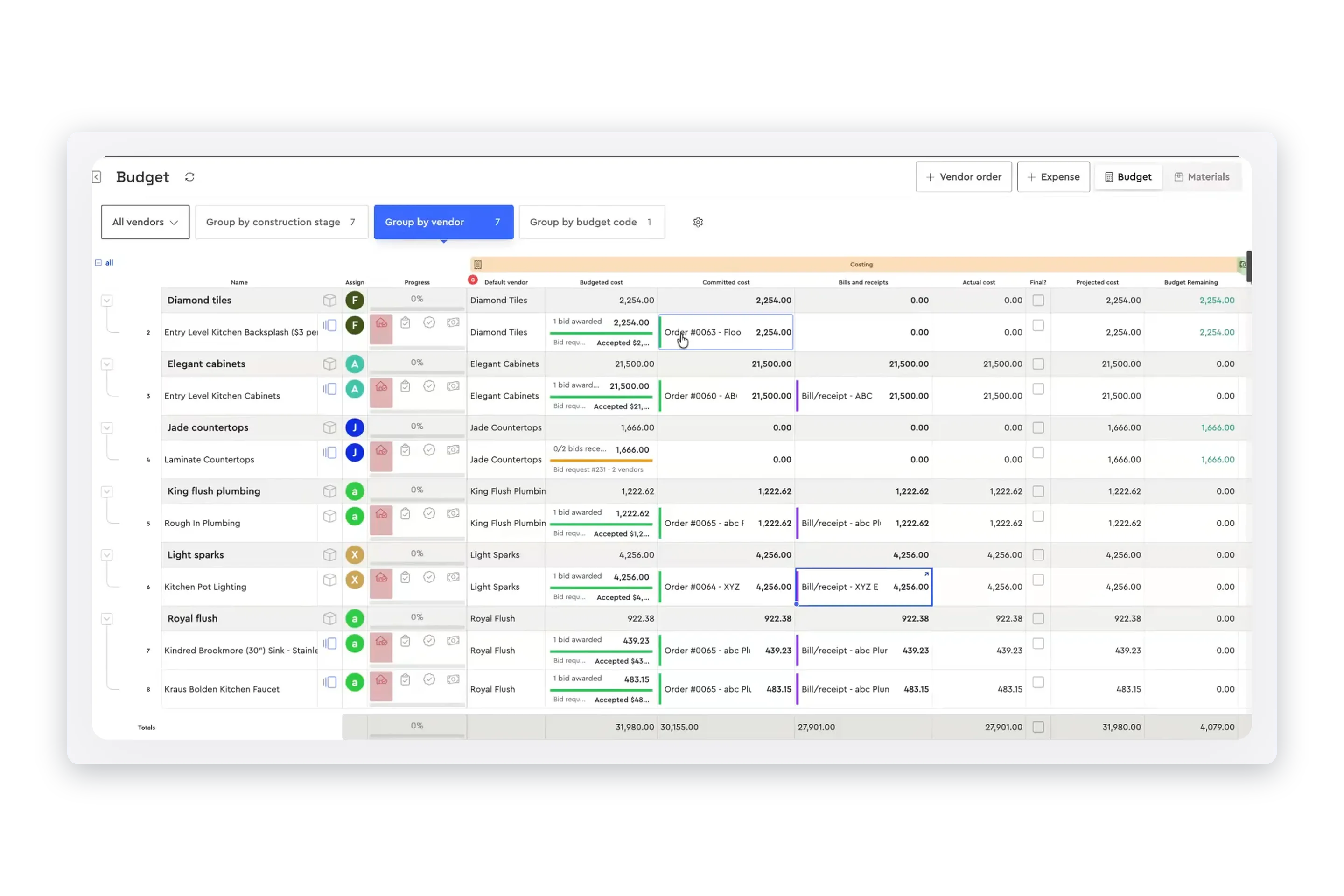
  3. Accepted bills update bills and actual cost on the job budget, next to what you budgeted and what is committed, with what is left on every line.

    Material list & budget
  4. Pay from Bolster Wallet, the business account built into Bolster. If the balance is short, top up from your linked bank in the same step. The vendor is notified when the money lands and can usually collect it in one to three business days.

    Business accounts
  5. Each sub and supplier has a profile with lifetime paid, total order value, what is unpaid and the jobs they are on, with the next step one click away.

    Vendor management
A vendor bill read by Bolster and matched to the job, with over-budget warningsA vendor invoice reviewed line by line against its purchase orderThe job budget with bills and actual cost against each linePaying a vendor bill from Bolster WalletA vendor profile with amounts paid, unpaid and on order
A vendor bill read by Bolster and matched to the job, with over-budget warnings
1

The bill comes in, already read

Vendors submit invoices against their order in Bolster, or you upload a bill or snap a photo of a receipt. Bolster reads it, picks out the vendor, matches each line to an item on the job and warns you before anything goes over budget.

A vendor invoice reviewed line by line against its purchase order
2

Checked against the purchase order

Review shows each line with this bill, billed to date and what remains on the order, so overbilling stands out. Tick Final on finished lines, request a lien waiver, then accept it or return it with a note.

The job budget with bills and actual cost against each line
3

On the job budget straight away

Accepted bills update bills and actual cost on the job budget, next to what you budgeted and what is committed, with what is left on every line.

Material list & budget
Paying a vendor bill from Bolster Wallet
4

Pay it in a couple of clicks

Pay from Bolster Wallet, the business account built into Bolster. If the balance is short, top up from your linked bank in the same step. The vendor is notified when the money lands and can usually collect it in one to three business days.

Business accounts
A vendor profile with amounts paid, unpaid and on order
5

Every vendor at a glance

Each sub and supplier has a profile with lifetime paid, total order value, what is unpaid and the jobs they are on, with the next step one click away.

Vendor management

Before the bill: bids and orders

Request bids from your estimate and award them as purchase orders, so every bill has an order to be checked against.

Bids & purchase orders · Vendor management · Progress payments

See a real job in Bolster before you talk to anyone

A kitchen remodel from takeoff to proposal to schedule. Click anything, change the options, open the estimate behind it.

Kitchen remodel · try the options

The all-in-one software for construction contractors

Save time, win more jobs, increase profit, and get paid faster with Bolster.

Get started

How to Pay Subcontractors and Suppliers Without Overpaying

Paying subs on time keeps the good ones working for you. Paying them accurately protects your margin. The trouble is that the information you need to check a bill, what was ordered, what has already been billed and what was budgeted, usually lives in three different places.

What to Look for in Subcontractor Payment Software

  • Bills against the purchase order. Each invoice line next to what was ordered and what has already been billed.

  • Vendors who submit their own invoices. Less retyping, and every bill tied to an order from the start.

  • Budget warnings. A flag before a bill takes an item over budget, not at the end of the job.

  • A way to send bills back. Return a bill with a note instead of an email thread.

  • Lien waivers. Requested from the bill and tracked with it.

  • Payment in the same place. No second login to a bank portal to pay what you just approved.

  • Vendor history. What each sub has been paid, what is on order and what is still owed.

  • Accounting sync. Bills and receipts pushed to QuickBooks.

Why the Purchase Order Matters

A bill can only be checked against something. When the work was awarded from a bid and sent as a purchase order, the vendor’s invoice comes in against that order and every line can be compared with it. That is how partial billing, double billing and creeping extras get caught before you pay. See bids and purchase orders for how the order is created in Bolster.

How Bolster Handles Subcontractor Payments

In Bolster, vendor invoices come in against their order, or you upload the bill. Each line is matched to an item on the job and shown against the purchase order, with a warning before anything goes over budget. Accept it and pay from Bolster Wallet, the business account built into Bolster, and the vendor is notified when the money lands. Bills and actual cost show on the job budget straight away. It is all part of vendor management in Bolster.

Frequently Asked Questions

How do I pay subcontractors in Bolster?

Open the bill on the job or under Bills & Expenses, check it against the purchase order and pay it from Bolster Wallet, the business account built into Bolster. The vendor is notified when the money lands.

Can vendors send their invoices into Bolster?

Yes. Vendors submit invoices against their order, and they wait for you under Submitted by vendors until you review them. You can also upload a bill yourself or take a photo of a receipt.

How does Bolster stop me paying for work twice?

Every line of a vendor invoice is shown against its purchase order, with what is on this bill, what has been billed to date and what remains. Bolster also warns you before a bill puts an item over budget.

What if a vendor bill is wrong?

Return it with a note. The vendor sees what needs fixing, and nothing is paid until you accept a corrected bill.

How long does it take my sub to get paid?

Usually one to three business days after you pay. The vendor chooses how fast to collect, and the fee for a faster payout comes out of their payment, not yours.

Can I collect lien waivers from subs?

Yes. Request a lien waiver from the vendor right on the bill, and Bills & Expenses shows the waiver status of every bill.

What if my Bolster Wallet balance is short?

Top up from your linked bank account in the same step as the payment.

Can I track receipts and expenses as well as vendor bills?

Yes. Add an expense by uploading a file, choosing one from Bolster Drive or taking a picture, and tag it to an item on the estimate so it lands on the right line of the job budget.

Do bills sync to QuickBooks?

Yes. Push a bill or receipt to QuickBooks from its advanced options, as a bill or a receipt.

Which Bolster plans include subcontractor payments?

Subcontractor payments and the Bolster business account are included on every plan: Core, Pro and Premium.

Book a demo to see it on one of your own jobs.