




Managing Vendors and Subcontractors in Your Pipeline
Learn how to efficiently manage vendors and subcontractors in your project pipeline. This guide covers bulk importing vendors, adding them individually, and tagging them to proposals or assemblies for clear assignments and streamlined workflows.
More in Vendors & Purchasing
Vendors & Purchasing
Vendor management
- Vendor Management overview: from bid request to paid
- Add vendors and request their documents
- Managing Vendors and Subcontractors in Your Pipeline
- Send a bid request (RFQ) to your vendors
- Award a bid and create a purchase order
- Track your vendor orders
- Review and pay a vendor bill
- How vendor costs show up in your job budget
Purchase orders
To get started: You can either watch the walkthrough video for a quick visual guide, or follow the step-by-step instructions below to complete the process manually.
- Access the Vendor Import Tool
- In the left-hand menu, scroll down to the Admin dropdown.
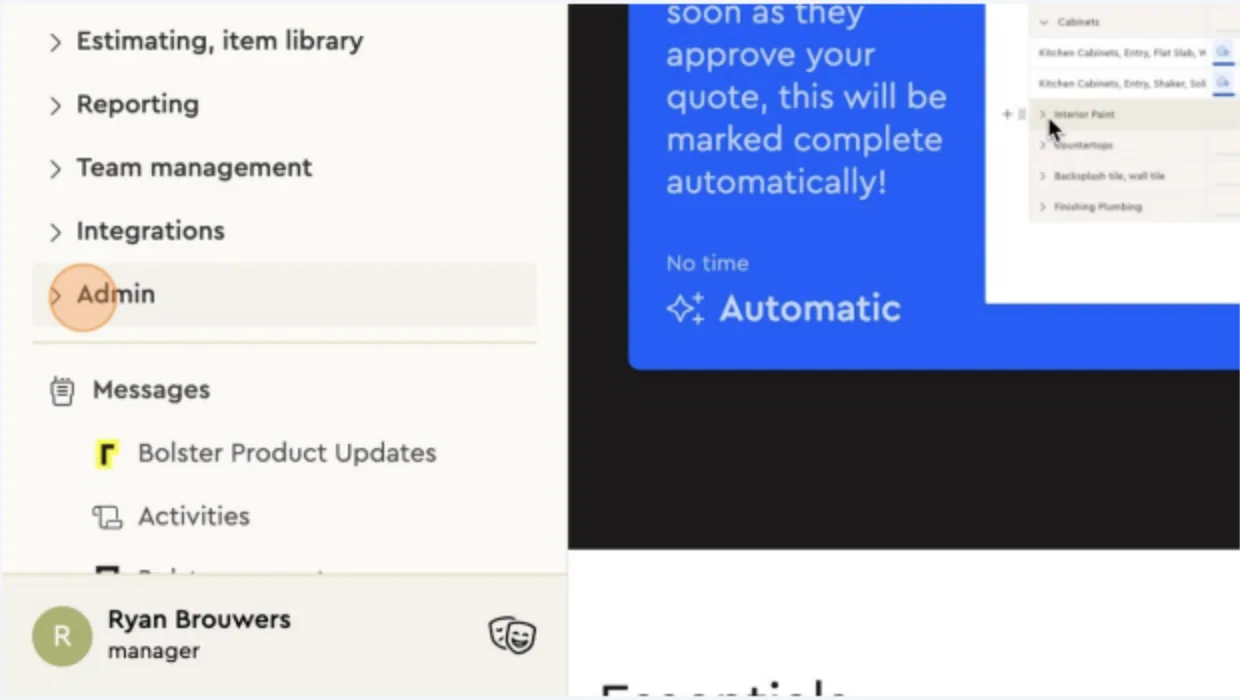
-
Click Vendor Import Tool.
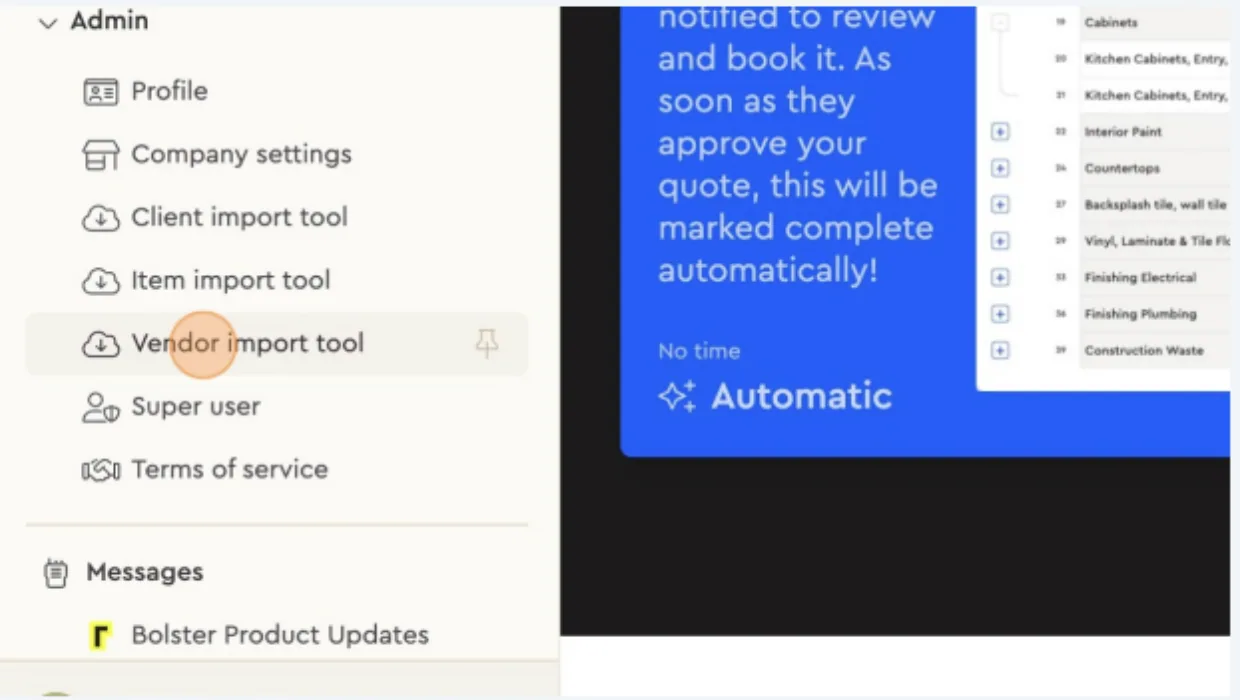
-
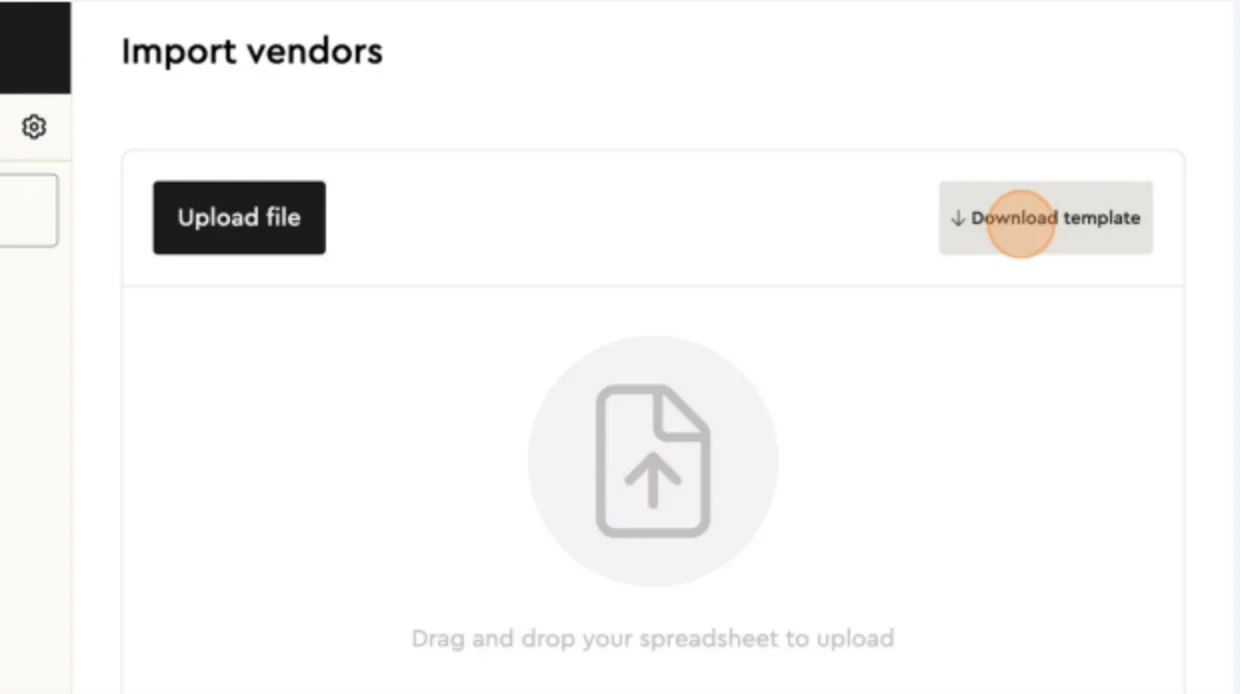
- This is where you can Bulk Import Vendors by:
- Download the provided template.
- Add all your vendor details to the template.
- Upload the completed file to import vendors in bulk.
- Alternatively, Add Vendors Individually (Optional)
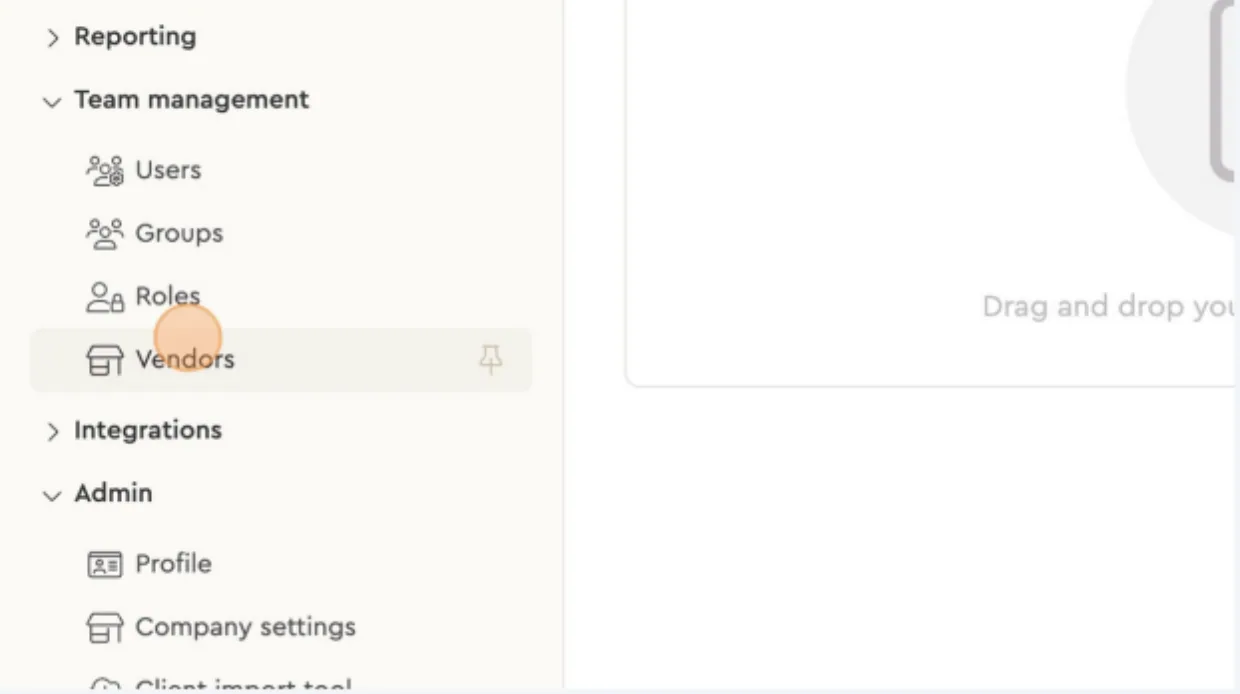
From the left-hand menu, go to Team Management
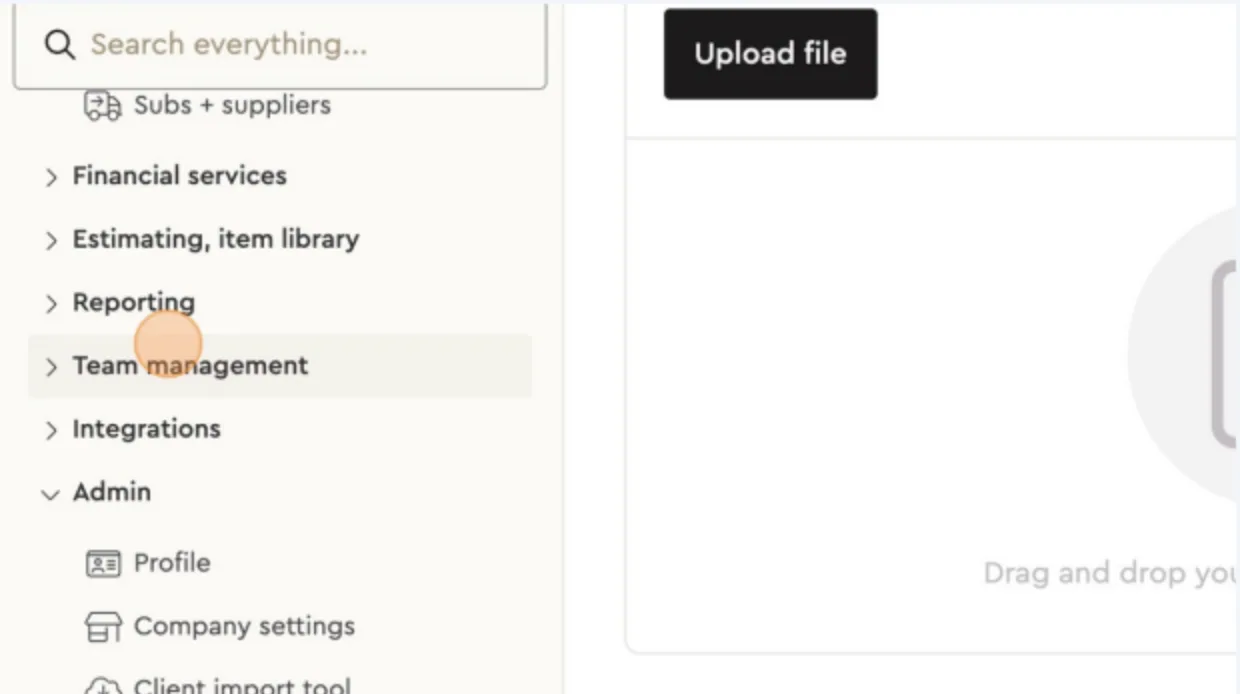
-
Go into Vendors.
-
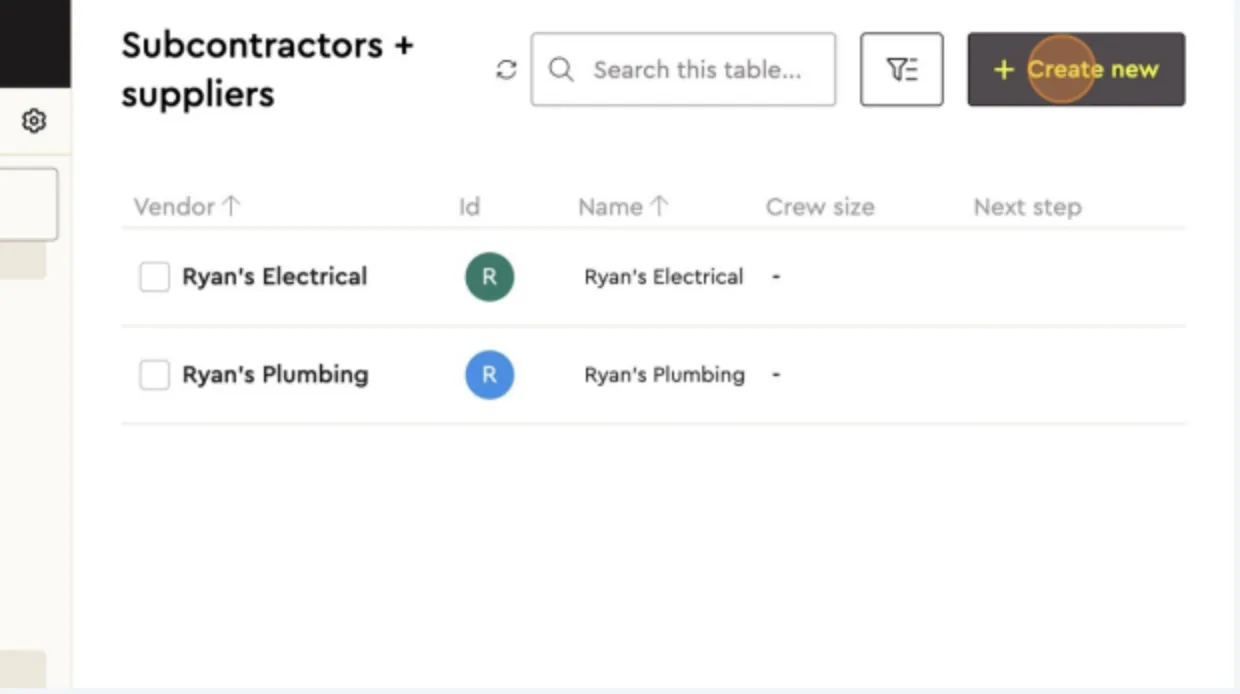
Here, you can add individual vendors one at a time as needed.
-
Tag Vendors to Proposals
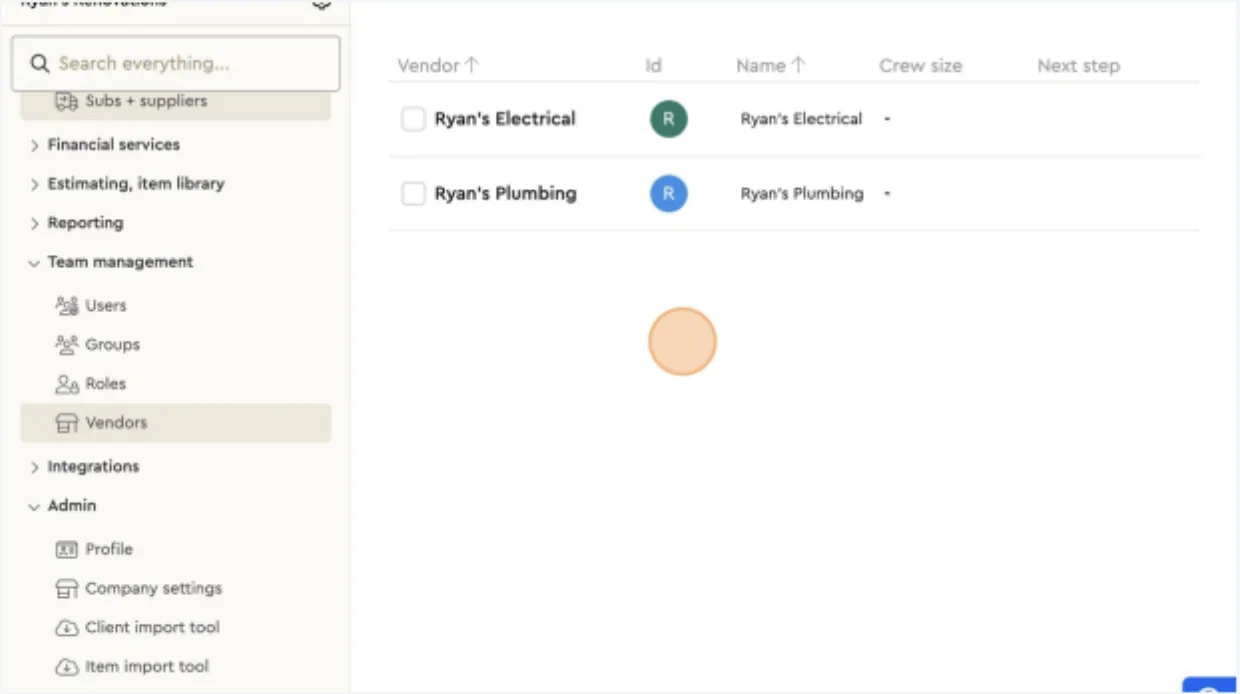
- After your vendors are uploaded, you can tag them to specific items or assemblies in your proposals to track responsibilities and manage workflows.
Next best guides
- Vendor Import ToolGetting Started · Import your data
- How to Add Vendor Terms and Conditions to OrdersVideoVendors & Purchasing · Purchase orders
- Getting started with Bolster in 7 minutesVideoGetting Started · Start here
- Track your vendor ordersVendors & Purchasing · Vendor management
- Vendor Management overview: from bid request to paidVendors & Purchasing · Vendor management



