




Creating, editing and searching channels
Use channels to keep conversations organized by project, topic, or audience.
More in Project Management
Project Management
Budget & costs
- Introduction to the new Budget Tab
- How to Use the Budget Tab
- How do I track budget vs actual costs in Bolster?
- How do I add and categorize project expenses in Bolster?
- How to Track Bills & Expenses for a Booked Project
Change orders
- How to Use the Change Orders Tab
- Manually Approving a Change Order Without Sending to the Client
- How to View and Revert Change Order Versions
- How to Access Explicit and Full Activities in Change Orders
- How Change Orders Affect Payment Terms
Scheduling & tasks
Messages & files
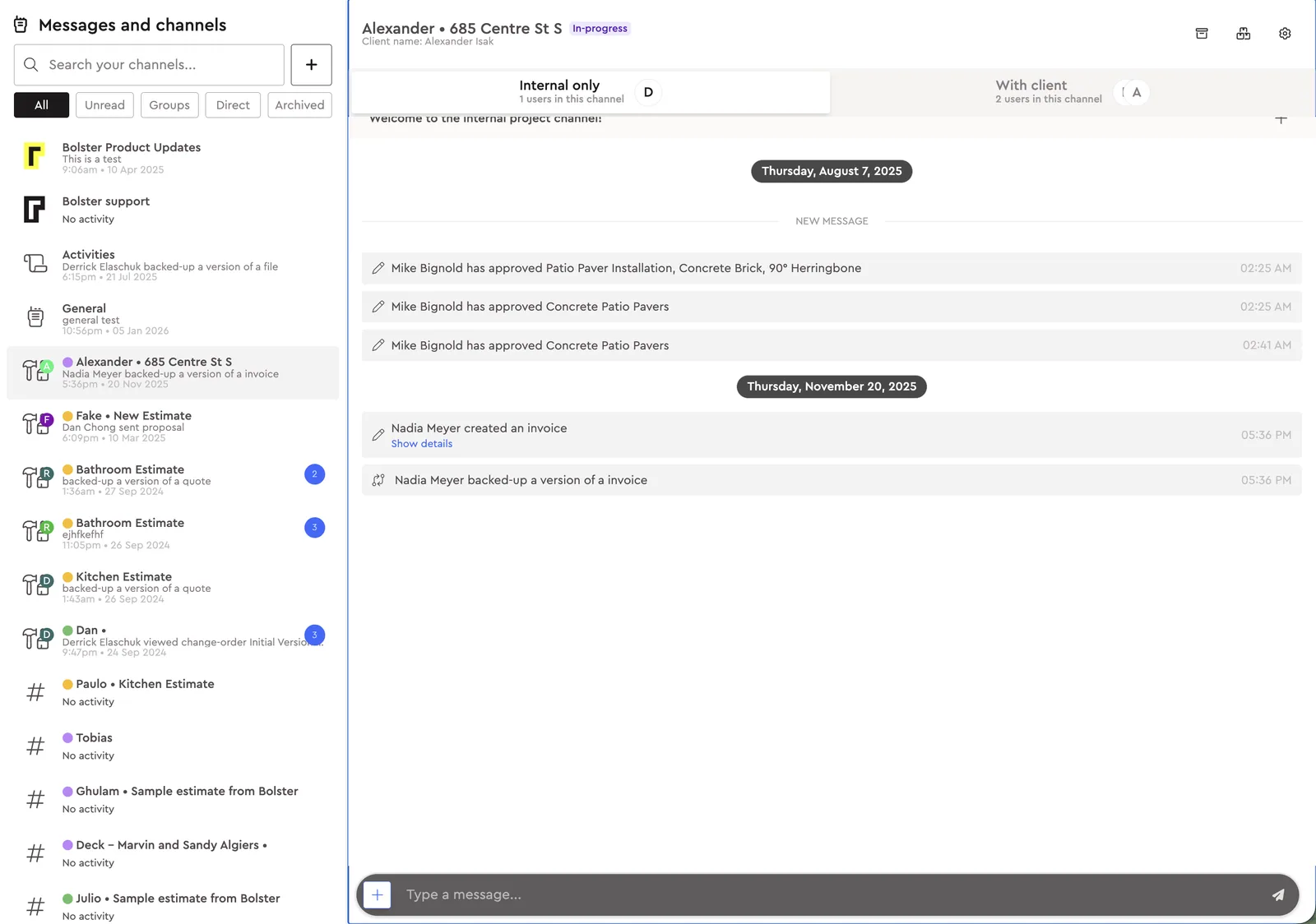
Creating a channel
- Click the + button
- Bolster opens a settings modal
-
Enter a channel name
- Example: 123 Oak Lane – Client
- Example: 123 Oak Lane – Internal
-
Select company members
- Choose the teammates who need access
-
Select client members (if needed)
- Add the client contacts who should see and participate
-
Save to create the channel
Editing a channel
- Open the channel you want to update
- Click the gear icon in the top right
- Bolster reopens the same settings modal
From here, you can:
- Rename the channel
- Add members
-
Remove members
- Company members
- Client members
Save your changes when you finish.
Searching for channels
- Go to the search bar in the top left
- Type a channel name or keyword
- Select the channel from the results to open it
- Clear the search to return to your full channel list
Next best guides
- Bolster Drive – File ManagementProject Management · Messages & files
- How to Add Project Documents to a ProjectVideoProject Management · Messages & files
- Getting started with Bolster in 7 minutesVideoGetting Started · Start here
- Introduction to SchedulingVideoProject Management · Scheduling & tasks
- Editing a Global Assembly or Template in a ProposalVideoItems, Assemblies & Catalog · Assemblies



