




Creating E-Documents for Your Customers to Sign
Learn how to add e-documents to a job, choose when your customer signs them, send a document for signature on its own, and set documents that are required on every job.
More in Company Setup
Branding
Company settings
- Managing Company Settings in Bolster
- How to Change Percent Profit in Company Settings
- How to Add Company Terms and Conditions
- Creating E-Documents for Your Customers to Sign
California (CSLB)
- How to Enable CSLB Contract Pages for California
- How to Add CSLB Contract Pages to a California Estimate in Bolster
Team & permissions
Franchises
Overview
E-documents are contracts and forms your customers sign inside Bolster. Upload a PDF or Word document once, and Bolster's AI places the signature fields. You choose when your customer signs it, for example at booking or with each change order.
Open a Job's Documents
- Open the job from Jobs > Pipeline or Jobs > Job list.
-
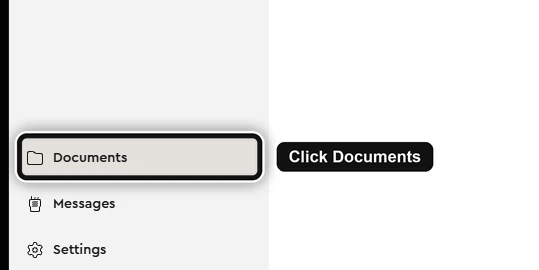
In the job's left sidebar, click Documents.
-
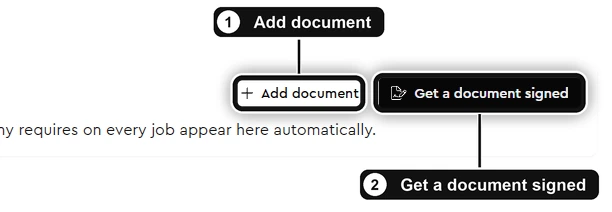
Under E-signatures, click Add document to add a document to the job's signing steps, or Get a document signed to send one for signature on its own.
Add a Document to the Job
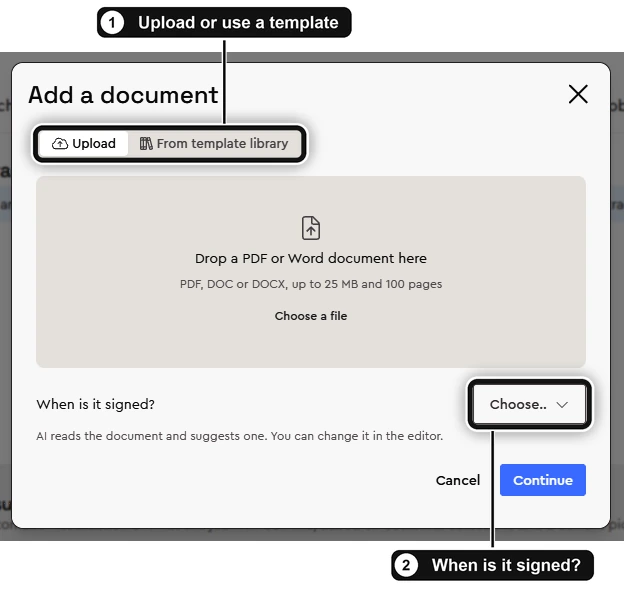
- Click Add document. The Add a document window opens.
- On the Upload tab, drop a PDF or Word document, or click Choose a file. You can upload a PDF, DOC or DOCX of up to 25 MB and 100 pages. To reuse a document you've saved before, click From template library.
-
Next to When is it signed?, click Choose. Bolster's AI reads the document and suggests when it's signed, and you can change it later in the editor.
-
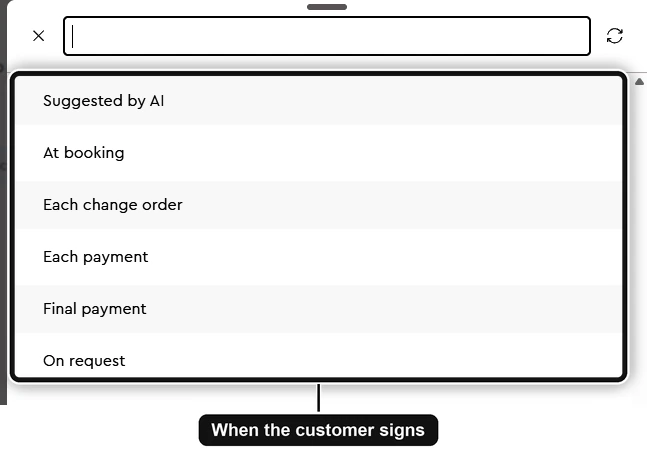
Choose when your customer signs the document:
- Suggested by AI
- At booking
- Each change order
- Each payment
- Final payment
- On request
-
Click Continue.
Get a Document Signed on Its Own
Use this for a document that isn't part of another step, such as a waiver or a one-off form.
- Click Get a document signed.
-
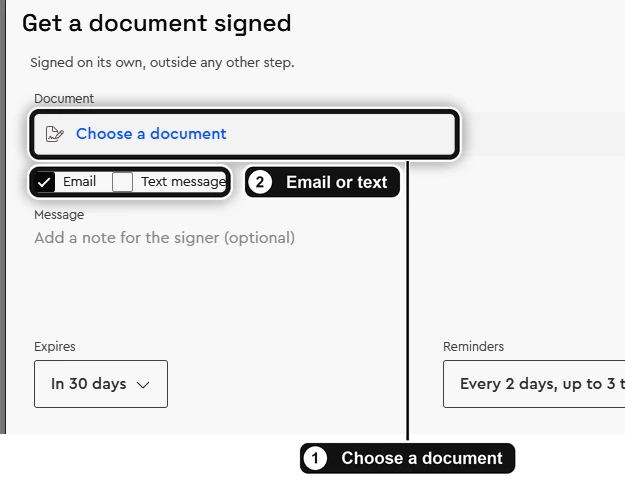
Click Choose a document and upload a document or pick one from your template library. Then choose whether to send the request by Email, Text message or both, and add an optional Message for the signer.
-
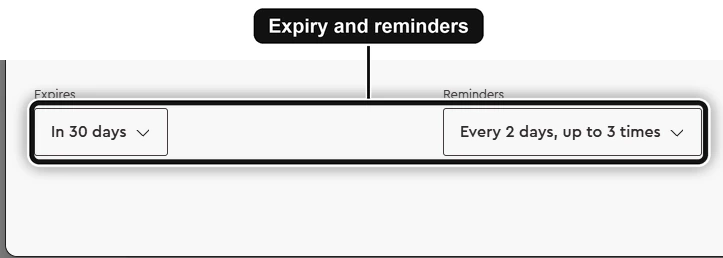
Set when the request Expires (for example, In 30 days) and how often Bolster sends Reminders (for example, Every 2 days, up to 3 times).
-
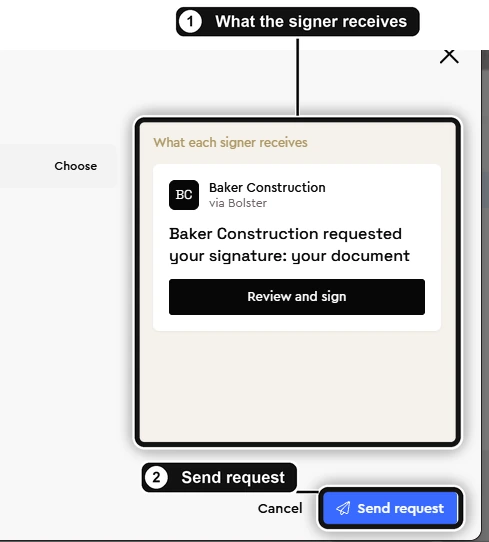
On the right, check what each signer receives, then click Send request.
Find Signed Documents
Signed documents show under Signed contracts on the job's Documents page. Approved versions and changes appear there automatically once your customer approves. You can also upload contracts that were signed outside Bolster.
Require a Document on Every Job
-
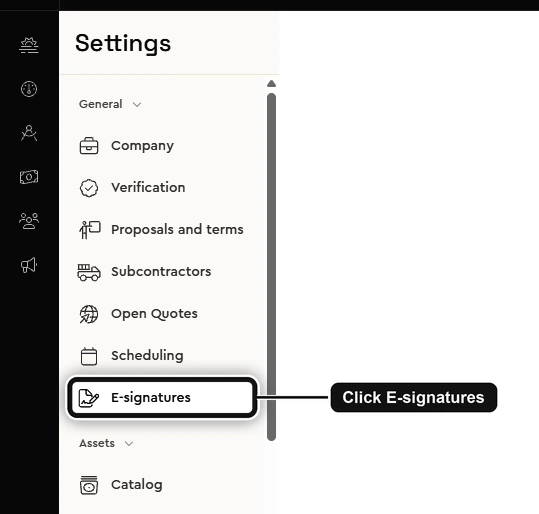
At the bottom of the left-hand menu, click the gear icon (Settings), then click E-signatures.
-
Under Required on every job, click Add required document to add a contract or form that every new job needs.
-
For each document, choose when the customer signs it under Customer signs, check the Signers, and turn it on with the Active toggle.
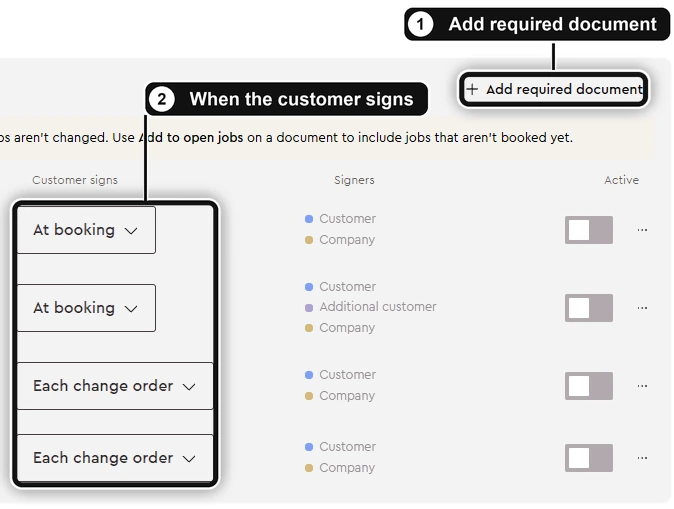
Required documents are added to every new job when it's created, and existing jobs aren't changed. To include jobs that aren't booked yet, use Add to open jobs on a document.
Under Template library, upload a PDF, DOC or DOCX to save signature documents you reuse.
Why This Matters
- Customers sign contracts and forms inside Bolster, so there's no printing, scanning or separate e-signature tool.
- Documents are tied to the right moment, like booking, each change order or the final payment.
- Required documents are added to every new job, so nothing gets missed.
Summary
Open the job and click Documents. Click Add document to upload a PDF or Word document (or use your template library) and choose when it's signed, such as at booking or each change order. Click Get a document signed to send a document on its own by email or text, with an expiry and reminders. Signed documents show under Signed contracts. To require a document on every job, go to Settings > E-signatures and click Add required document.
Related guides
- Manually Approving a Change Order Without Sending to the ClientVideoProject Management · Change orders
- Upload Old Estimates in Bolster JobsVideoEstimating · Estimate basics
- Add vendors and request their documentsVendors & Purchasing · Vendor management
- Bolster Drive – File ManagementVideoProject Management · Messages & files
- Send a bid request (RFQ) to your vendorsVideoVendors & Purchasing · Vendor management