




Keeping up to date with the Project & Payment Progress
More in Proposals & Client Experience
Proposals & Client Experience
Presentations
- Building stellar job-winning presentations
- Changing presentation settings
- How to Download & Print Proposals
Options, upgrades & selections
- How to Make Items Optional
- How to Make Assemblies Optional
- How to Add Upgrades to Assemblies
- How to Add Line Item Upgrades
- Building a Selector Tool (or Variation Options) with pricing
- Using the Selections tab
- How to Let Buyers Set Their Own Quantity or Dimension
Custom inputs
- How to Add a Custom Input or Question to a Proposal or Template
- How to Add Pre-Built Paint Fandexes to a Line Item
Customer portal
The client can log in to their dashboard at any time during the course of the project. Here, they will see their payment progress — including what has been paid, what has been billed but still needs their approval & payment, and what remains outstanding.
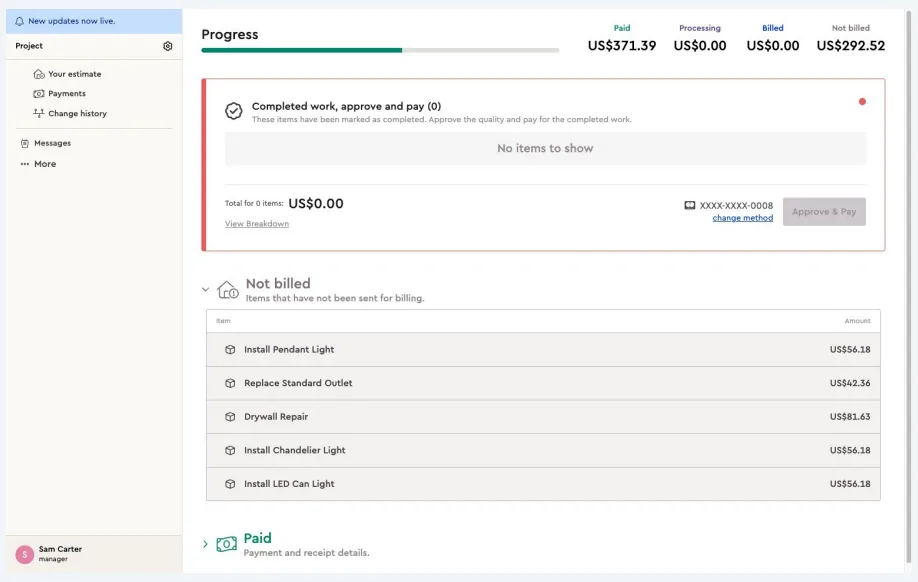
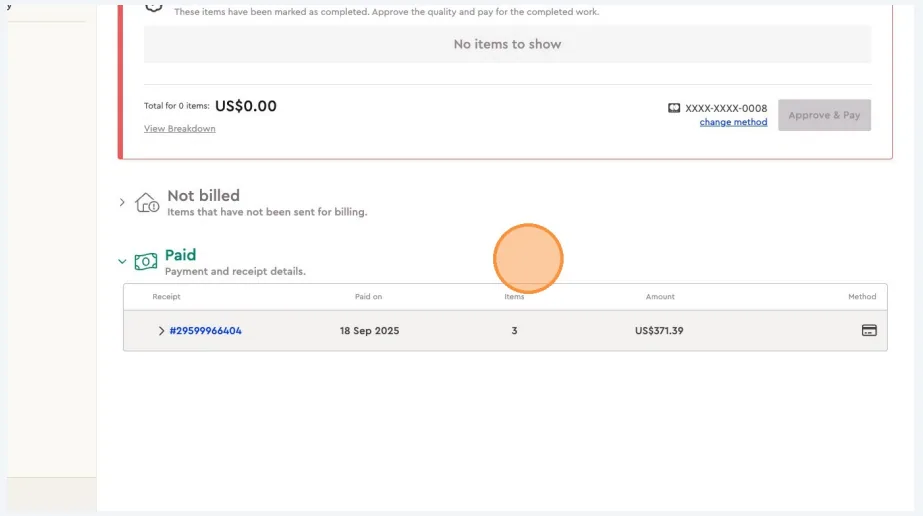
From the Payments tab in the client portal, the client can access all invoice details and download receipts for completed payments.
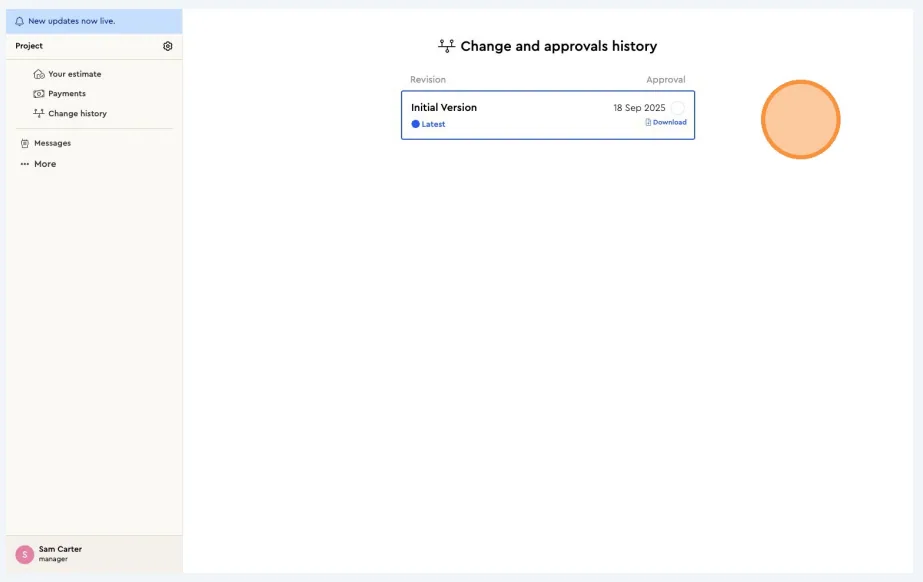
The client can review the change history of the project and download the contract currently in place.
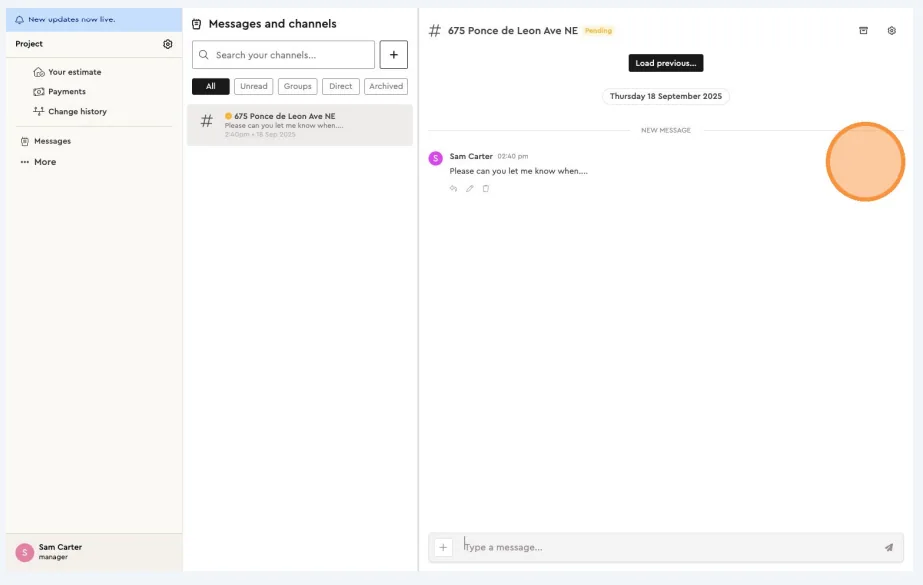
The client can message you directly using the instant messaging tool in the client portal. When you log in to the project on Bolster, you’ll be able to see and respond to these messages.
Next best guides
- Viewing of Invoices & downloading ReceiptsProposals & Client Experience · Customer portal
- Approving a job and project termsProposals & Client Experience · Customer portal
- Stage Based PaymentsPayments & Invoicing · Progress payments
- Percentage Based Payments (segmented)Payments & Invoicing · Progress payments
- Phase Based PaymentsPayments & Invoicing · Progress payments



