




Viewing of Invoices & downloading Receipts
More in Proposals & Client Experience
Proposals & Client Experience
Presentations
- Building stellar job-winning presentations
- Changing presentation settings
- How to Download & Print Proposals
Options, upgrades & selections
- How to Make Items Optional
- How to Make Assemblies Optional
- How to Add Upgrades to Assemblies
- How to Add Line Item Upgrades
- Building a Selector Tool (or Variation Options) with pricing
- Using the Selections tab
- How to Let Buyers Set Their Own Quantity or Dimension
Custom inputs
- How to Add a Custom Input or Question to a Proposal or Template
- How to Add Pre-Built Paint Fandexes to a Line Item
Customer portal
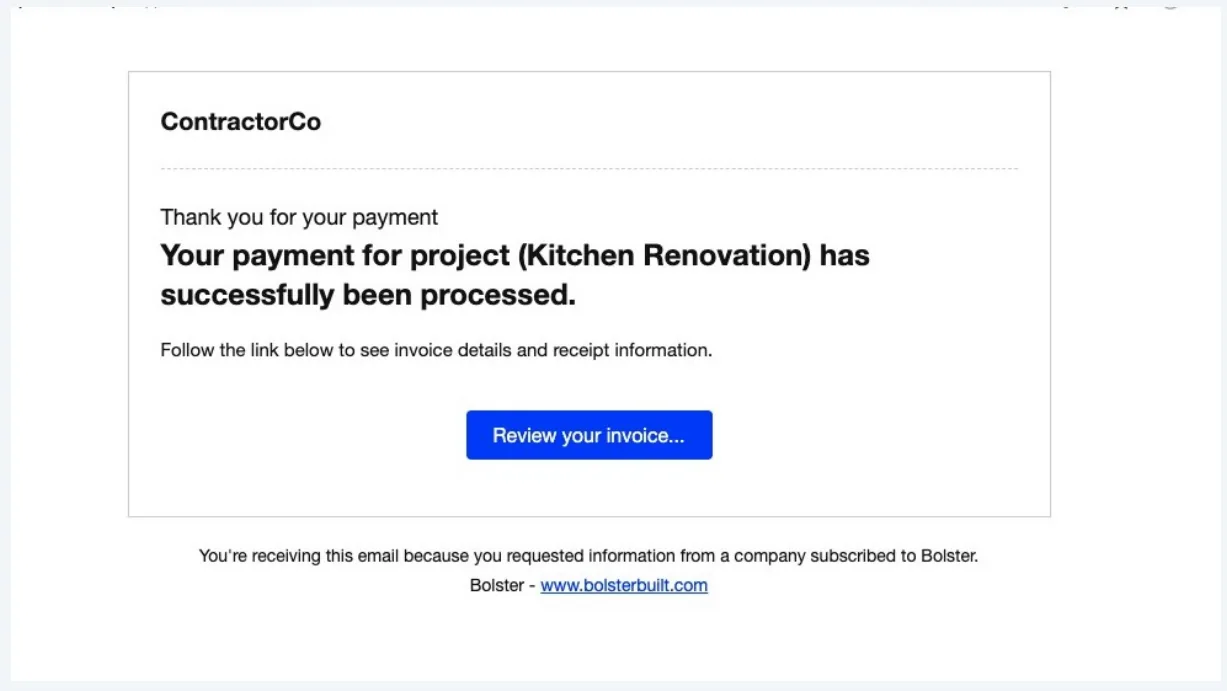
Once the client makes a payment, they will receive a notification confirming that their payment was successfully processed and that an invoice is available to view.
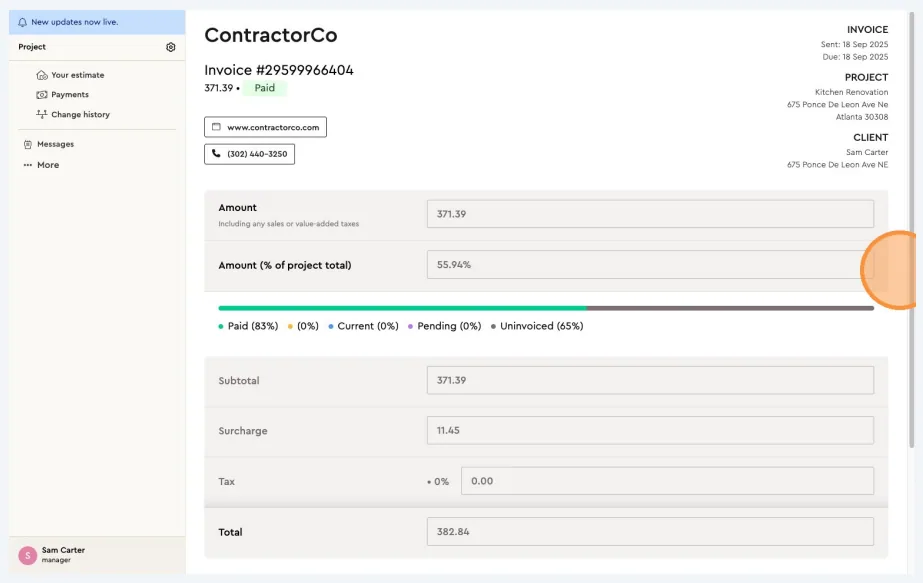
The client can open the invoice to see the payment details, along with the overall progress of payments made for the project.
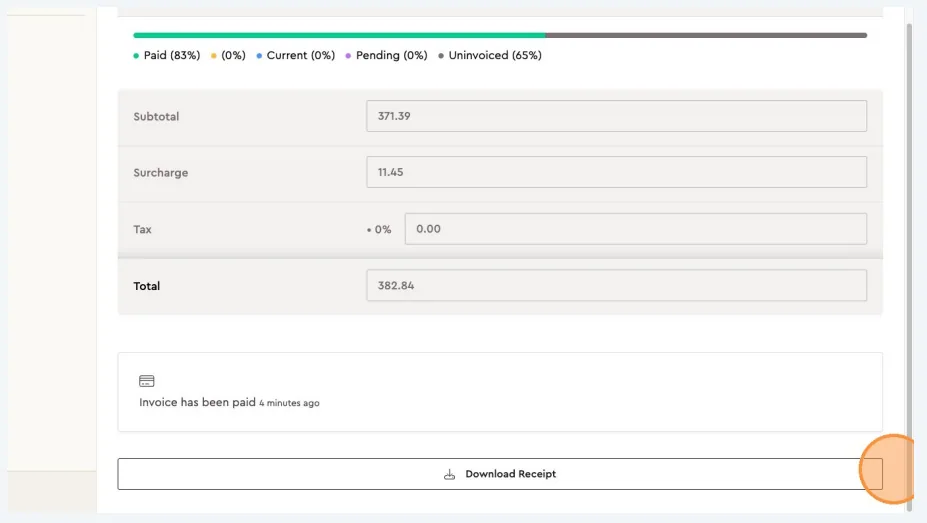
The client can also download a receipt for their records directly from the invoice.
Next best guides
- Keeping up to date with the Project & Payment ProgressProposals & Client Experience · Customer portal
- Approving a job and project termsProposals & Client Experience · Customer portal
- Stage Based PaymentsPayments & Invoicing · Progress payments
- How projects, subcontractors and progress billing works togetherVideoPayments & Invoicing · Getting paid with Bolster
- Phase Based PaymentsPayments & Invoicing · Progress payments



