




Approving a job and project terms
Clients review work, approve items, and pay online through their secure Client Portal—where they can track the project progress.
More in Proposals & Client Experience
Presentations
- Building stellar job-winning presentations
- Changing presentation settings
- How to Download & Print Proposals
Options, upgrades & selections
- How to Make Items Optional
- How to Make Assemblies Optional
- How to Add Upgrades to Assemblies
- How to Add Line Item Upgrades
- Building a Selector Tool (or Variation Options) with pricing
- Using the Selections tab
- How to Let Buyers Set Their Own Quantity or Dimension
Custom inputs
- How to Add a Custom Input or Question to a Proposal or Template
- How to Add Pre-Built Paint Fandexes to a Line Item
Customer portal
How your clients will see and receive payment requests in Bolster.
Approving a job & the Project Payment Terms:
Once you send an estimate, your client will receive an email and SMS notification with a link to view the proposal.
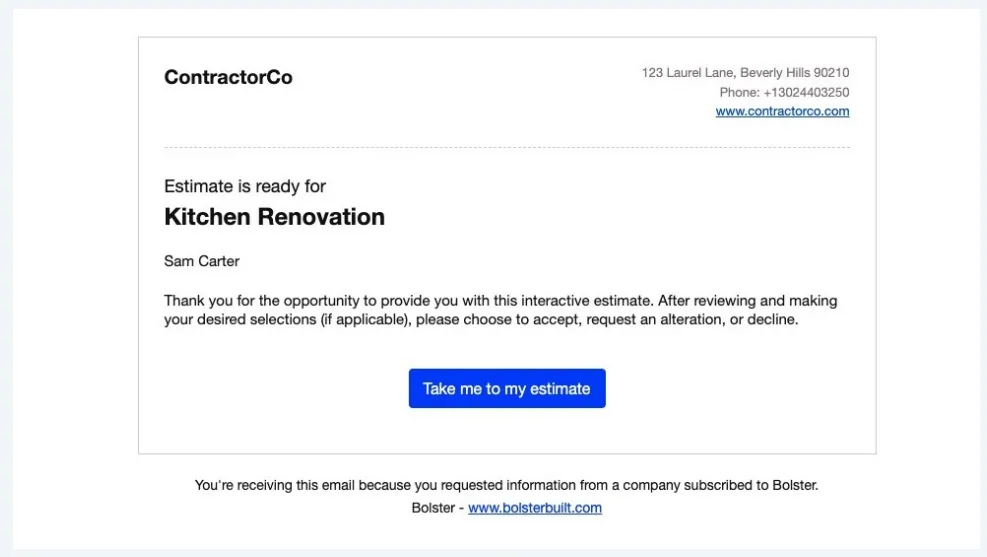
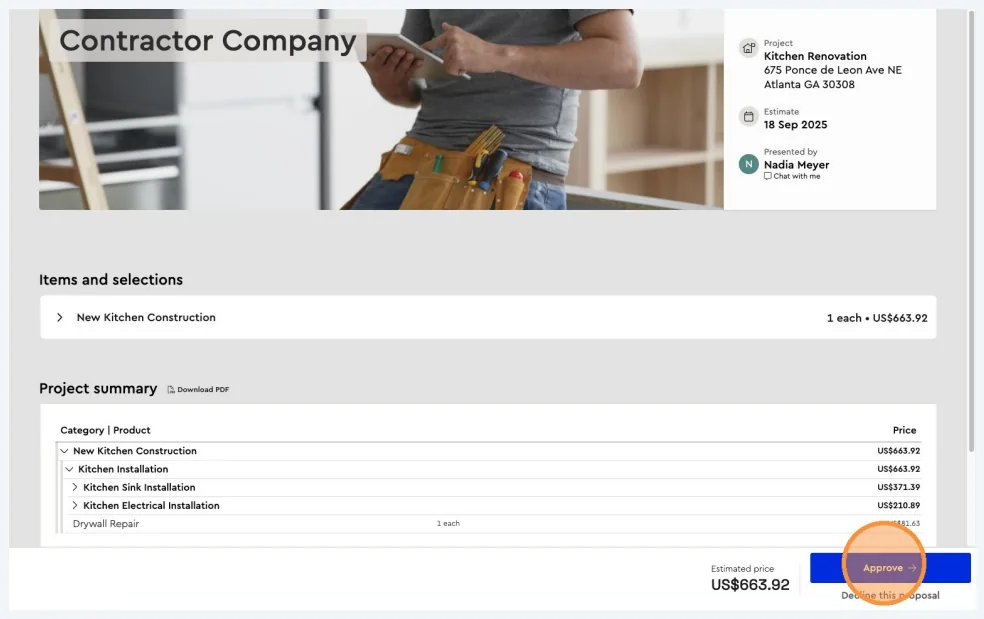
The client can open the proposal and review the details you’ve included. They will have the option to either approve or decline the proposal.
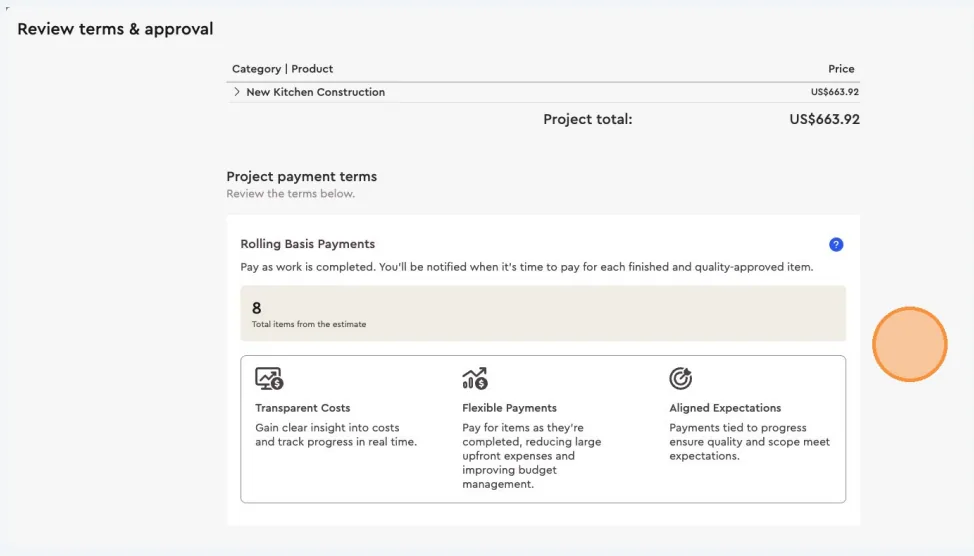
The client will be able to review the project’s payment terms and the proposal’s terms & conditions.
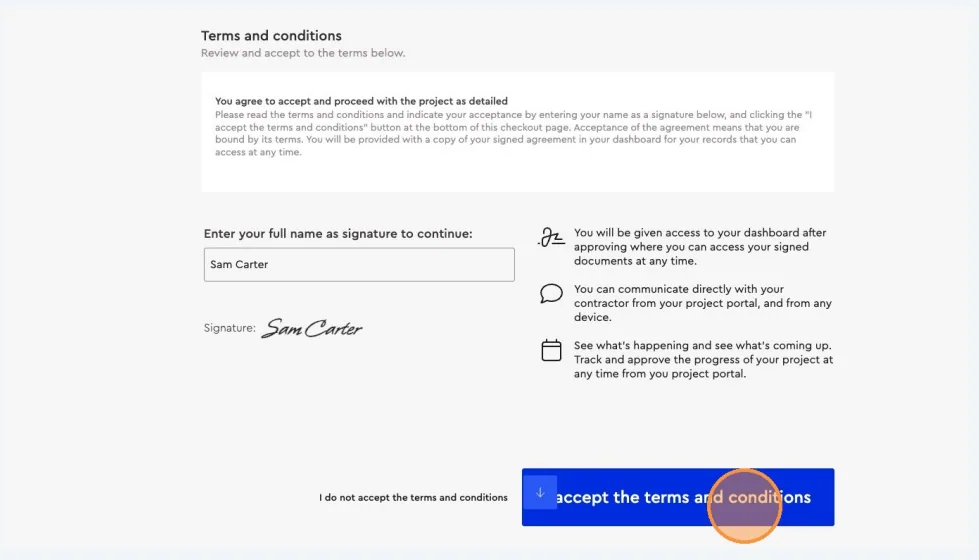
After reviewing, the client can provide their approval by digitally signing the proposal, which also confirms their agreement to the terms & conditions.
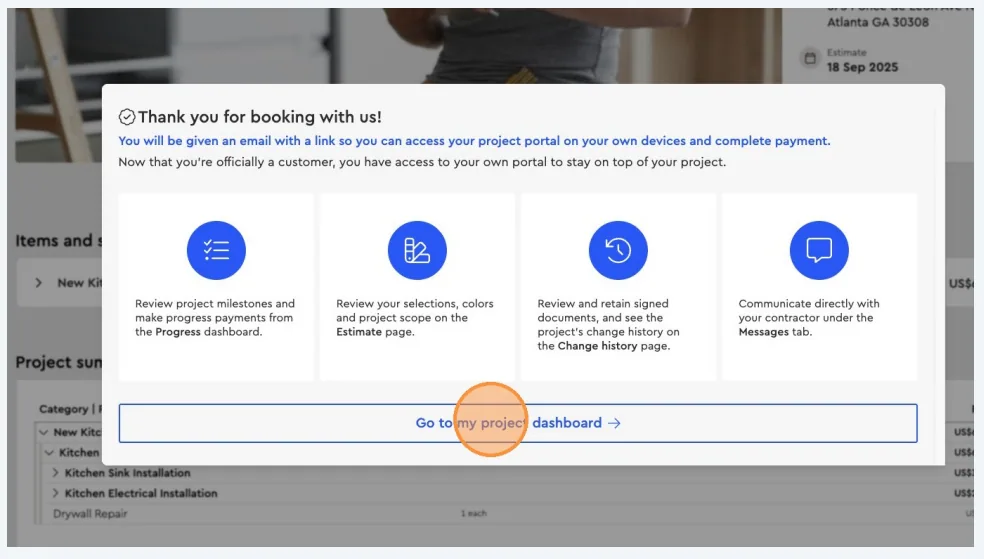
Once the proposal is signed, the client is taken to their Client Project Dashboard, where they can continuously stay up to date with the project’s progress.
Next best guides
- How your clients receive payment requestsProposals & Client Experience · Customer portal
- Keeping up to date with the Project & Payment ProgressProposals & Client Experience · Customer portal
- Stage Based PaymentsPayments & Invoicing · Progress payments
- Phase Based PaymentsPayments & Invoicing · Progress payments
- Rolling Basis PaymentsPayments & Invoicing · Progress payments



