




Using Daily Logs
Learn how to create, fill in, copy, duplicate and delete daily logs on a job, and how your crew adds them from the Bolster field app.
More in Project Management
Budget & costs
- Introduction to the new Budget Tab
- How to Use the Budget Tab
- How do I track budget vs actual costs in Bolster?
- How do I add and categorize project expenses in Bolster?
- How to Track Bills & Expenses for a Booked Project
Change orders
- How to Use the Change Orders Tab
- Manually Approving a Change Order Without Sending to the Client
- How to View and Revert Change Order Versions
- How to Access Explicit and Full Activities in Change Orders
- How Change Orders Affect Payment Terms
Scheduling & tasks
- Introduction to Scheduling
- Creating Scheduling Templates
- Working in the Schedule: Timeline, Calendar and Overtime
- Using Tasks for Project Management
- How to Add a Task Item to an Estimate
- Using Daily Logs
- Time Tracking for Your Crew
Messages & files
Overview
A daily log is a dated record of one day on a job: who was on site, what got done, what held the work up, and the photos to show it. Every log is saved on the job, so when a customer asks what happened on Tuesday, the answer is in one place.
You can create logs in Bolster on the web. Your crew and subcontractors can also log the day from the Bolster field app on their phone.
Before You Begin
- Daily logs are part of Bolster project management, included on Pro and up.
- Open the job you want to log. Daily logs sit in the job's Production menu.
Open Daily Logs
- Open the job from Jobs > Pipeline or Jobs > Job list.
-
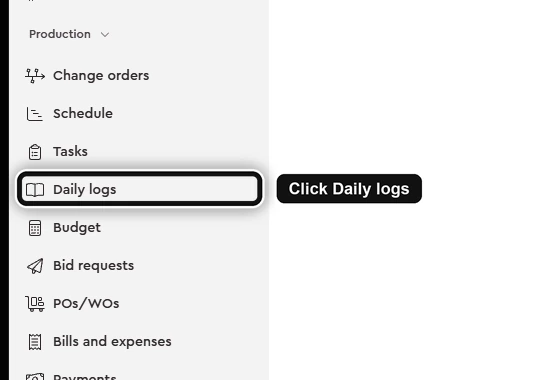
In the job's left sidebar, under Production, click Daily logs.
-
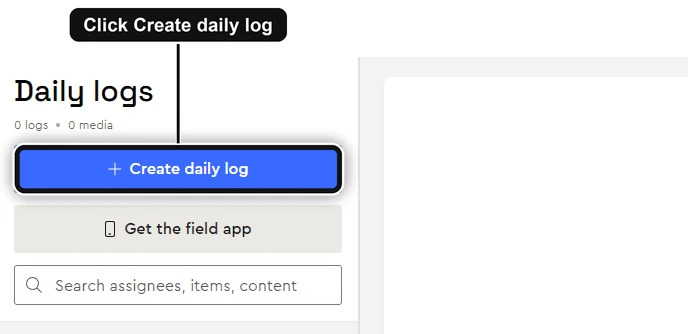
The page shows how many logs and how much media the job has, and lists each log by date. Use the search box to find a log by assignee, item or content.
Create a Daily Log
-
Click Create daily log. A new log opens, dated today. Bolster saves your changes as you type, and shows Saved in the top right corner.
-
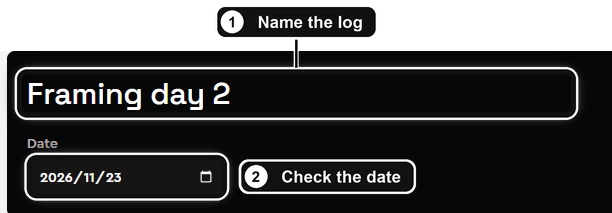
Click Untitled log and give the log a name (for example, Framing day 2).
-
Check the Date, and change it if you're logging a different day.
Record Who Was on Site
-
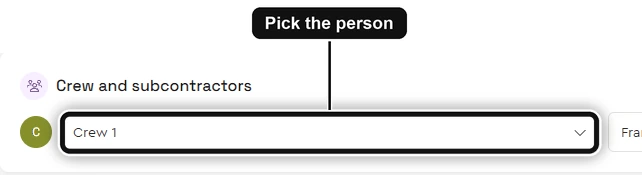
Under Crew and subcontractors, click Add.

-
Click Pick a person and choose a team member, crew or subcontractor.
-
In Trade or role, type what they did on the job (for example, Framing crew).
- Click Add again for each person who worked on the job that day. To remove someone, click the x at the end of their row.
Record the Day
-
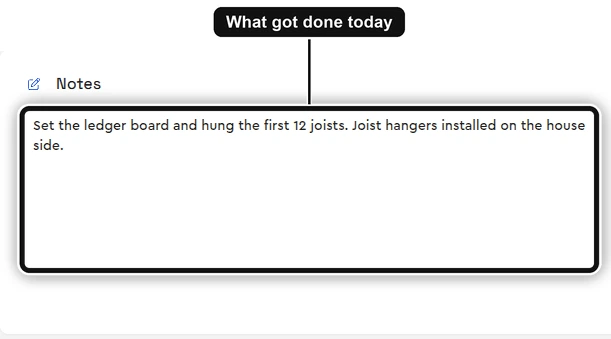
In Notes, write what got done.
-
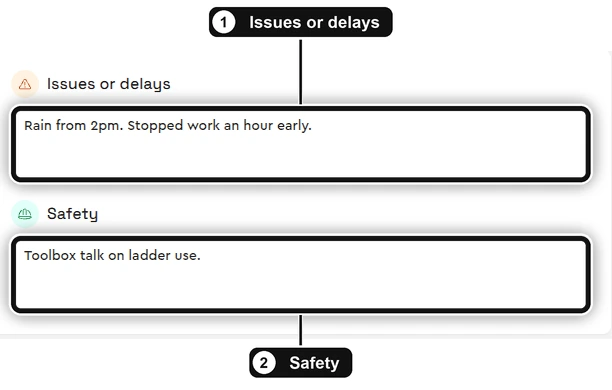
In Issues or delays, note anything that held the work up, such as weather, inspections or late materials.
-
In Safety, note toolbox talks, incidents or anything else safety-related.
-
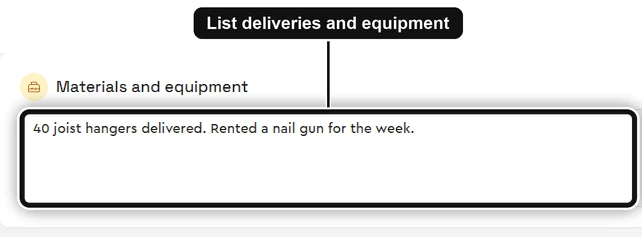
In Materials and equipment, list deliveries, rentals or equipment used.
Add Comments, Photos and Videos
-
Under Comments, type a comment and click the send icon. Comments are a good place for questions or follow-ups on the log.
-
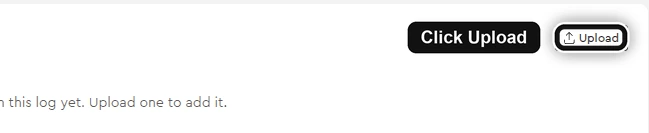
Under Photos and videos, click Upload to add pictures or videos of the work.
Copy, Export, Duplicate or Delete a Log
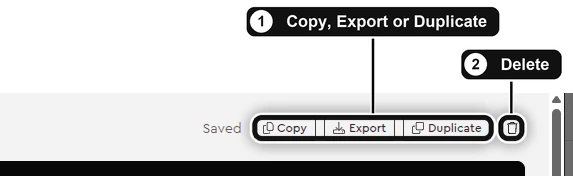
The buttons in the top right corner of an open log:
- Copy copies the log so you can paste it into a message or email. Bolster confirms with Daily log copied.
- Export exports the log.
- Duplicate creates a new log with the same crew and notes. This is handy when the same crew is back the next day. Remember to rename and re-date the copy.
- The bin icon deletes the log. Click Yes, go ahead to confirm.
Daily Logs From the Field App
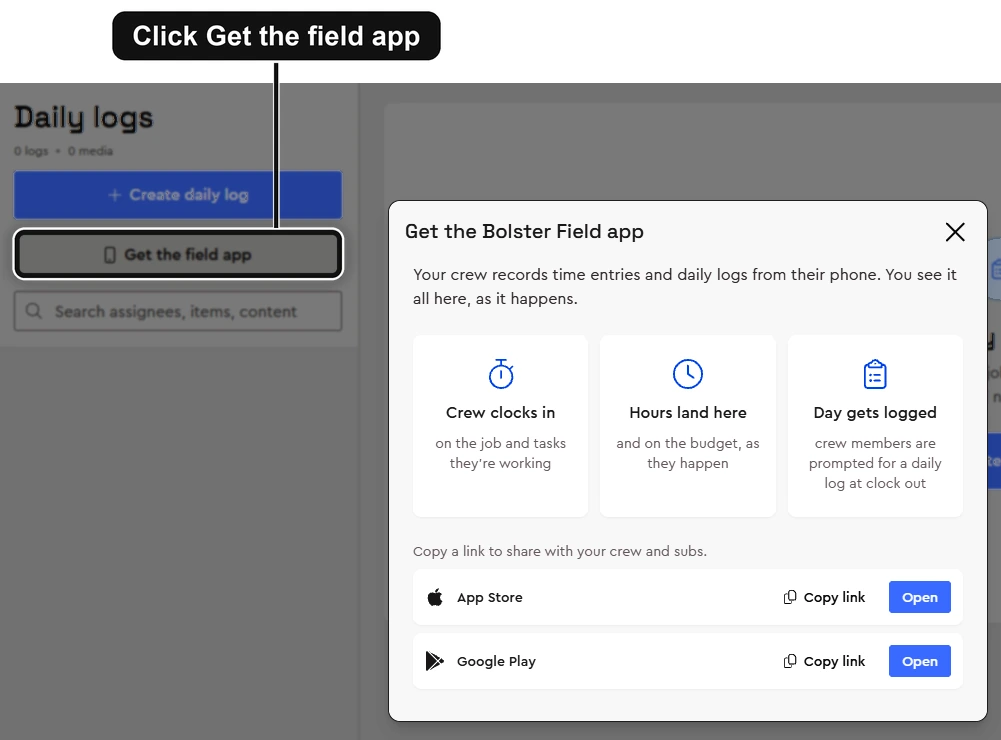
Your crew and subcontractors can record time and daily logs from their phone with the Bolster field app. Whatever they log shows up on the job's Daily logs page as it happens. Crew members are prompted for a daily log when they clock out.
-
On the Daily logs page, click Get the field app.
-
Under Copy a link to share with your crew and subs, click Copy link next to App Store or Google Play and send it to your crew. You can also click Open to go to the store page.
Why This Matters
- Every day on the job is dated and filed in one place, instead of in texts, notebooks and camera rolls.
- Issues, delays and photos are on the record if a customer or subcontractor questions a date later.
- Your office sees what happened on site without chasing anyone for an update.
Summary
Open the job and click Daily logs under Production. Click Create daily log, name the log and check the date, then add the crew and subcontractors, notes, issues or delays, safety, materials and equipment, comments, and photos or videos. Bolster saves as you go. Use Copy, Export, Duplicate or the bin icon at the top of a log, and click Get the field app to share the Bolster field app with your crew.
Related guides
- Using Tasks for Project ManagementVideoProject Management · Scheduling & tasks
- Working in the Schedule: Timeline, Calendar and OvertimeProject Management · Scheduling & tasks
- Introduction to SchedulingVideoProject Management · Scheduling & tasks
- Bolster – CompanyCam Integration GuideVideoIntegrations · CompanyCam
- Sending attachments to channelsProject Management · Messages & files