




Time Tracking for Your Crew
Learn how to review clocked hours by person or timesheet, change the period, add missed time, and share the Bolster field app with your crew.
More in Project Management
Budget & costs
- Introduction to the new Budget Tab
- How to Use the Budget Tab
- How do I track budget vs actual costs in Bolster?
- How do I add and categorize project expenses in Bolster?
- How to Track Bills & Expenses for a Booked Project
Change orders
- How to Use the Change Orders Tab
- Manually Approving a Change Order Without Sending to the Client
- How to View and Revert Change Order Versions
- How to Access Explicit and Full Activities in Change Orders
- How Change Orders Affect Payment Terms
Scheduling & tasks
- Introduction to Scheduling
- Creating Scheduling Templates
- Working in the Schedule: Timeline, Calendar and Overtime
- Using Tasks for Project Management
- How to Add a Task Item to an Estimate
- Using Daily Logs
- Time Tracking for Your Crew
Messages & files
Overview
Time Tracking shows the hours your crew and subcontractors clock on your jobs. Your crew clocks in on the job and the tasks they're working on from the Bolster field app, and the hours land in Time Tracking and on the job budget as they happen.
You can also add time that was worked but not clocked.
Before You Begin
- Your crew records time from the Bolster field app. See Share the Field App With Your Crew below.
Open Time Tracking
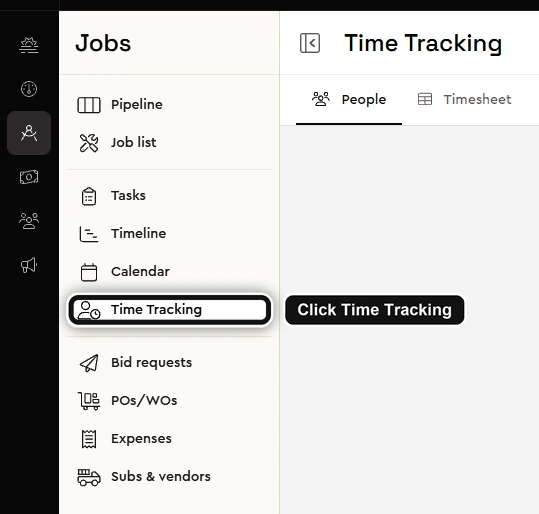
- In the left-hand menu, click Jobs.
-
Click Time Tracking.
Review Hours
-
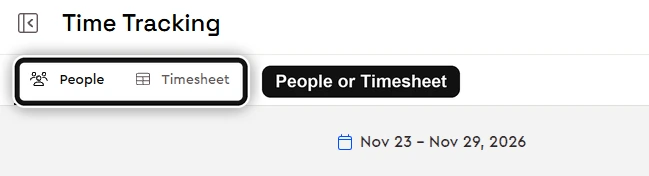
Choose a tab:
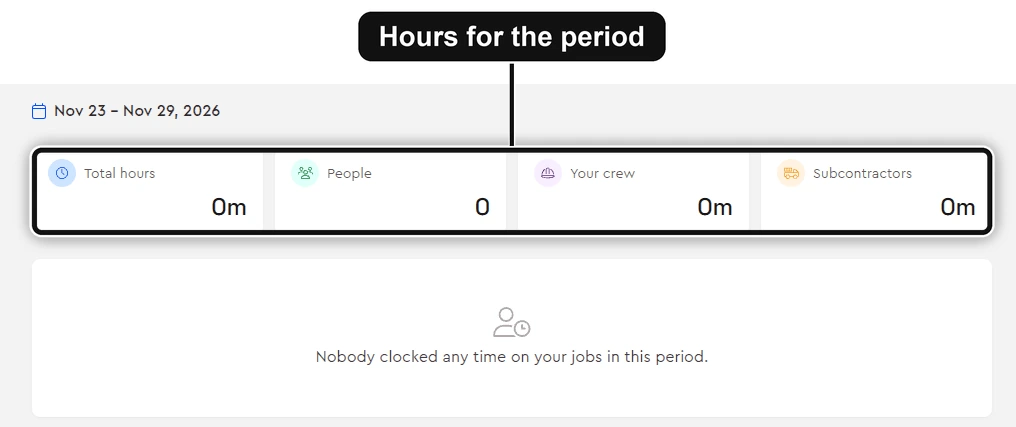
- People shows a summary for the period: Total hours, People, Your crew and Subcontractors.
- Timesheet shows the time entries.
-
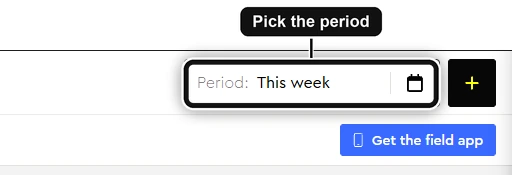
To change the dates, click Period in the top right corner and choose This week, Last week, Last 2 weeks, This month or Last month. For other dates, enter a Custom Range and click Apply Custom Range.
If nobody clocked time in that period, you'll see Nobody clocked any time on your jobs in this period.
Add Time That Wasn't Clocked
If someone forgot to clock in, add the time yourself. Time you add is marked as added by you.
-
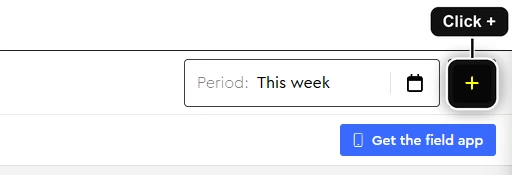
In the top right corner, click +. The Add time window opens.
-
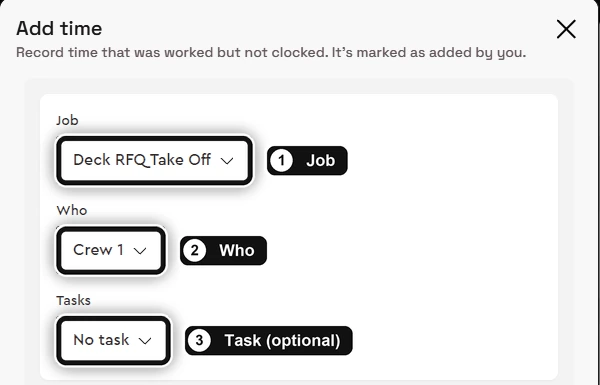
Under Job, select the job.
- Under Who, pick one or more people.
-
Optionally, under Tasks, select the task the time was spent on.
-
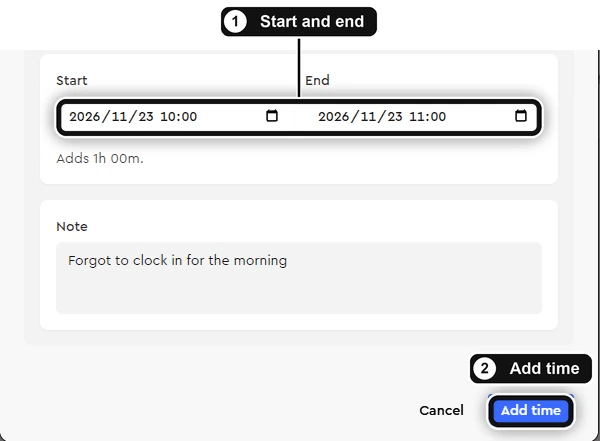
Set the Start and End. Bolster shows how much time this adds (for example, Adds 1h 00m).
- Optionally, add a Note explaining why the time is being added.
-
Click Add time.
Share the Field App With Your Crew
-
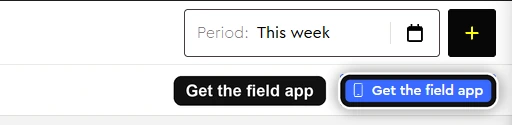
Click Get the field app.
-
Under Copy a link to share with your crew and subs, click Copy link next to App Store or Google Play, and send it to your crew. Click Open to go to the store page yourself.
When your crew clocks out in the field app, they're prompted to fill in a daily log for the job. See Using Daily Logs.
Why This Matters
- Hours land on the job budget as they happen, so you see labor against what you priced while the job is still running.
- Clocking in on each task shows where the time went.
- Adding missed time keeps the record complete, with a note on why it was added.
Summary
Click Jobs, then Time Tracking. Use the People and Timesheet tabs and the Period picker to review hours. Click + to add time that wasn't clocked by choosing the job, the people, an optional task, the start and end, and a note, then click Add time. Click Get the field app to share the Bolster field app with your crew.
Related guides
- Working in the Schedule: Timeline, Calendar and OvertimeProject Management · Scheduling & tasks
- Using Tasks for Project ManagementVideoProject Management · Scheduling & tasks
- Introduction to SchedulingVideoProject Management · Scheduling & tasks
- Custom Labor Rates & Time TrackingVideoEstimating · Pricing & markup
- Adding Detail to Labor Costing of ItemsVideoEstimating · Pricing & markup