




Bolster Field App: Calendar, Availability and Chat
Learn how to use the Calendar and Chat tabs in the Bolster Field app.
More in Project Management
Budget & costs
- Introduction to the new Budget Tab
- How to Use the Budget Tab
- How do I track budget vs actual costs in Bolster?
- How do I add and categorize project expenses in Bolster?
- How to Track Bills & Expenses for a Booked Project
Change orders
- How to Use the Change Orders Tab
- Manually Approving a Change Order Without Sending to the Client
- How to View and Revert Change Order Versions
- How to Access Explicit and Full Activities in Change Orders
- How Change Orders Affect Payment Terms
Scheduling & tasks
- Introduction to Scheduling
- Creating Scheduling Templates
- Working in the Schedule: Timeline, Calendar and Overtime
- Using Tasks for Project Management
- How to Add a Task Item to an Estimate
- Using Daily Logs
- Time Tracking for Your Crew
- Bolster Field App: Clock In and Out on the Job
- Bolster Field App: Write a Daily Log
- Bolster Field App: Calendar, Availability and Chat
Messages & files
Overview
Besides clocking in and writing daily logs, the Bolster Field app has two more tabs for your crew: Calendar, to see their work and set the days they're available, and Chat, to message about a job.
Before You Begin
- Download the Bolster Field app from the App Store (iPhone) or Google Play (Android), and sign in with your Bolster login.
Use the Calendar
- Tap the Calendar tab at the bottom of the app.
-
In the top right corner, switch between the calendar and list views.

-
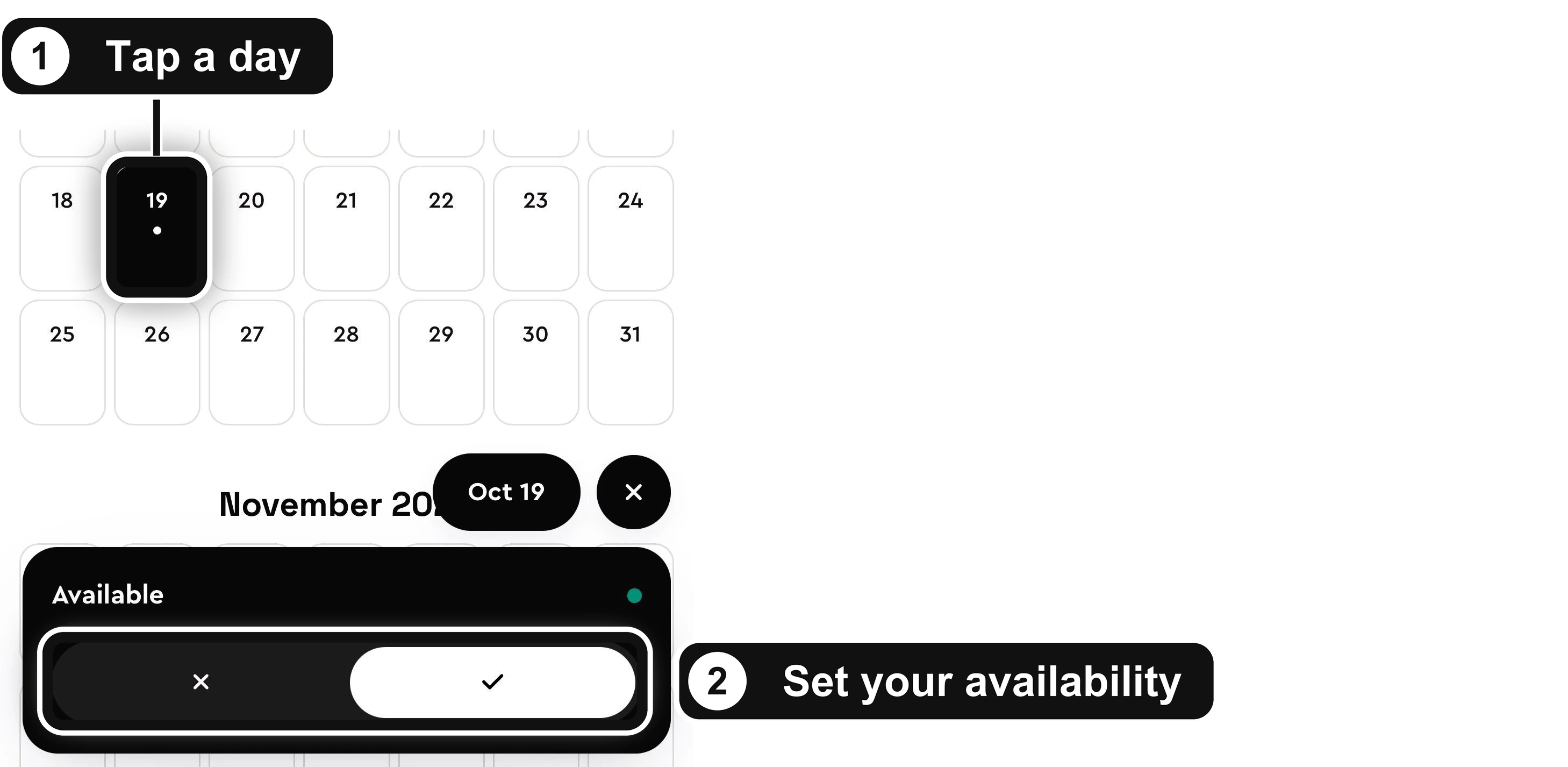
Days with work on them show a dot. Tap a day to select it.
-
Use Available to mark whether you're available that day: tap the tick if you are, or the cross if you're not. Tap the x next to the date to close it.
Use Chat
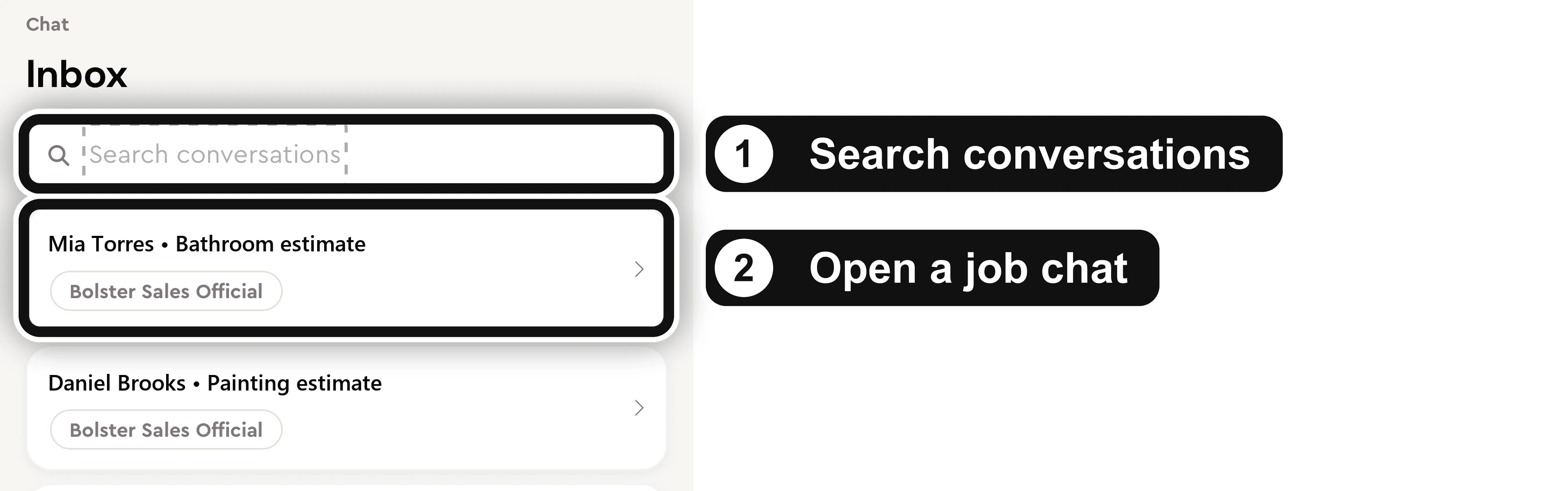
- Tap the Chat tab. Inbox lists a conversation for each job, with the company it belongs to.
-
Use Search conversations to find a job, then tap a job to open its chat.
Why This Matters
- Your crew sees their work for the weeks ahead on their phone.
- Marking availability tells the office who can be scheduled.
- Job conversations stay with the job, not in personal text threads.
Summary
In the Bolster Field app, tap Calendar to see your work, switch between calendar and list views, and tap a day to mark whether you're Available. Tap Chat to open the Inbox, search conversations and message about a job.
Related guides
- Bolster Field App: Clock In and Out on the JobProject Management · Scheduling & tasks
- Working in the Schedule: Timeline, Calendar and OvertimeProject Management · Scheduling & tasks
- Using Daily LogsProject Management · Scheduling & tasks
- Time Tracking for Your CrewProject Management · Scheduling & tasks
- Introduction to SchedulingVideoProject Management · Scheduling & tasks