



Bolster Field App: Write a Daily Log
Learn how to write and save a daily log from the Bolster Field app, with your hours and tasks already filled in.
More in Project Management
Budget & costs
- Introduction to the new Budget Tab
- How to Use the Budget Tab
- How do I track budget vs actual costs in Bolster?
- How do I add and categorize project expenses in Bolster?
- How to Track Bills & Expenses for a Booked Project
Change orders
- How to Use the Change Orders Tab
- Manually Approving a Change Order Without Sending to the Client
- How to View and Revert Change Order Versions
- How to Access Explicit and Full Activities in Change Orders
- How Change Orders Affect Payment Terms
Scheduling & tasks
- Introduction to Scheduling
- Creating Scheduling Templates
- Working in the Schedule: Timeline, Calendar and Overtime
- Using Tasks for Project Management
- How to Add a Task Item to an Estimate
- Using Daily Logs
- Time Tracking for Your Crew
- Bolster Field App: Clock In and Out on the Job
- Bolster Field App: Write a Daily Log
- Bolster Field App: Calendar, Availability and Chat
Messages & files
Overview
At the end of the day, your crew can log what happened on the job right from their phone. The Bolster Field app fills in the tasks they worked on and their hours, so they only add the notes and photos. Every log saves to the job in Bolster, where the office sees it under Daily logs.
Before You Begin
- Download the Bolster Field app from the App Store (iPhone) or Google Play (Android), and sign in with your Bolster login.
Open Today's Log
There are three ways in:
- When you clock out, Bolster asks you to write today's log. Tap Write log.
- On the job page, tap Today's log.
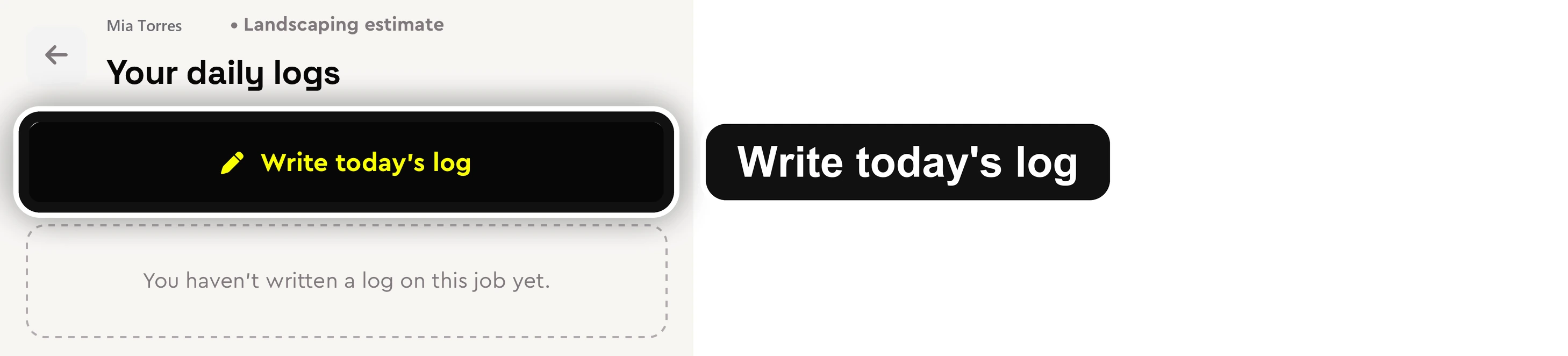
- Tap Daily logs to see the logs you've written on that job, then tap Write today's log.

Fill In the Log
-
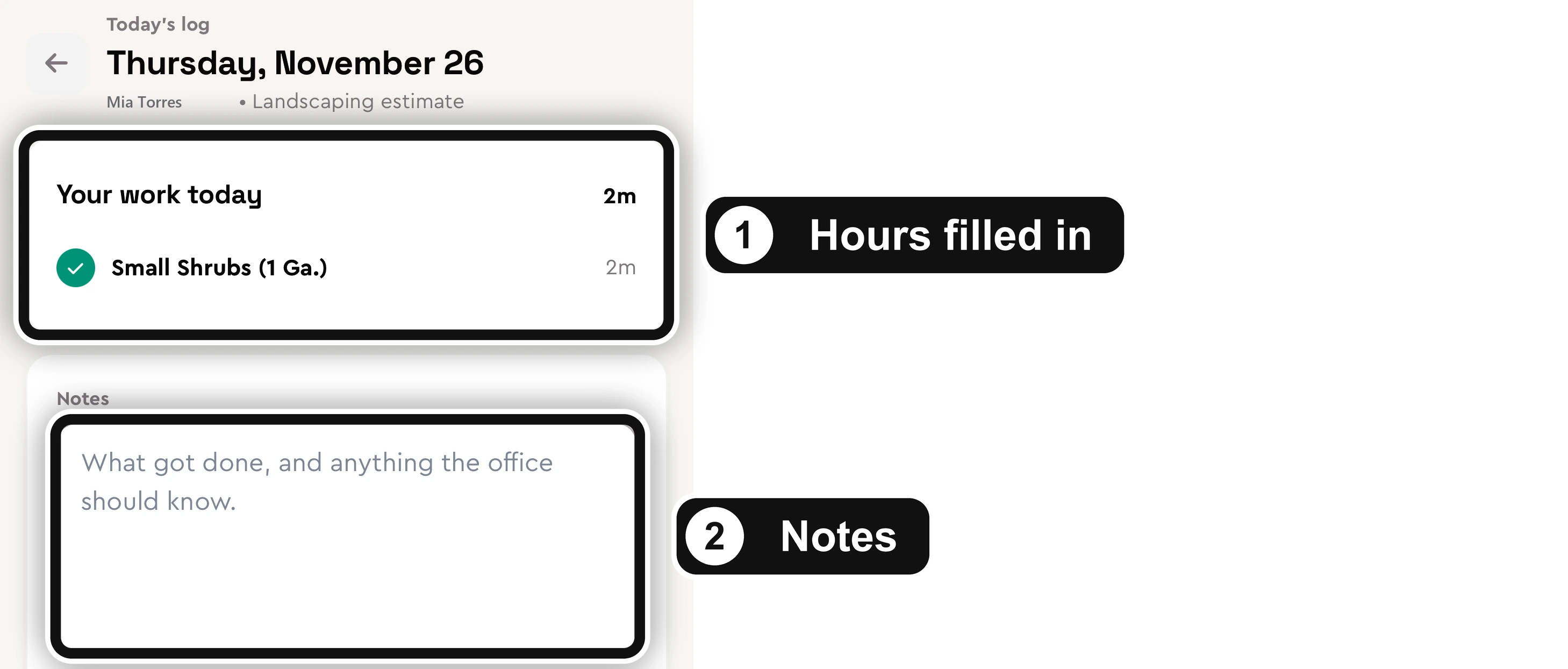
At the top, Your work today lists the tasks you clocked into and your hours. You don't need to type these.
-
In Notes, write what got done and anything the office should know.
-
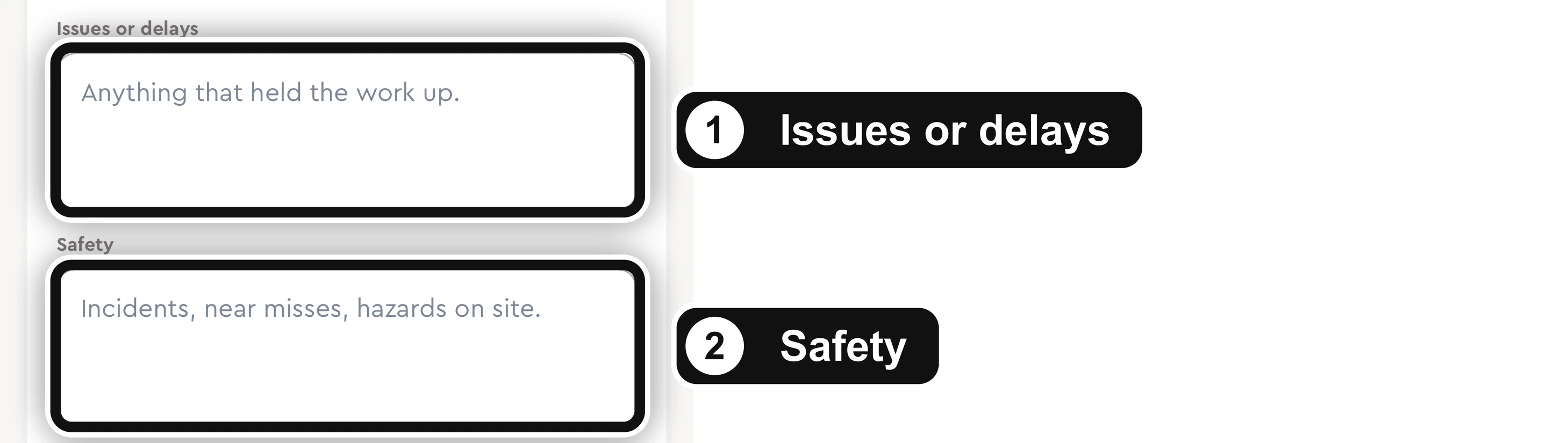
In Issues or delays, note anything that held the work up. In Safety, note incidents, near misses or hazards on site.
-
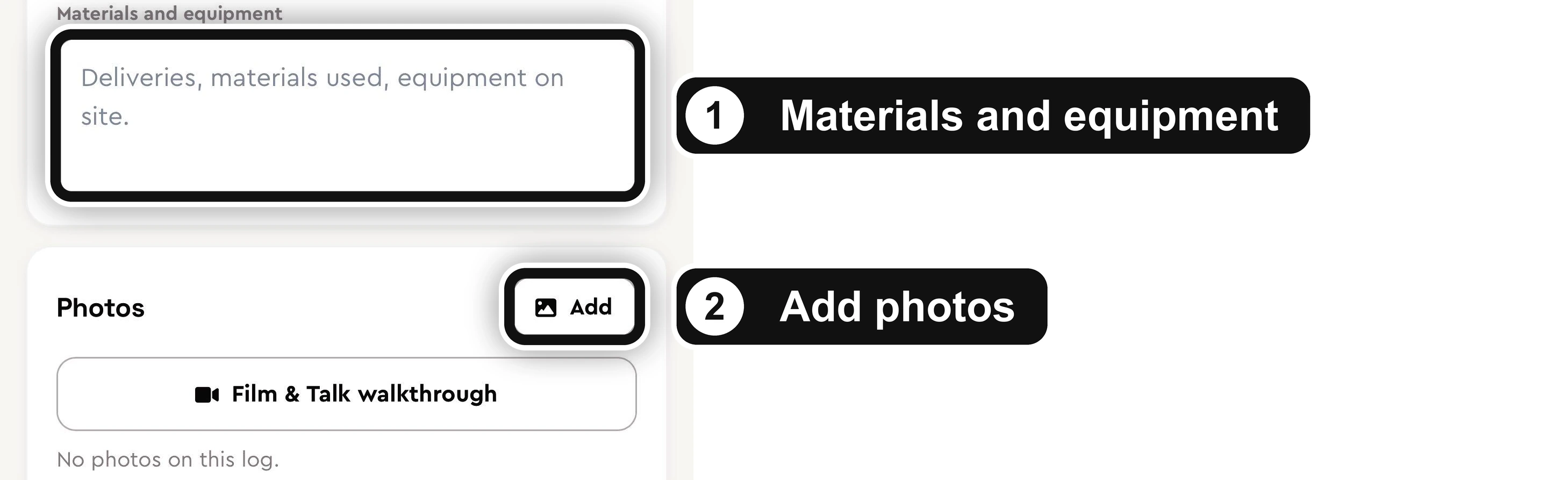
In Materials and equipment, list deliveries, materials used and equipment on site.
Add Photos or a Walkthrough
-
Under Photos, tap Add to add photos of the work.
-
Tap Film & Talk walkthrough to record a video walkthrough of the job and talk through what was done.
Save the Log
-
Tap Save log. The log is saved to the job in Bolster.

The office finds it in the job's Daily logs, under Production in the job's left sidebar. See Using Daily Logs.
Why This Matters
- Your crew logs the day before they leave site, while it's fresh.
- Hours and tasks fill in automatically, so a log takes a minute.
- Notes, issues, safety and photos are on the job record if anyone asks about that day later.
Summary
In the Bolster Field app, tap Write log after clocking out, or Today's log on the job page. Your work today is filled in. Add notes, issues or delays, safety, and materials and equipment, add photos or a Film & Talk walkthrough, then tap Save log. The office sees it under the job's Daily logs in Bolster.
Related guides
- Using Daily LogsProject Management · Scheduling & tasks
- Time Tracking for Your CrewProject Management · Scheduling & tasks
- Using Tasks for Project ManagementVideoProject Management · Scheduling & tasks
- Working in the Schedule: Timeline, Calendar and OvertimeProject Management · Scheduling & tasks
- Production Tab For ItemsVideoEstimating · Materials & production