




Bolster Field App: Clock In and Out on the Job
Learn how to clock in and out with the Bolster Field app, and see where the time lands in Bolster's Time Tracking.
More in Project Management
Budget & costs
- Introduction to the new Budget Tab
- How to Use the Budget Tab
- How do I track budget vs actual costs in Bolster?
- How do I add and categorize project expenses in Bolster?
- How to Track Bills & Expenses for a Booked Project
Change orders
- How to Use the Change Orders Tab
- Manually Approving a Change Order Without Sending to the Client
- How to View and Revert Change Order Versions
- How to Access Explicit and Full Activities in Change Orders
- How Change Orders Affect Payment Terms
Scheduling & tasks
- Introduction to Scheduling
- Creating Scheduling Templates
- Working in the Schedule: Timeline, Calendar and Overtime
- Using Tasks for Project Management
- How to Add a Task Item to an Estimate
- Using Daily Logs
- Time Tracking for Your Crew
- Bolster Field App: Clock In and Out on the Job
- Bolster Field App: Write a Daily Log
- Bolster Field App: Calendar, Availability and Chat
Messages & files
Overview
Bolster Field is the phone app for your crew. They open the job they're working on, clock in on their task, and clock out when they're done. The hours land in Bolster straight away, on the job budget and in Time Tracking, with the location they clocked in and out from.
Before You Begin
- Your crew member needs a Bolster login and the Bolster Field app: download it from the App Store (iPhone) or Google Play (Android). You can also copy these links in Bolster: click Jobs > Time Tracking > Get the field app.
- Assign them to the job's tasks on the schedule, so the work is listed for them in the app. See Working in the Schedule: Timeline, Calendar and Overtime.
Find Your Way Around
-
The app has three tabs along the bottom: Jobs, Calendar and Chat.

-
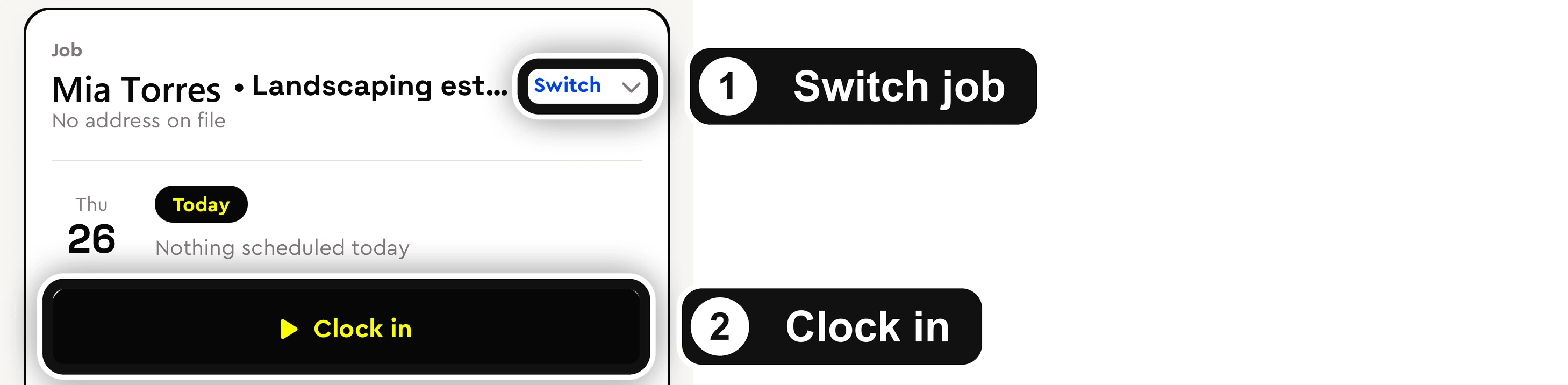
On Jobs, the card at the top shows the job you're working on today. Tap Switch to pick a different job, then tap Clock in to start your time.
-
Tap Open job to see the job's crew and your tasks, or Daily logs to see your logs for that job.

-
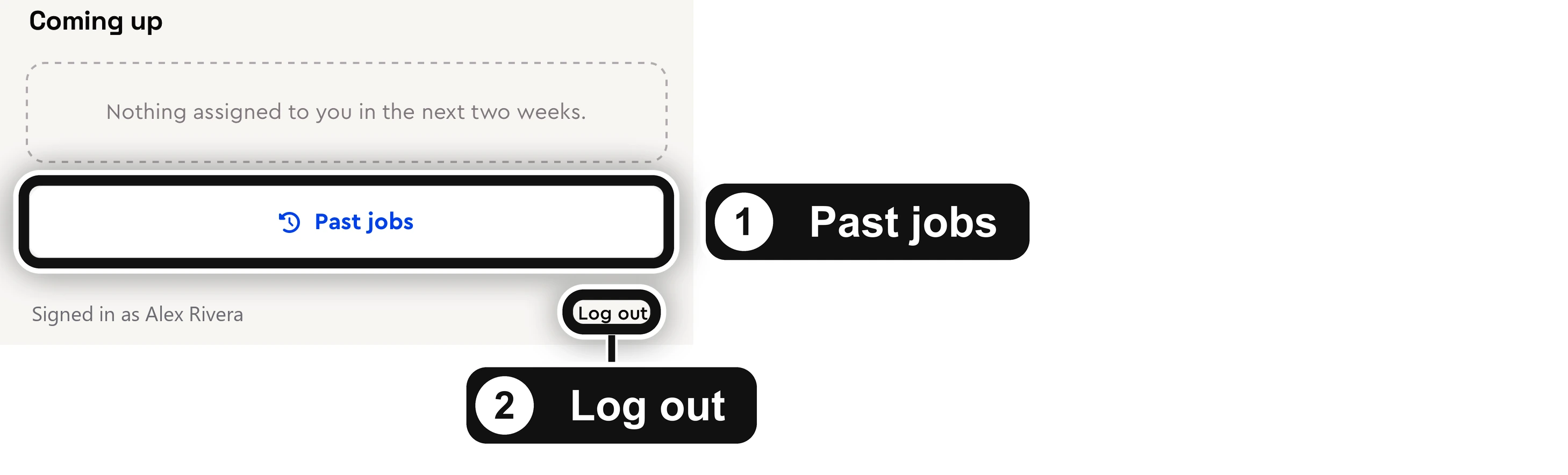
Under Coming up, you'll see anything assigned to you in the next two weeks. Tap Past jobs to see jobs you've worked on before, and Log out to sign out.
Clock In
-
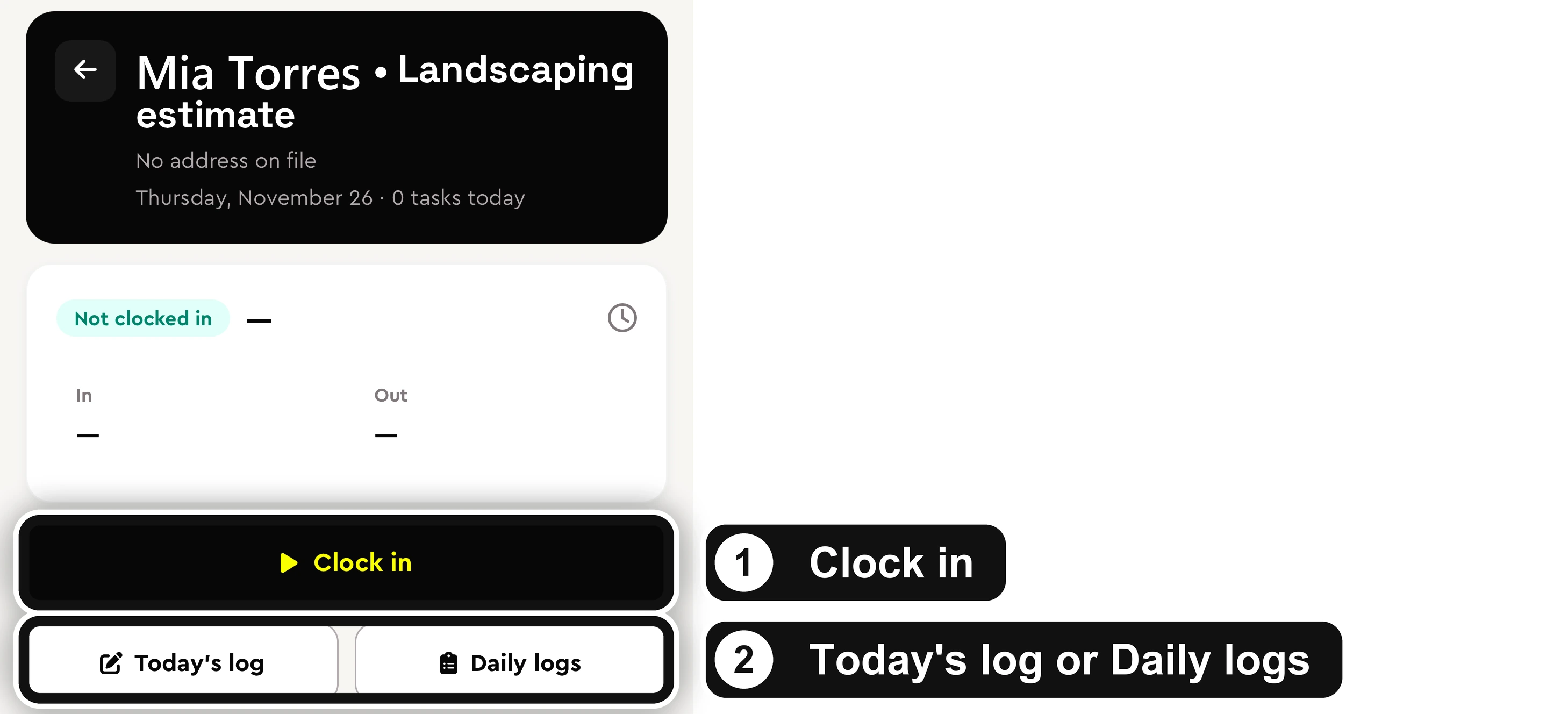
Open the job, or use the job card on the Jobs tab, and tap Clock in.
-
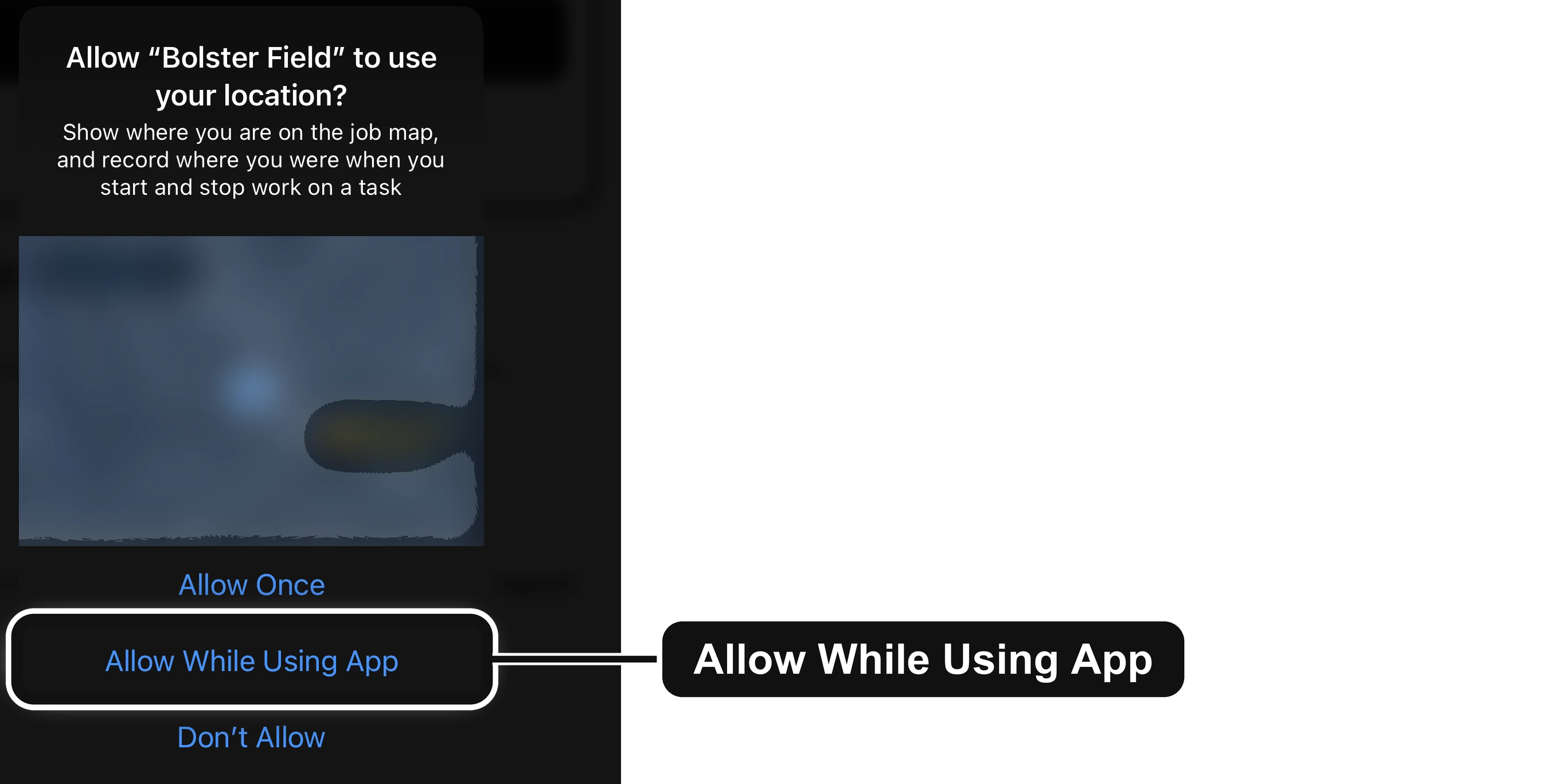
The first time you clock in, your phone asks if Bolster Field can use your location. Tap Allow While Using App. Bolster records where you were when you start and stop work on a task.
-
The job page shows your tasks under Tasks. Tap Add task if you're doing work that isn't listed.

While You're on the Clock
-
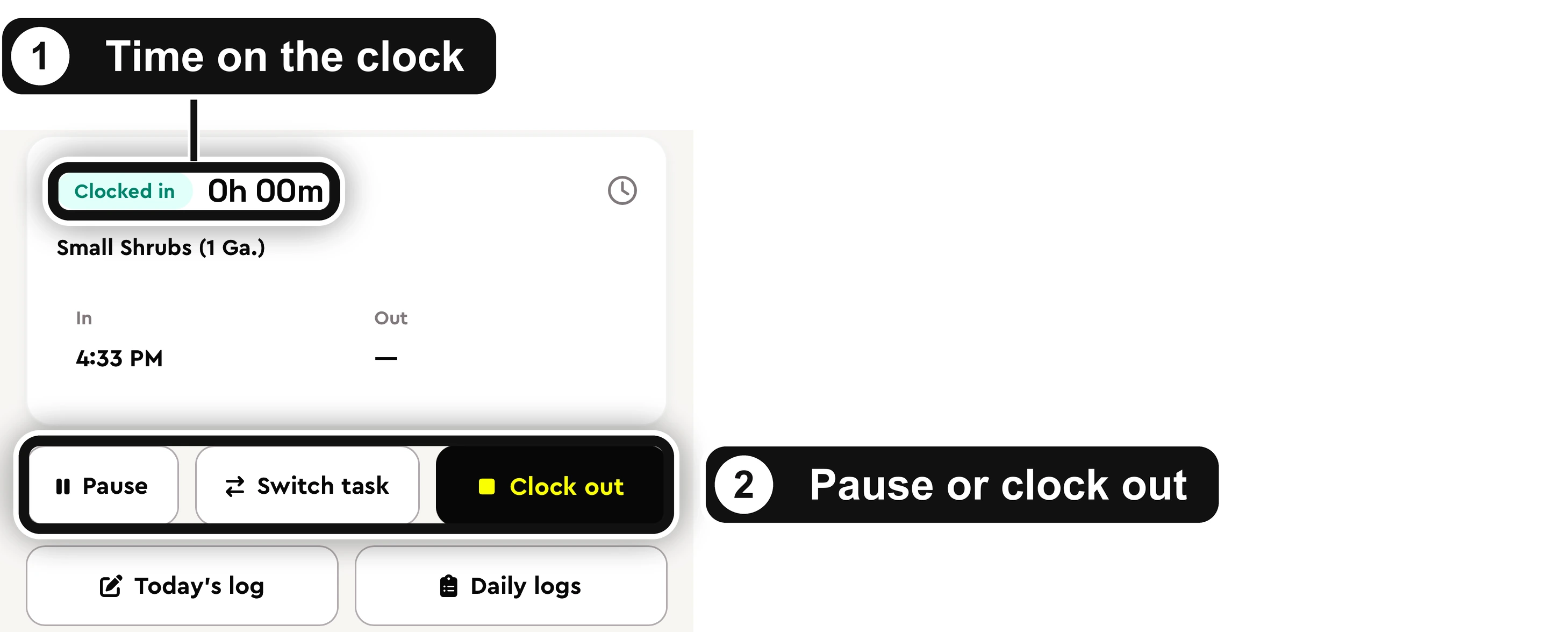
The top of the job shows Clocked in, the time on the clock, the task you're working on and the time you clocked in.
-
Tap Pause to stop the clock for a break, Switch task to move your time to another task, or Clock out when you're done.
Clock Out
- Tap Clock out.
-
Bolster asks you to write today's log while it's fresh. Tap Write log. Your tasks and hours are already filled in. Tap Not now to skip it. See Bolster Field App: Write a Daily Log.

What the Office Sees
- In Bolster, click Jobs, then Time Tracking.
-
Click a crew member to see their hours by job and by day, and each time entry. Entries from the app are marked Field app. Click Start location or Stop location to see where they clocked in and out.

Why This Matters
- Your crew clocks in on the exact task they're working on, so you see where the hours go.
- Hours land on the job budget and in Time Tracking as they happen, with no timesheets to chase.
- Start and stop locations confirm the time was worked on site.
Summary
In the Bolster Field app, pick the job on the Jobs tab (tap Switch to change it) and tap Clock in, allowing location access the first time. While clocked in, use Pause, Switch task or Clock out. After clocking out, tap Write log to fill in today's daily log. In Bolster, the hours show in Jobs > Time Tracking, marked Field app, with start and stop locations.
Related guides
- Bolster Field App: Calendar, Availability and ChatProject Management · Scheduling & tasks
- Using Daily LogsProject Management · Scheduling & tasks
- Working in the Schedule: Timeline, Calendar and OvertimeProject Management · Scheduling & tasks
- Introduction to SchedulingVideoProject Management · Scheduling & tasks
- Using Tasks for Project ManagementVideoProject Management · Scheduling & tasks