




Client Notifications & Activity Tracking
The Client Notifications & Activity Tracking feature provides clear, real-time visibility into how clients interact with your estimates, proposals, and invoices.
More in Estimating
Estimate basics
- How to Create a New Estimate
- How to Add an Item to an Estimate
- Sending an Estimate in Bolster
- How to Duplicate an Estimate
- Client Notifications & Activity Tracking
- Manually Accepting Proposals
- How to Change the Salesperson on an Individual Job
Working in the estimate
- How to Enable Estimate Sidebar Settings
- How to Toggle Column Visibility
- How to Resize Columns in the Estimate View
Pricing & markup
- How To Price An Item (Labor, Material, or Subcontractor)
- How to Adjust Profit Markup
- Change Profit Margin Per Line Item
- How to Add a Fee-Based Item
- How Discounts Work in Bolster
- Adding tax to estimate pricing
- Custom Labor Rates & Time Tracking
- Adding Detail to Labor Costing of Items
- Creating a Custom Calculation for Items in an Estimate
Minimums & base costs
- Add Labour Minimum or Base Costs
- How to Add a Labour Minimum or Base Cost
- How to Add a Base or Minimum Materials Cost
- How to Add Base and Minimum Materials Cost
Materials & production
- How to Configure Material Options and Pricing
- Material Tab Overview and Process
- Production Tab For Items
- How to Split Labor and Material Items
- How to Add Production Notes and SKU to Line Items
Takeoff tool
- Takeoff Tool Introduction
- Takeoff Tool Introduction
- Adding a Floorplan and Setting Scale
- How to Measure Inside Lengths
- How to Draw Deck Area and Total Joist Length
- Using the Takeoff Tab for Dimension Input
AI estimating
What Is Client Activity Tracking?
Client activity tracking allows you to see exactly what actions a client has taken after you send an estimate, proposal, or invoice. This removes guesswork and ensures you always know the current status of client engagement.
With this update, you can:
- See when emails are opened
- Track when proposals or invoices are viewed
- Identify failed or undelivered emails
Where to Find Client Activity
Client activity is displayed within the Estimate tab using the enhanced chat and activity panel on the right-hand side of the screen.
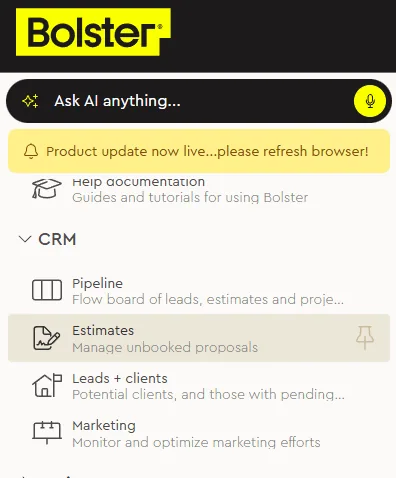
- Then go into an estimate and locate "Messages" -> "Internal Chat & Activities"
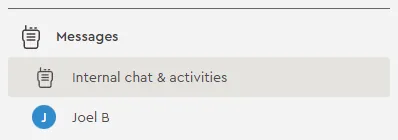
This panel logs all key actions related to the estimate, including communication events and client interactions.
Email Notifications & Delivery Status
When you send an estimate, proposal, or invoice, the system now tracks delivery and engagement in detail.
You can clearly see:
- Email Sent – The message was successfully sent
- Email Opened – The client has opened the email
- Proposal or Invoice Viewed – The client has clicked through to view the document
- Delivery Failed – The email was not delivered (for example, due to an incorrect email address)
If an email fails to deliver, the activity feed will clearly indicate that the client has not received the message, allowing you to correct the issue quickly.
Tracking Proposal & Invoice Engagement
The activity feed shows when a client:
- Views a proposal
- Opens an invoice
- Clicks links within sent documents
This makes it easy to understand client intent and timing—helping you decide when to follow up or move the project forward.
Internal vs Client Visibility
The activity panel distinguishes between:
- Internal activity – Actions taken by your team (edits, updates, backups)
- Client activity – Actions taken by the client (email opens, views, clicks)
This separation keeps communication clear and ensures internal notes remain internal.
Why This Matters
Improved client notifications and activity tracking help you:
- Eliminate uncertainty about whether a client has seen your proposal
- Follow up at the right time with better context
- Quickly identify and fix delivery issues
- Maintain a clear record of communication and engagement
Summary
The enhanced Client Notifications & Activity Tracking feature gives you full visibility into client engagement directly within the Estimate tab. By tracking email delivery, opens, document views, and failed sends, you always know where your client stands—allowing for smarter follow-ups and smoother project progression.
Next best guides
- Using Bolster Messages and ChannelsVideoProject Management · Messages & files
- How projects, subcontractors and progress billing works togetherVideoPayments & Invoicing · Getting paid with Bolster
- Bolster – CompanyCam Integration GuideVideoIntegrations · CompanyCam
- Getting started with Bolster in 7 minutesVideoGetting Started · Start here
- Sending an Estimate in BolsterVideoEstimating · Estimate basics



